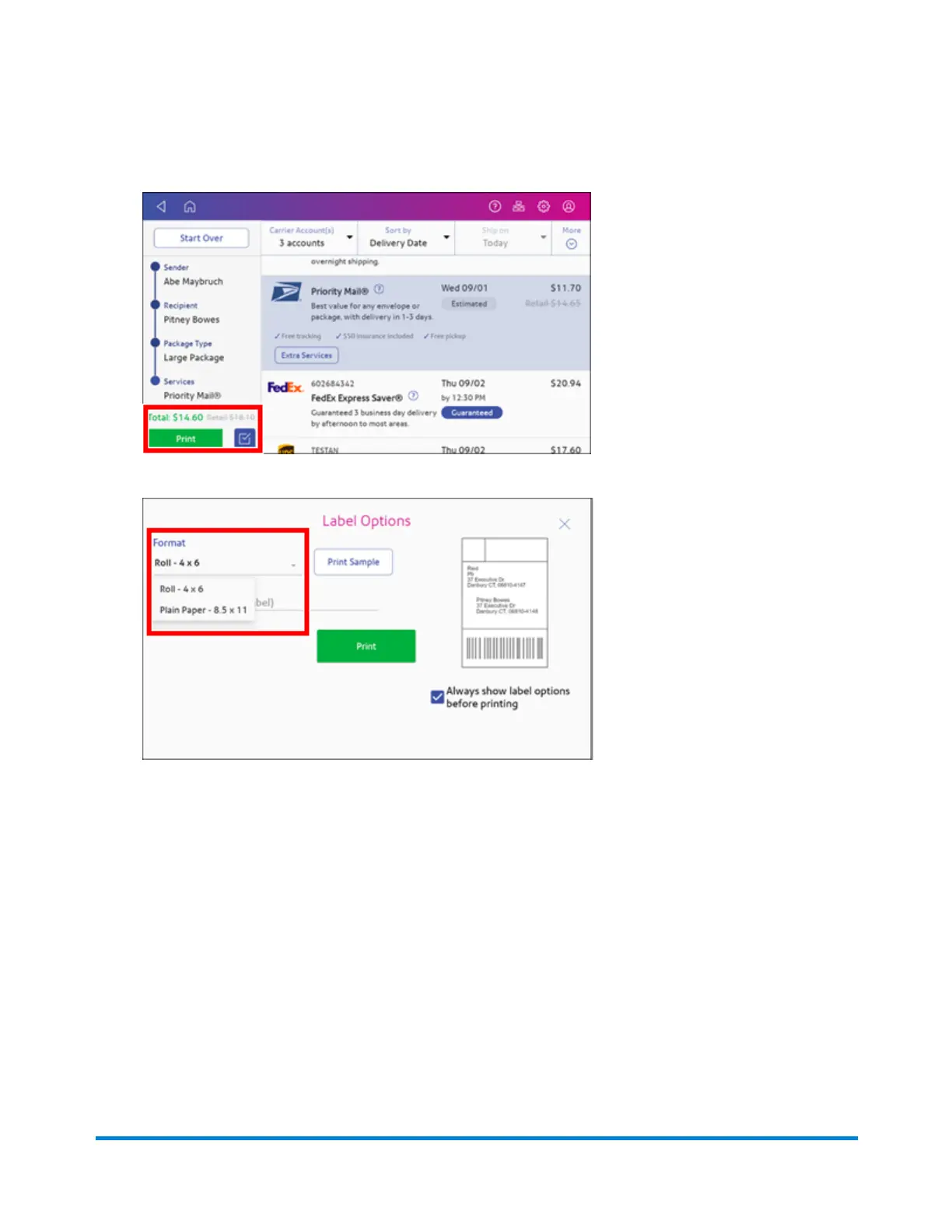
15. Tap Print to print the label.
16. Tap Format and select the label size.
17. (Optional) Tap Print Sample to print a sample label.
18. Tap Print again and the label prints.
l
You may need to enter the Sender and Recipient's phone number, as it is required for some
services.
Creating a new sender address for shipping labels
If you need to ship from more than one address, you can add additional sender addresses to the
Address Book.
Printing Shipping Labels
Pitney Bowes Operator Guide April 2022 86












 To Next Page