Deleting USB memory image files with the com-
puter
Beforedeletingimportantimagefiles,besuretosave
them on the computer (as a data backup).
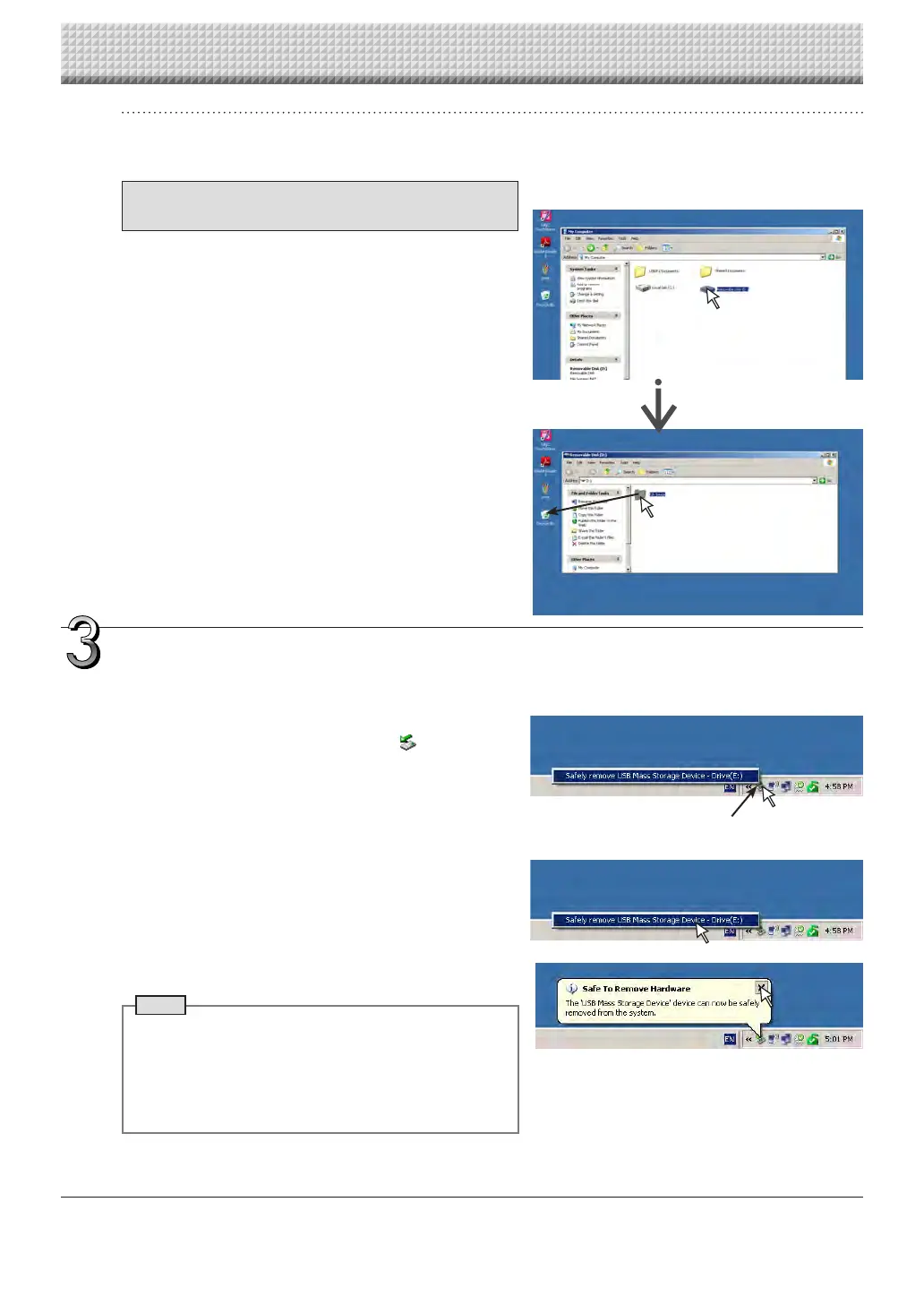
1. Open “My Computer (or “Computer”)” and
then open the drive icon which shows USB
memory.
Thefolder named “CB_Image” containsthe memory stor-
agedataofthecaptureboard.
2. Place the “CB_Image” folder in the “Recy-
cleBin”,rightclickontheiconandselect
“Empty Recycle Bin” from the pull-down
menu.
Allofthedatacontainedin“CB_Image”willbedeleted.
Even when the entire folder is deleted, a new CB_Image
folder will be created automatically when USB memory is
usedagainwiththecaptureboard.
Drag to the Recycle Bin
Disconnect the USB memory
The disconnecting procedure depends on the computer’s
operatingsystem.Fordetails,refertothecomputer’soperating
instructionsorhelpfiles.
1. Click the [Hardware Removal] icon that is
displayed in the task tray.
Click“Stop USB Massstorage Device - drive(E)”. (The E
drivecharacterwilldifferdependingonthepersonalcom-
putersystem.)
2. When the “USB mass storage device can be
safelyremoved.”screenisdisplayed,click
the display.
3. Click [X] to close.
ThisallowstheUSBmemorydevicetobeunpluggedfrom
thecomputer.
Note
• Do not disconnect the USB memory device while the
USBmemorydevice’saccessindicatorisflashing.Doing
sowilldamagethedata.
• The USB drive may not be disconnected properly, for
exampleifthecomputerisintheprocessofcheckingthe
statusofperipherals.
“Remove hardware” icon (example)
Using USB Memory
https://www.supplychimp.com/


 To Next Page