Creating and Registering Headers and Footers
Theheader/footerfunctionallowsyoutosuperimposeyourcompanyname,logo,etc.,atthetoporbottomofscannedimagesfor
printingordisplay.Thedateandtimeareprintedatthetoprightoftheheader.
Creating header and footer images
UseyourimagesoftwaretocreateaJPEGfile.
Create the image with the resolutions below.
Max.sizeforheaderimages:1248×110dots* Imageformat:JPEG
Max.sizeforfooterimages:1248×40dots Imageformat:JPEG
* Thisissometimesexpressedas“pixels”.
Note
• Evenforimagedatawhoseresolutioniswithintheallowablelimits,itmayhappenthatthetopandbottomoftheimageare
notdisplayed.
Image display position
Images are displayed at roughlythecenter in the horizontal direction. In the vertical direction they are positioned next to the
scannedimagearea.Considerthiswhencreatingimageswithlessthanthemaximumsize.
Suggestions on creating images
Scanthelogodatawithanimagescanner,savethisonthecomputerasimagedata,thencroporreduceitssizetofitwithinthe
specifiedresolutionandsavethisnewdata.
UseWindowsPaint,etc.,topasteimages,inputcharacters,etc.,tocreatetheimage.
Whensaving,saveinJPEGformatwithasizewithinthemaximumsize.
Registering created images on the capture-
board
Example:Hereweexplainhowtoregisteraheaderimage.Use
thesameproceduretoregisterfooterimages.
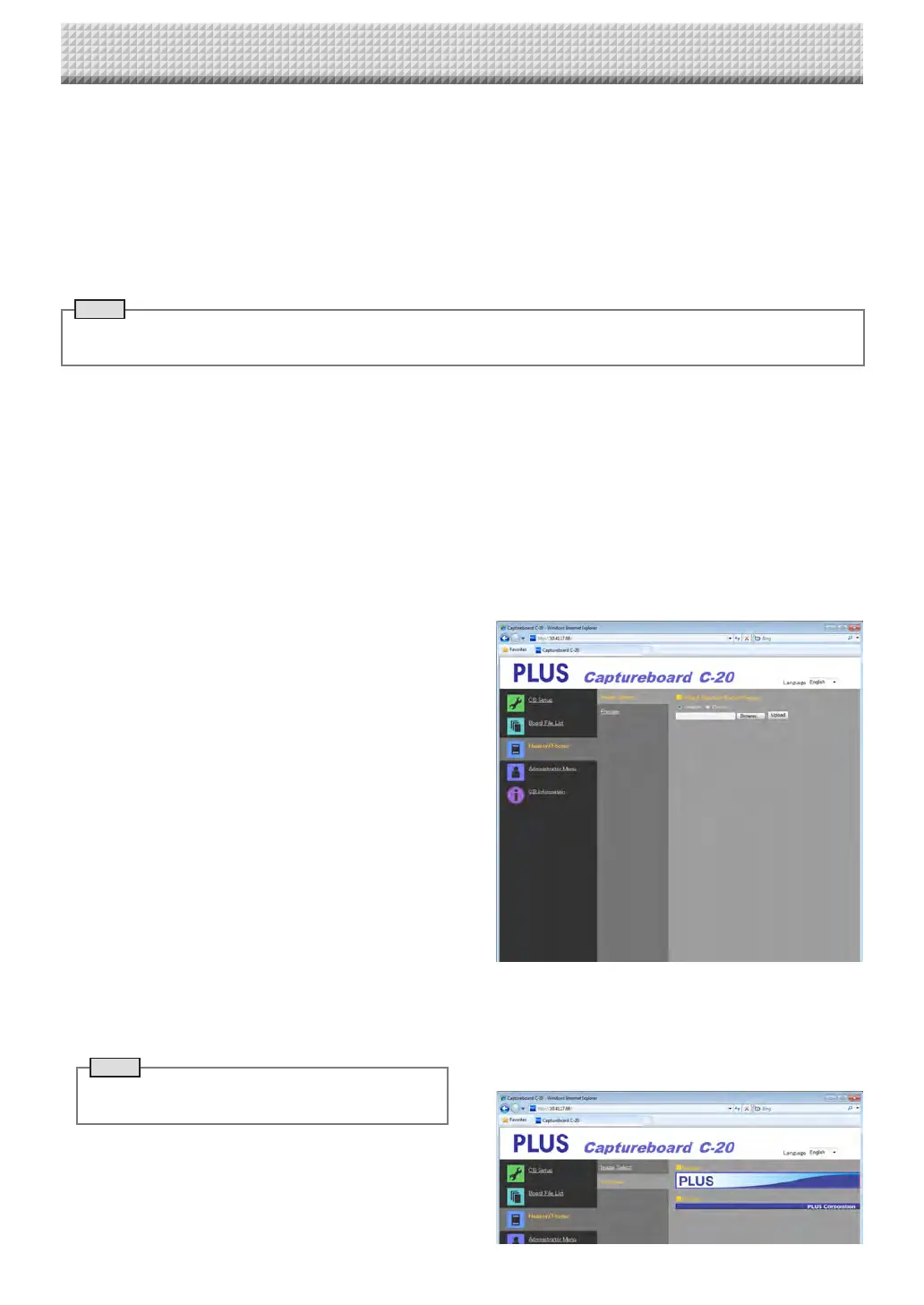
1.Open the “Header/Footer” screen at DetailedSettings (via
LAN).(SeepageE-35.)
2.Header/FooterImageSelect
• Whena previewisselected, click“Image Select”on the
submenu.
Clickthe“Header”radiobutton.
3.Selecttheheaderimageyouhavecreated.
Clickthe[Browse]buttontodisplaythecomputer’s“Browse
Files”screen.
Selectthe image fileto be registered as the header, then
clickthe[OK]button.Thefilenameisdisplayed.
4.Click the [Upload] button to upload the image to the cap-
tureboard.
Whenuploadingiscompleted, “Completedsuccessfully”is
displayed.
Atthistime,“HF”flashesonthecaptureboard’sdisplaywin-
dow(for5seconds,afterwhichitstopsflashing,remaining
lit).
If“Datasizeistoolarge”isdisplayed,theimagecannotbe
registered.
Closethewebbrowser,thenadjusttheimagefile’ssize.
Note
• Whenheadersor footersareregistered,theheader/
footerfunctionissetto“Enable”.
Click“Preview”tochecktheregisteredimage.
Thiscompletesregistration.Closethewebbrowser.
CB Setup and Network Setting Procedure
https://www.supplychimp.com/


 To Next Page