EasyManua.ls Logo

Plus C-20W - User Manual

Plus C-20W
51 pages
Print Icon
To Next Page IconTo Next Page
Loading...
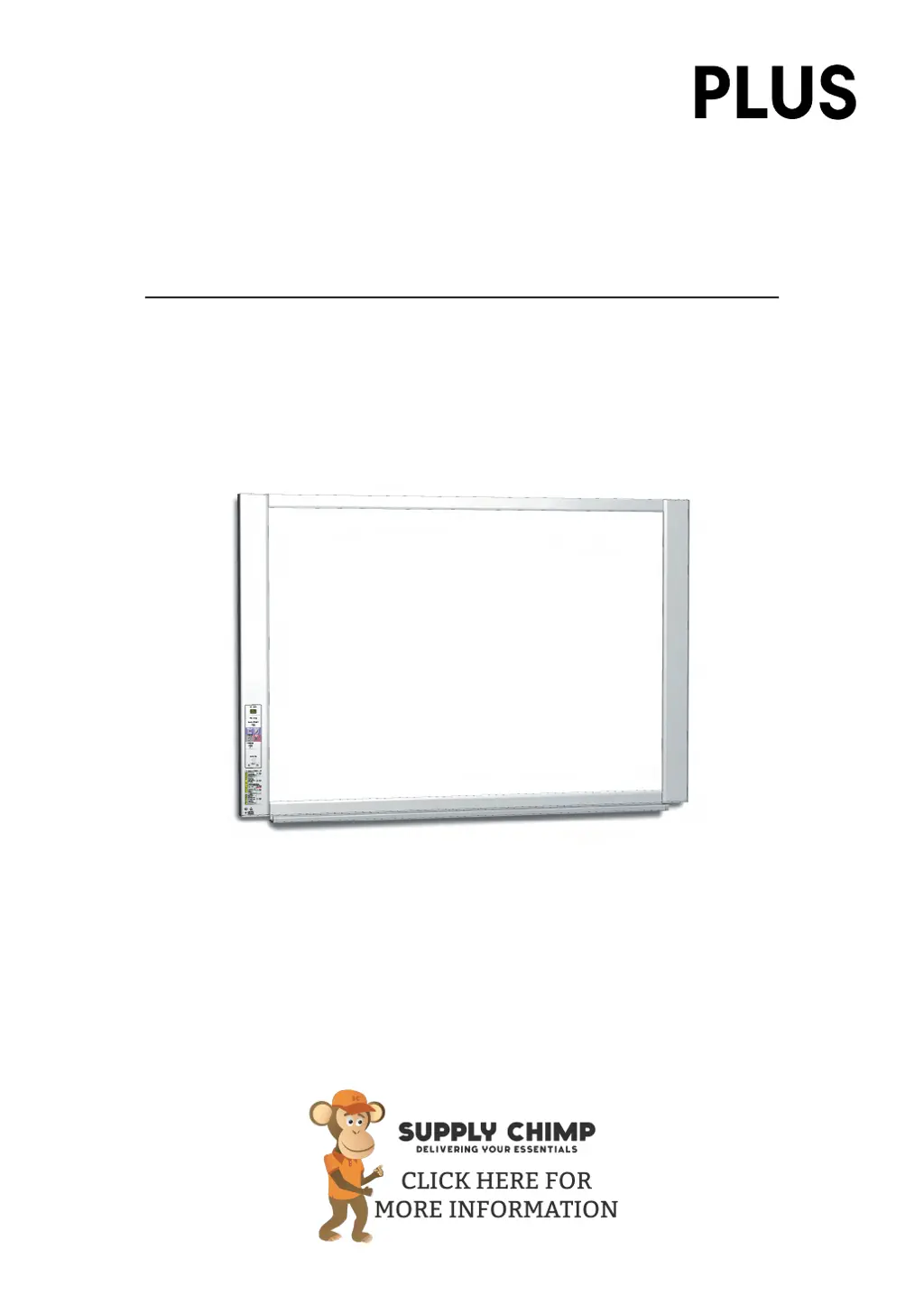
Captureboard
C
-
20S/C
-
20W
User’s Manual
Thank you for your purchase of the PLUS Captureboard.
Please read this User’s Manual carefully before use to take full advan-
tage of the functions of this product. After you have finished reading
the manual, please keep it for future reference.
https://www.supplychimp.com/

Table of Contents

Questions and Answers

  • M
    Marc MillerAug 15, 2025
    What to do if printing is not possible when pressing Color Print (or B/W Print) button on Plus C-20W?
    • C
      Carlos AveryAug 15, 2025
      First, ensure that the power cable of both the printer and the printer cable are securely connected. Next, verify that the printer power indicator is lit. Also, check the status indicators on the captureboard and the error indicator on the printer. For specific errors displayed on the captureboard, refer to page E-46. Consult the printer's instruction manual for printer errors.
  • S
    Sierra LaneAug 18, 2025
    How to fix Plus Whiteboard if pressing the ON/Standby button does not switch on the power?
    • C
      clarkdarleneAug 18, 2025
      Ensure the AC power adapter cable is properly connected to both the DC connector of the captureboard and the wall outlet. Try unplugging the AC power cable from the outlet, waiting a few seconds, and then plugging it back in.
  • F
    fchandlerAug 21, 2025
    What to do if PC does not recognize Plus C-20W when the captureboard and PC are connected?
    • K
      Kristen LopezAug 22, 2025
      Check if the captureboard is in an operable condition and ensure that the USB cable is properly connected. If the captureboard is connected to the PC via a USB hub, connect it directly to the USB port of the PC instead.
  • D
    Dennis JonesAug 25, 2025
    What to do if the Plus Whiteboard’s power turns on, but the printer’s power does not?
    • K
      Kayla BarnesAug 26, 2025
      Verify that the printer’s power plug (DC plug) is securely inserted. If the power still does not turn on, disconnect the AC adapter box and check if the printer’s AC power adapter side plug is unplugged from the AC power adapter. (For some printers it is directly mounted.)
  • A
    allenhollowayAug 28, 2025
    How to fix network communications not possible on Plus C-20W?
    • B
      Benjamin JohnsonAug 28, 2025
      Ensure the LAN cable is properly inserted. If it is, the LAN cable might be defective; try using a straight cable (10Base-T or 100Base-TX compatible) to connect the captureboard to the network. Also, set the IP address and subnet mask at “Simple Network Settings (via USB)”. It's important to consult with the network administrator before making these settings.
  • T
    Tiffany PadillaAug 31, 2025
    What to do if an altered color is printed, not the specified color on Plus C-20W?
    • S
      Sarah LopezAug 31, 2025
      Replace the print cartridges with new ones.
  • M
    Morgan ZimmermanSep 4, 2025
    What to do if scanned copy (image) of Plus C-20W Whiteboard is dirty?
    • C
      Christopher AllenSep 4, 2025
      If the sheet is dirty, moisten a soft cloth with water, wring it well, and then wipe the sheet in a stroking manner.
  • L
    Lynn AndersonSep 7, 2025
    What to do if print is very pale, there are white lines on it, or page is dirty on Plus C-20W Whiteboard?
    • G
      Gregory PottsSep 8, 2025
      Make a test print and check the condition of the nozzle. The print cartridge’s nozzle may be partially choked.
  • M
    Michael LeeSep 12, 2025
    Why I cannot log in Plus C-20W?
    • C
      Corey HudsonSep 12, 2025
      Check whether “Caps Lock” is enabled on the computer’s keyboard while entering the username and password.

Summary

Names of the Parts

Input;Output Terminals

Details the various ports for connecting devices like USB, PC, LAN, and printers.

Control Panel Layout and Functions

Describes the buttons, display window, and status indicators on the control panel.

Captureboard Functions

Basic Operations (Printing, Saving, Capturing)

Outlines core functions like printing, saving to USB, and capturing images to a computer.

Networked Image Access

Explains how to view images stored on the captureboard or an FTP server via network.

Operation Steps

Using as a Copyboard

Step-by-step guide for using the captureboard as a copyboard, including preparation and saving.

Setting the Time

Time Setting Procedure

Step-by-step guide to set the captureboard's date and time for accurate stamping.

Basic Printing Operation

Initiating the Print Process

Covers powering on, selecting the sheet, and setting the number of copies for printing.

Using USB Memory

Saving Data to USB Memory

Guide on preparing the device and inserting USB memory for saving.

Managing USB Memory Files

Saving Files to a Computer

How to connect USB memory to a PC and save image files.

Connecting to a Computer

PC Connection Procedure

Steps to connect the captureboard to a computer via USB for data transfer.

Network Connectivity

Initial Network Setup

Guide for first-time network connection, including IP and LAN settings.

Network File Transfer

Accessing Networked Files via Browser

How to log into the captureboard via a web browser to access saved files.

Network File Transfer (FTP)

Accessing FTP Server via Explorer

Steps to log into an FTP server using Windows Explorer for file access.

Device Configuration

CB Setup via Control Panel Buttons

How to perform basic device settings using the captureboard's physical buttons.

Function Settings Table

A detailed table outlining function numbers and their corresponding settings and status indicators.

Network Configuration

Simple Network Setup via USB

Step-by-step guide to set IP address and network parameters using a USB connection.

Advanced Configuration (LAN)

Detailed Settings via LAN Connection

Overview of accessing detailed settings via a web browser over a LAN connection.

Device Configuration: CB Setup

Overview of CB Setup Options

Summarizes the various settings available through the CB Setup interface.

Network Configuration: Network Settings

IP Address and Gateway Configuration

Settings for IP address, subnet mask, and default gateway for network connectivity.

User and Network Management

Security Configuration

Managing Device Access Security

Settings to restrict access to various functions like USB memory, PC connection, and network storage.

Network Configuration Reset

Procedure for Resetting Network Settings

Steps to reset network settings to their default values using the captureboard buttons.

Error Messages and Solutions

Captureboard Main Unit Errors

Explains common error codes displayed on the captureboard and their solutions.

Network Related Errors

Lists and explains network-related error codes and their troubleshooting steps.

Troubleshooting Guide

Captureboard Operational Issues

Common problems with the captureboard's operation and checks to perform.

Network Communication Problems

Solutions for issues related to network connectivity and login failures.

Printer Connectivity and Output Issues

Troubleshooting steps for printer power, printing, paper feed, and color output problems.

Product Specifications

Board Physical Characteristics

Details physical characteristics like dimensions, weight, and panel size for both models.

Plus C-20W Specifications

General IconGeneral
BrandPlus
ModelC-20W
CategoryWhiteboard
LanguageEnglish

Related product manuals