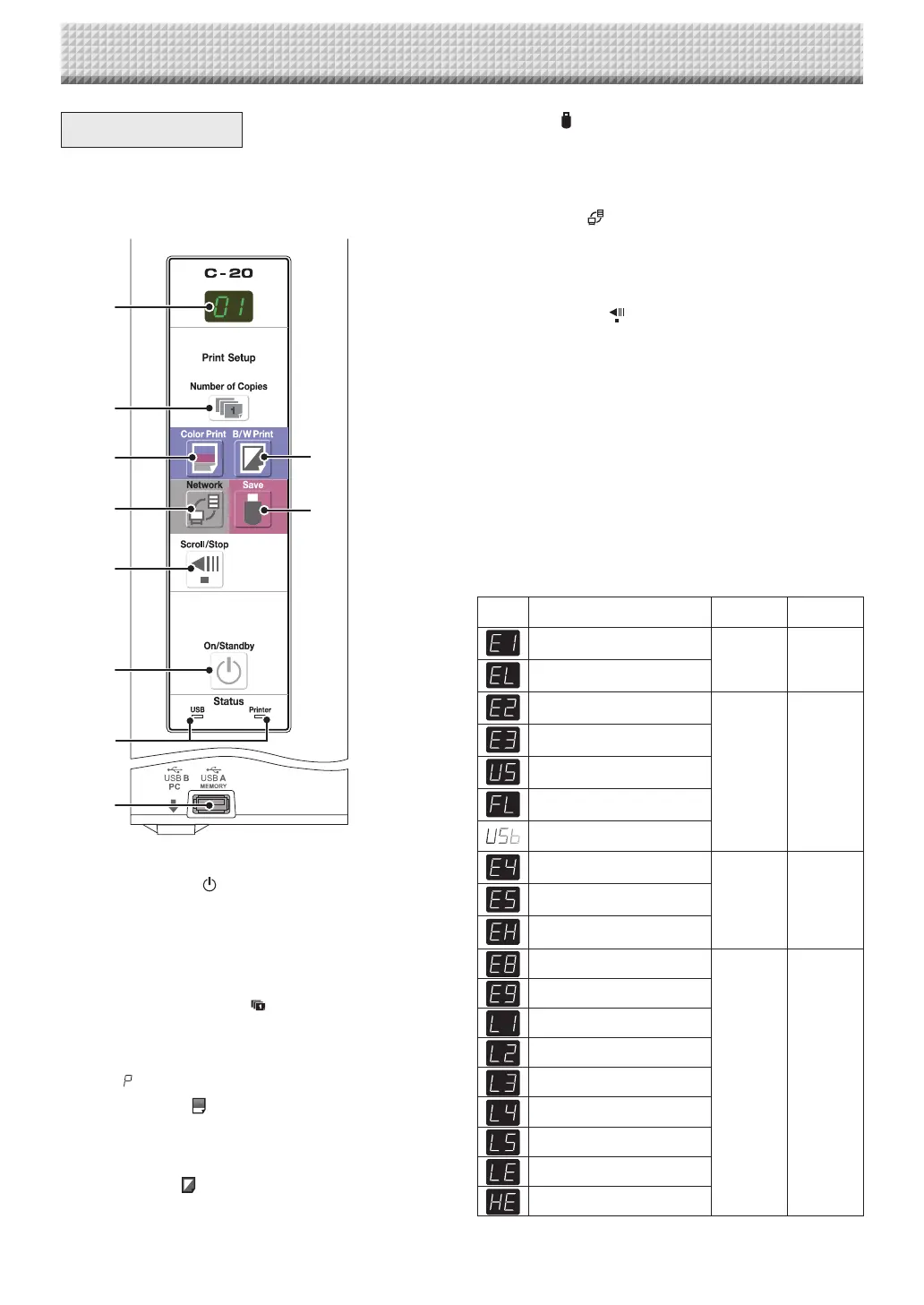
6 Save ( ) button (USB memory storage)
Thesheetismovedby1screenandread,andtheimage
isstoredontheUSBmemorydevice.
WhenconnectedtoacomputerbyUSBcable,theimage
isstoredinthecaptureboard’sinternalmemory.
7 Network ( ) button
Scrollsandscansthesheetonescreen’sworthandsaves
thedatainthefolderforsaving.
The data is saved either on the captureboard or in a
folderontheFTPserver,aspreviouslyset.
8 Scroll/Stop ( ) button
Scrollsthesheetonescreenportionleft,thenstopsauto-
matically. A press of this button while scrolling willstop
thescrolling.
9 USB A Memory port (USB Type A)
Saves in commercially-available USB memory images
thathavebeenreadbythecaptureboard.
10 Status
Theseindicatorsnotifyoferrorsinthecaptureboard,USB
memorydevice,networkorprinteraccordingtowhether
they are lit or off and how they light (see table below).
Whenthecaptureboardisfunctioningproperly,thestatus
indicatorsarelitgreen.(Seetablebelow)
Alsochecktheerrormessageonthedisplaywindow.
Forerrorinformationandremedies,seepageE-46.
Display
window
Meaning USB indicator Printer indicator
Printer problem
Off Lit red
An unsupported printer is connected
USB Memory not recognized
Lit red Off
USB Memory storage problem
USB memory not connected
Memory is full
Warning that disconnection of USB
memory has been forgotten
Reading error
Flashing red Flashing redSystem error
Time setting error
Security protection
Off Off
Color printed prohibited
LAN cable disconnected
FTP server recognition error
FTP server connection failure
FTP server writing failure
Network or other error
Network setting reset error
Header/footer writing error
*Theletters“USB”scrollonthedisplay.
2
3
4
7
8
1
10
9
5
6
1 ON/Standby ( ) button
Turns the captureboard’s power on and off (standby
mode).
2 Display window
The number of copies, operating status and error mes-
sagesaredisplayedonthe7-segmentLEDs.
3 Number of Copies ( )/Test print button
Press this button to set the number of copies to be
printed(max.10).Thenumber of copiesisdisplayedon
thedisplaywindow.
* “ ”isdisplayedduringtestprinting.
4 Color Print ( ) button
Thesheetismovedby1screenandread,andtheimage
is printed in color in the numberof copies indicatedon
thedisplaywindow.
5 B/W Print ( ) button
Thesheetismovedby1screenandread,andtheimage
isprintedinblackandwhiteinthenumberofcopiesindi-
catedonthedisplaywindow.
Control Panel
When pressing a button, please press the center area
(the square bulge). The button may not work if it is
pressed on a corner.
Names of the Parts
https://www.supplychimp.com/


 To Next Page