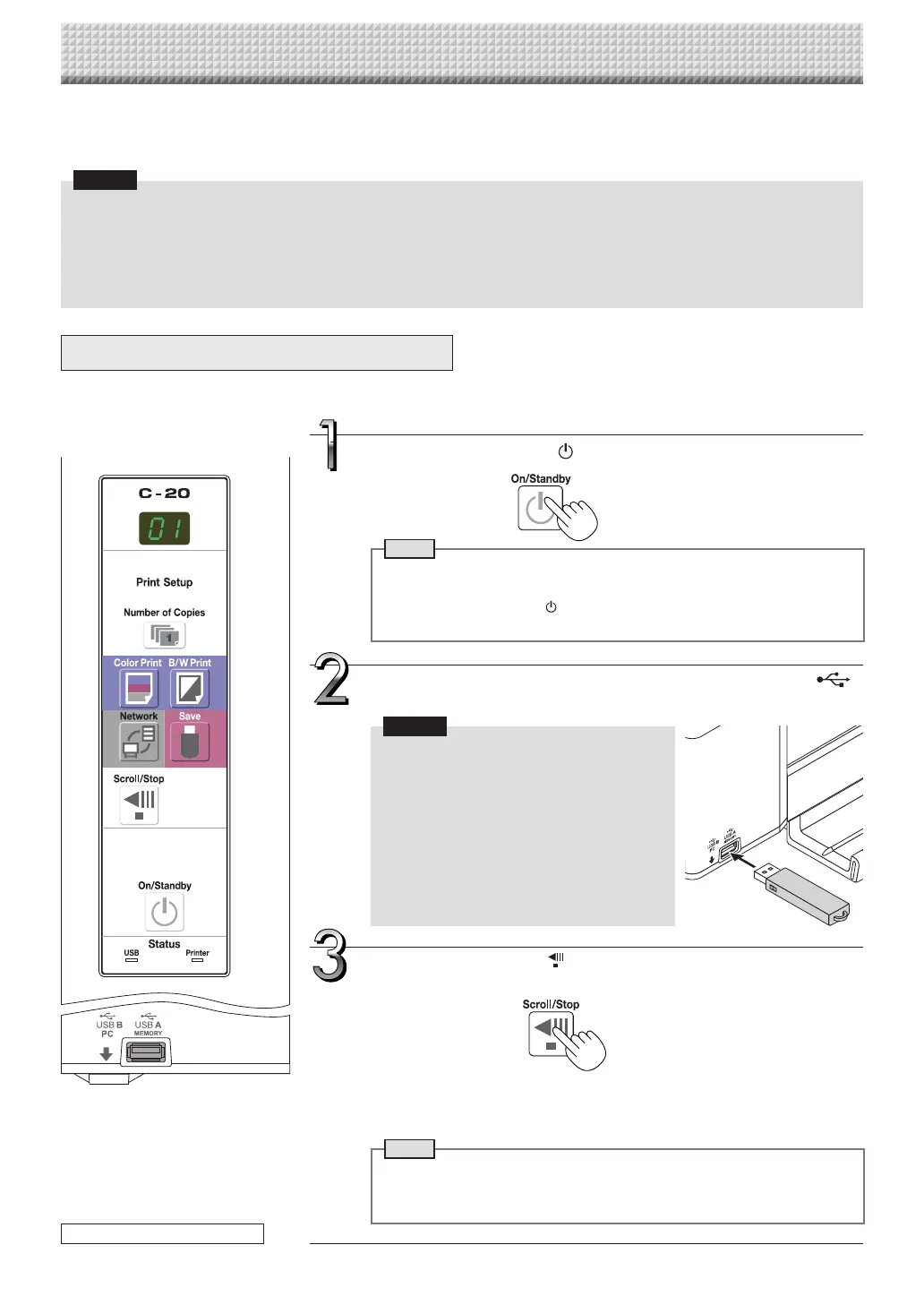
Insert the USB memory device into the USB A Memory
port of the captureboard.
Notice
• Checktheside(polarity)oftheUSBmem-
ory device before inserting it. Forcing it
in the reverse orientation will damage the
USB A Memory port or USB memory
device.
• Be careful not to bump into the USB
memory device with hand or body while
itismounted.Doingsocoulddamagethe
USB memory device or USB A Memory
port.
Using USB Memory
The content of what has been drawn on the sheet surface of the captureboard can be saved in USB memory.
Later, the saved image can be read into a personal computer and made into a document of the proceedings of
the meeting, or affixed to a document.
Notice
• NoUSBflashmemorydeviceisincluded.WhenpurchasingaUSBflashmemorydevice,payattentiontothefollowing:
1.USBflashmemorydevicesformattedinFAT16/FAT32aresupported.USBflashmemorydevicesinNTFSformatcannot
beused.
2.USBflashmemorydevicesprotectedbyasecurityfunctioncannotbeused.
3.USBflashmemorydeviceswithacapacityofover32GBcannotbeused.
4.IftheUSBflashmemorydeviceisdividedintomultiplepartitions,onlyonepartitioncanberecognizedwiththisunit.
USB Memory Storage Procedure
Preparation:
Checkthatthecaptureboard’sACpowerplugisconnectedtoawallpoweroutlet.
Press the ON/Standby button and switch on the power.
Note
• When turning on the power, wait about 5 seconds or more after the
powerplughasbeenconnectedbeforepressingtheON/Standbybutton.
• PresstheON/Standby buttontoswitchonthepower.TheLEDofthe
displaywindowwilllight.
Theprocedurefordisplayingthesheetsurfaceyouwanttostoreisthesameas
forprinting.
See“BasicPrintingOperation”onpageE-15.
Note
• TheonescreenportionthatisviewablewillbesavedinUSBmemory.
• Savingoftheportionlocatedaroundthesheetsurfacemightnotbepos-
sible.Pleasesee“Effectivereadingsize”onPageE-5.
Press the Scroll/Stop button and display the sheet sur-
face you want to store.
continued on next page
https://www.supplychimp.com/


 To Next Page