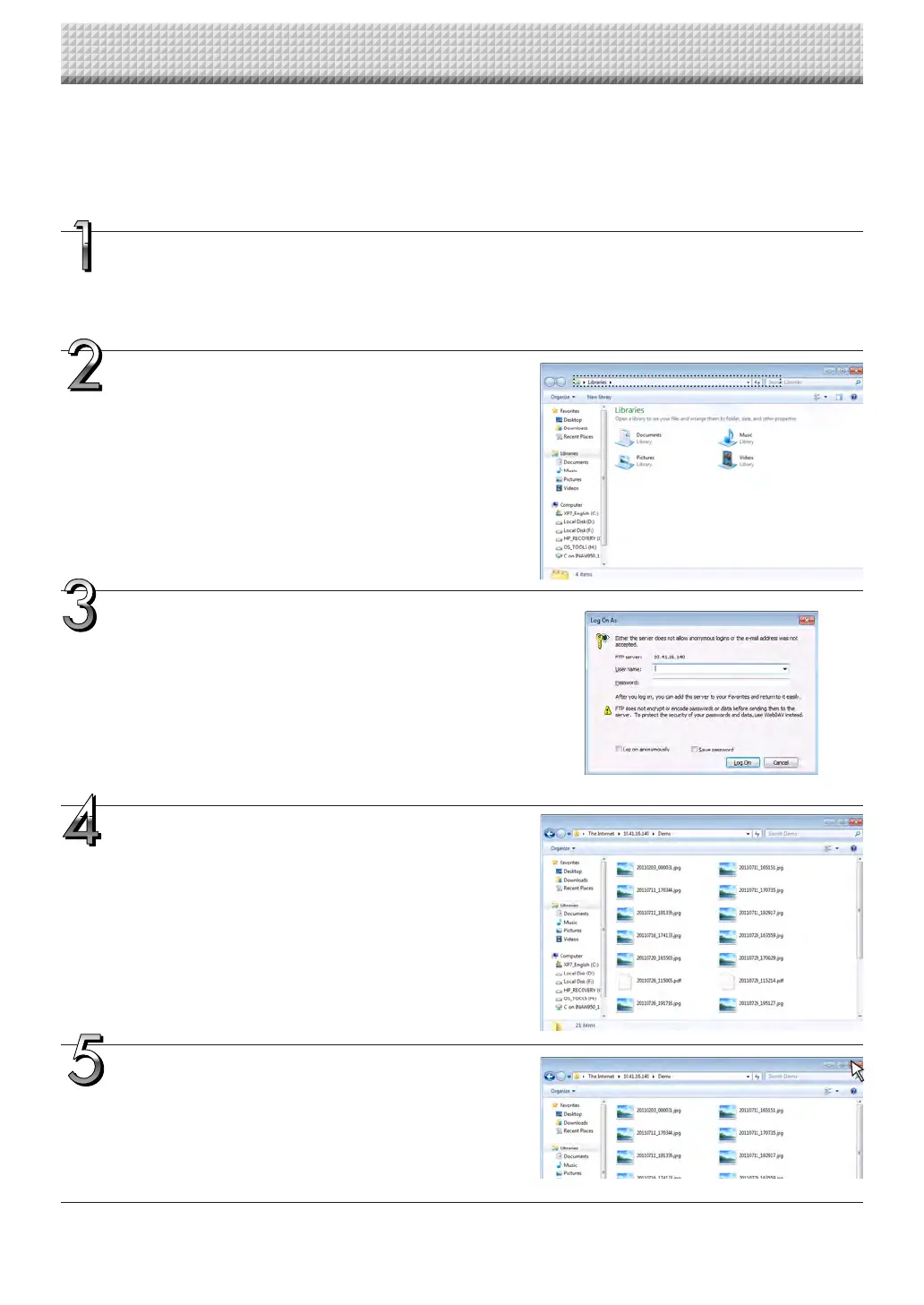
When the folder for saving is set to “FTP Server”
Whenthefolderforsavingissetto“FTPServer”,thescannedimagesaresavedontheFTPserverconnectedonthenetwork.
Transfertheseimagesontothecomputerconnectedonthenetwork.
ThefollowingexplainshowtotransferthefilesusingExploreronthecomputer.
Clickthecomputericonor,fromtheStartmenu,
click “Computer”.
Exploreropens.
Log in to the FTP server.
ClickonExplorer’saddressfield,inputtheFTPserver’sIPaddress
after“ftp://”,thenpressthe[Enter]key.
TheFTPserver’sverificationscreenopens.
Inputtherequiredfieldsontheverification
screen.
InputtheusernameandpasswordregisteredontheFTPserver,
thenclickthe[LogIn]button.
• Inputtheusername(casesensitive)andpassword(casesensi-
tive),thenclickthe[LogIn]button.
Iftheusernameandpasswordarecorrect,theverificationscreen
closesandthefilelistisdisplayed.
Transfer the image file(s) to the computer.
From the FTP server’s screen listing the folders/files, select the
desiredfolder(s)orimagefile(s),right-clickthemousetodisplaya
pull-downmenu,select“Copy”,thencopythefolder(s)orfile(s)to
MyComputer,etc.
Copyingisalsopossiblebyclickinganddragging.
Close the Explorer window.
Click the close button ([X]) on the Explorer window to close
Explorer.
Using the Captureboard Connected to a Network
https://www.supplychimp.com/


 To Next Page