Use a printer to print out the image that has been drawn on the sheet surface. Use a PLUS-designated printer.
Operations and names of parts differ from printer to printer. For details of operations, see your printer’s operat-
ing instructions.
Preparing the Printer
Pleasecheckthatthecaptureboardandtheprinterhavebeenconnected.SeePageE-51.
Printing (printer sold separately)
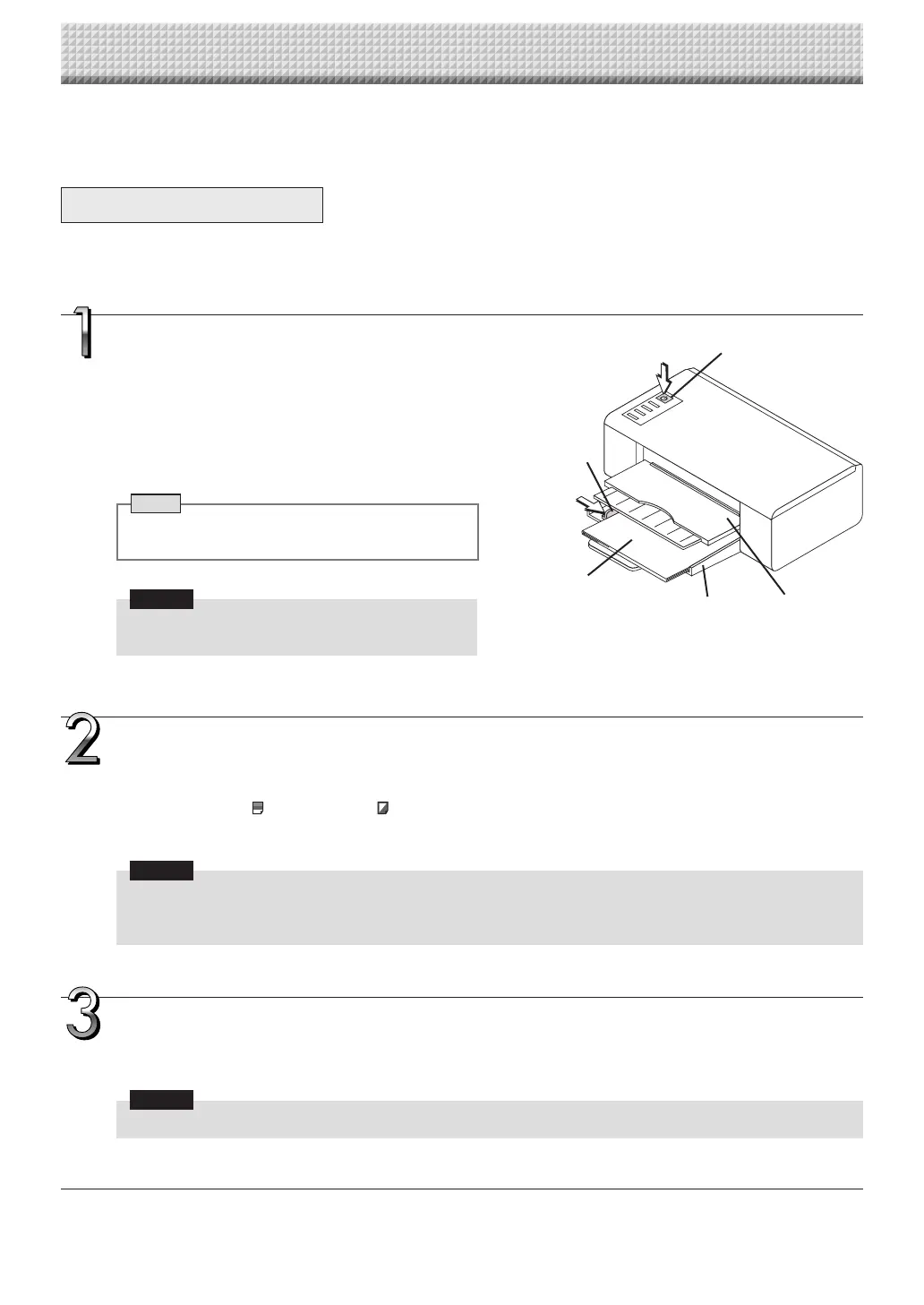
Set the paper.
PleaseuseA4orlettersizeprinterpaper.
• Whenusinglettersizepaper,setlettersizepaperinthe
devicesettings.(SeepageE-31,E-38.)
1)Arrangethepaperedgessothattheyareeven.
2)Insertpaperatthespecifiedpositionofthepapertray.
3)Pressthepaperguidegentlyuntilittouchesthepaper.
Note
Seeyourprinter’soperatinginstructionsforadescrip-
tionofthepaperthatcanbeused.
Notice
• Depending on the printer’s specifications, some
timemayberequiredforcleaningoftheprinthead.
Switch on the power.
Pressthepowerswitch.Thepowerindicatorlights.
This completes the preparation of the printer.
PresstheColorPrint ortheB/WPrint buttononthecaptureboard’scontrolpanel.Onepageworthofdataisread
andtheprintingoperationstarts.
Notice
• Dependingontheprinter,indicators,etc.,mayflashafterthepoweristurneduntiltheprinterispreparedtoprint.
Inthiscase,seetheprinter’soperatinginstructionsandcheckthattheprinterisreadybeforestartingtheprinting
operationonthecaptureboard.
When finished printing...
Switchofftheprinterpowerandremovethepaper.
Closethepapertray.
Notice
• Caution:DonotturnoffthepowerordisconnecttheUSBcableduringprinting.
Dischargetray
Paperguide
Paper
Powerswitch
Appearanceofprinterisforillustrationpurposes.
Papertray
https://www.supplychimp.com/


 To Next Page