Performsteps1,2and3onpageE-25todisplay
the file list screen.
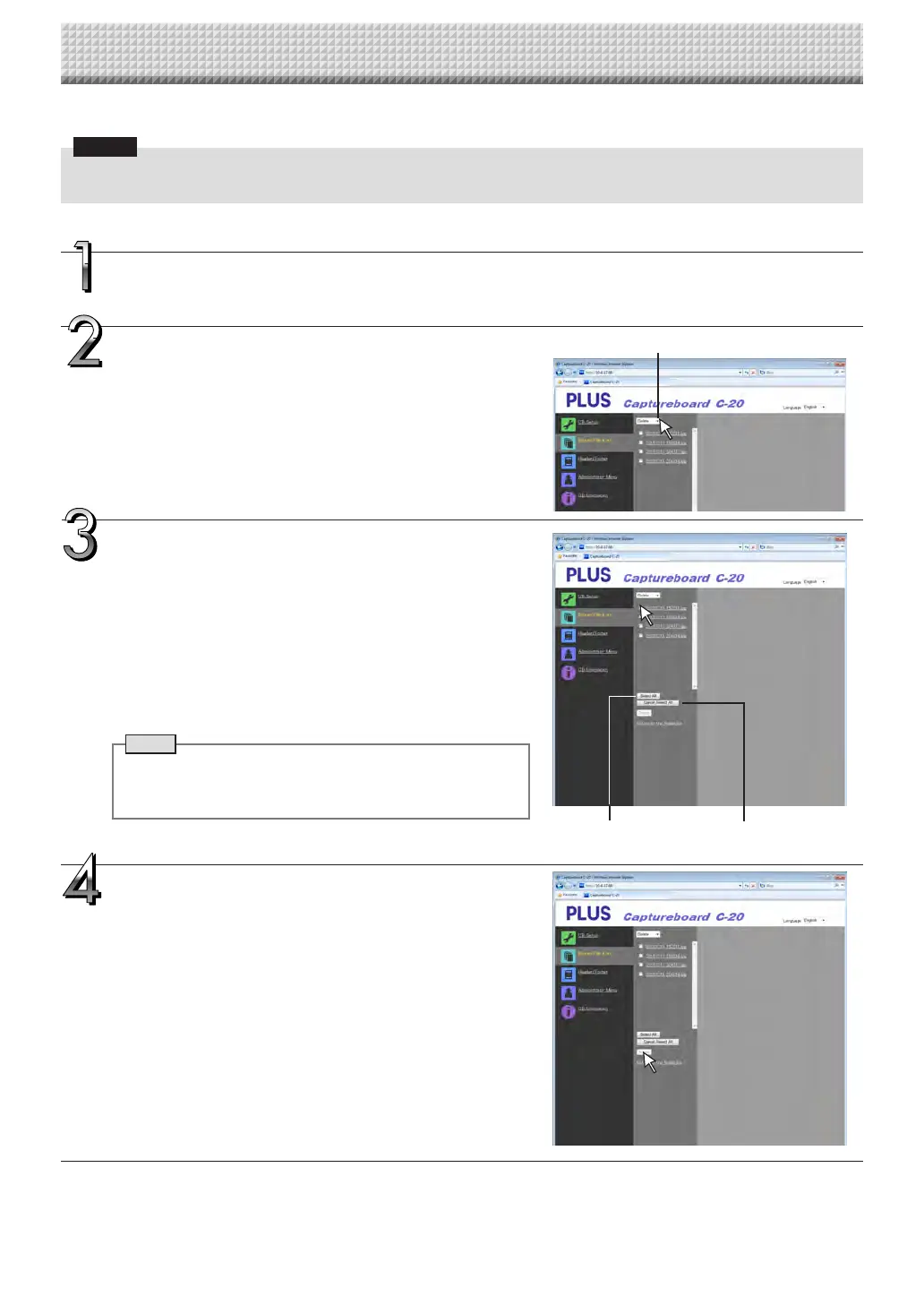
Select [Delete].
When“”on the[Download/Delete] selectionbuttonis clicked,a
pull-downlistisdisplayed.Click[Delete].
When[Delete]isselected,theradiobuttonsswitchtocheckboxes
.
Select the image file to be deleted.
To select and delete individual files:
Clickthecheckboxfortheimagefiletobedeletedtocheckit.
To delete all files:
Click the [Select All] button. All the checkboxes are checked. If
there are several files you do not want to delete, uncheck the
checkboxesforthosefiles.
Touncheckthecheckboxesforallthefiles,click[CancelSelectAll]
touncheckallthecheckboxes.
Note
• Imagesarepreviewedwhentheirfilenameisclicked.
• Check the scanned images using their preview images
beforedeletingthem.
Delete the file(s).
Be sure to transfer important image files to a computer before
deleting them (data backup). Once deleted, the files cannot be
retrieved.
Whenthe[Delete] buttonis clicked,the image fileswhose check-
boxesarecheckedaredeleted.
• When “Invalid” is set at “Delete User Image Data” in “Security
Setting”,themessage“Nodeleteauthority”isdisplayed,indicat-
ingthatthe filescannot be deleted.(See “SecuritySettings”on
pageE-42.)
Deleting image files from the captureboard
Notice
• When“Invalid” is setat “Delete User Image Data”in “Security Setting”,files cannot bedeleted. This canbe changed to
“Valid”withtheadministrator’sauthority.(SeepageE-42.)
[Download/Delete]selectionbutton
[SelectAll]button [CancelSelectAll]button
Using the Captureboard Connected to a Network
https://www.supplychimp.com/


 To Next Page