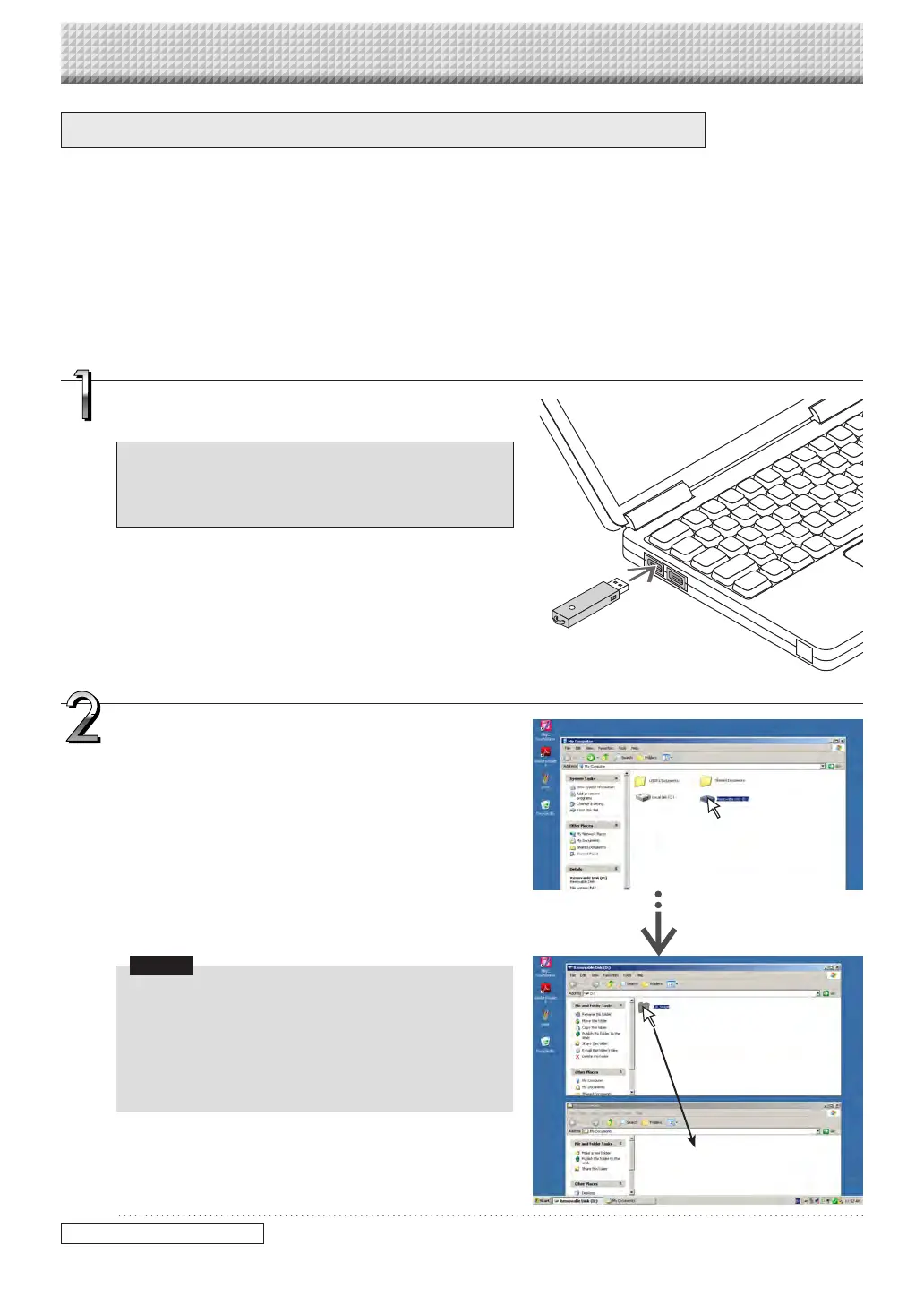
Plug the USB memory device into a USB port of
the personal computer
When connecting to the personal computer for the first
time,theinstallationofaUSBdriverisrequired.Follow
the instructions manual of the USB memory device
that you are using.
• Usually, with Windows XP/Windows Vista/Windows 7, the
standarddriver is installed automatically and the capture-
boardisidentifiedas“Removabledisk”in“MyComputer”(or
“Computer”).
Using USB Memory
Saving Image Files on a Computer/Deleting Image Files
Examples of operations follow for saving the image files in the USB memory device to the hard disk of the per-
sonal computer, and for deleting the folder when the USB memory capacity is full. (There are various methods
that can be used for saving and deleting including the use of Explorer.) See the instruction manual of your per-
sonal computer or the software that you are using for information about using a personal computer.
The name of the folder on the USB memory device is “CB_Image”. Image files are stored in this folder.
By factory setting upon purchase, image files are named “PV-xxx.jpg” (JPEG files), where “xxx” refers to a
3-digit number starting from 001 (ex.: PV-001.jpg).
Images can be stored in JPEG, PNG or PDF format, selectable in the captureboard settings (“CB Setup”). (See
pages E-31, E-38.)
Drag to My Documents
Saving the image files of a USB memory device
to a personal computer
1. Open “My Computer” (or “Computer”) and
fromwithin,openthedriveoftheconnected
USB memory device.
The folder named “CB_Image” is the saved data of the
captureboard.
2. Store the “CB_Image” folder in “My Docu-
ments” or another location.
Allofthedatacontainedin“CB_Image”willbestored.
Notice
Depending on the computer’s usage environment, these
operations may not work properly. This could be the case
forexample:
• whenseveralUSBdevicesareconnectedsimultaneously
tothecomputer.
• when the USB device is connected to a USB hub or
whenitisconnectedusinganextensioncable.
continued on next page
https://www.supplychimp.com/


 To Next Page