0.00.114 PMDG 737
INTRODUCTION
NOVEMBER 2022 DO NOT DUPLICATE For Simulator Use Only
GETTING THE MOST FROM YOUR PMDG 737
We have collected a few pointers to help you get started with the PMDG
737. Whether you are a veteran PMDG customer or completely new to
flight simulation, these tips will help you get more out of the simulation
purchase you have just made!
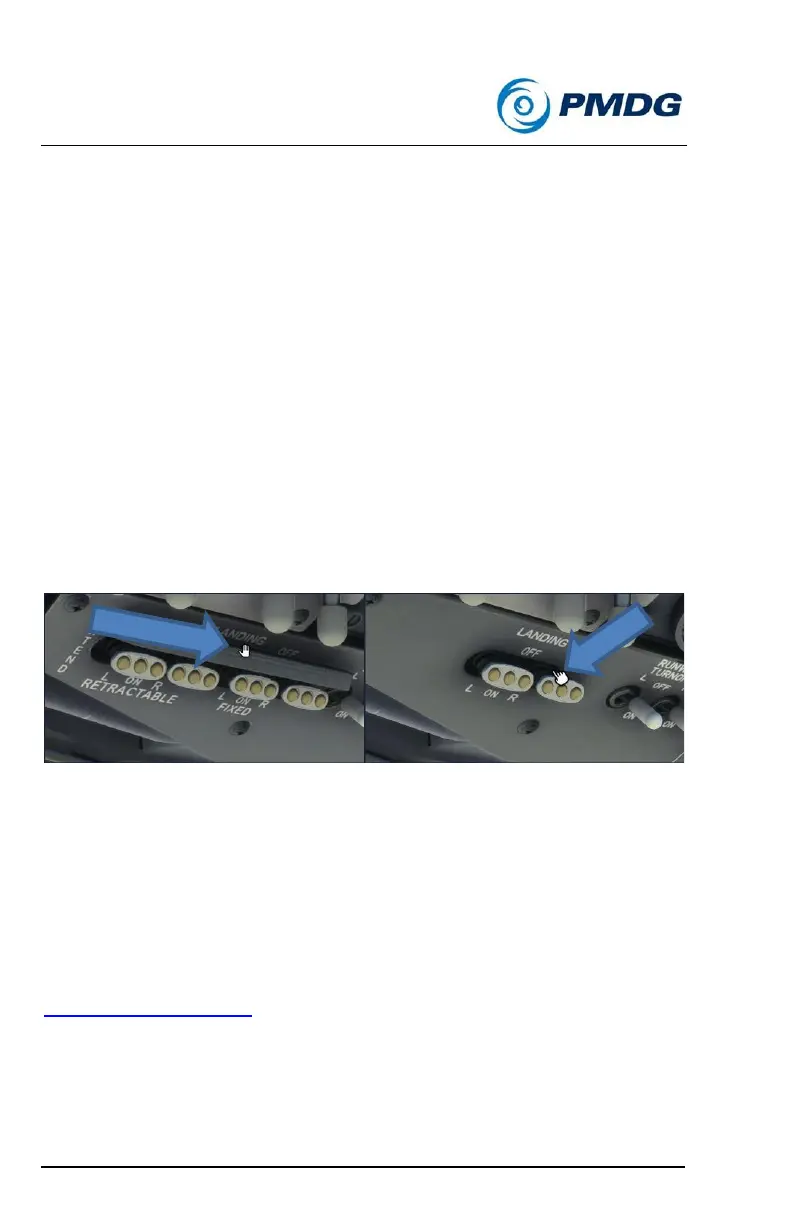
Using the Landing Lights:
The Boeing 737 has four landing light switches. To simplify the activation
of these lights, a left click on the gang bar will move all four. To turn off all
four: right click the gang bar when using PMDG type mouse interaction.
When using the (default) MSFS type mouse interaction, click on the top
half of the gang bar (an open hand cursor will indicate the retract
position).
If the landing light option is the LED option, the same left/right click or
open hand cursor functions can be used on the hidden click spot over the
LANDING label.
TrackIR:
One of the limitations that the MSFS world places on you as a pilot is the
inability to easily lean back and forth, or to move your body around to
more easily facilitate reaching or seeing switches, knobs or displays.
We strongly recommend that you explore the possibility of installing a
TrackIR package as this greatly improves the sense of “being there” by
allowing you to overcome this limitation within MSFS:
http://www.naturalpoint.com
For the most part using your mouse to move your head and zoom in/out
is perfectly acceptable, but occasionally geometry within the cockpit can
impede your ability to enter data into the FMS, for example.



 To Next Page