PMDG 737 0.00.51
INTRODUCTION
For Simulator Use Only DO NOT DUPLICATE NOVEMBER 2022
PMDG SETUP MENU
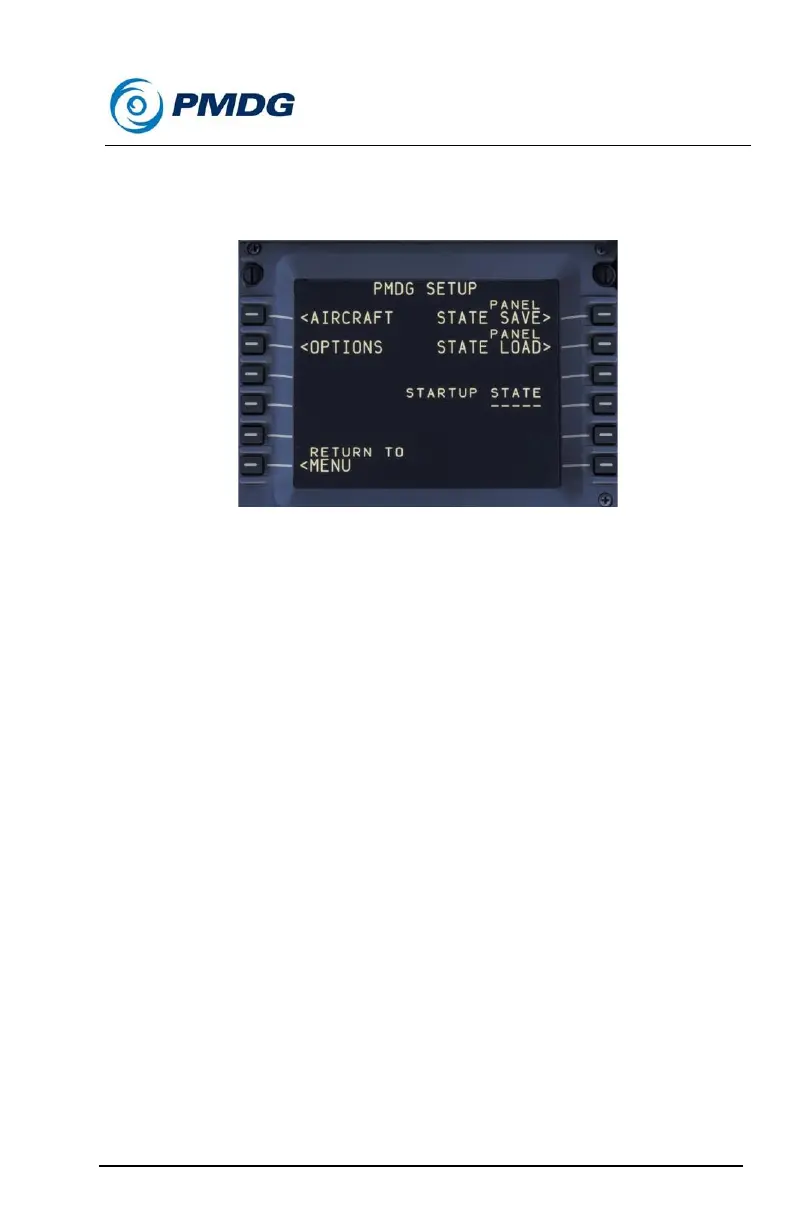
Pressing the PMDG SETUP> prompt at will display the following menu:
The PMDG SETUP page is the “home base” from which you will
configure your PMDG 737 to suit your needs. From this menu you can
adjust the specific options for your airplane cockpit as well as many
options to control various aspects of the simulation experience itself.
There are a few things to keep in mind while learning how to tune the
PMDG 737 to suit your tastes:
• <AIRCRAFT: The PMDG 737 allows you to configure the
equipment options you want on your 737 and in your cockpit and
then bind them to the registration number of the livery you are
currently flying. This gives you the opportunity to set up the flight
deck for individual liveries according to the configuration used by
different airlines or on specific airplanes and quickly switch
between them. The items listed under <AIRCRAFT are airframe
specific, so you can change them when loading different liveries.
• <OPTIONS: The PMDG 737 allows you to set global options
such as the mechanical failures model, performance tuning, key
commands and sound options that remain in place even as you
switch between different liveries or 737 body types.
• Panel SAVE STATE> and LOAD STATE>: The save/load state
prompts allow you to save the current setup of the panel to a file
that you can then reload at any time in the future. Saved panel
states are independent of specific saved flights so if, for example,
you wished to save the current state of the cockpit as you left it at
the conclusion of your flight, you can then reload this panel



 To Next Page