116
12 Home
12.3 Audio Routing and the Digital Patching Screen
StudioLive™ Series III
Owner’s Manual
12.3.1 Digital Patching: Input Source
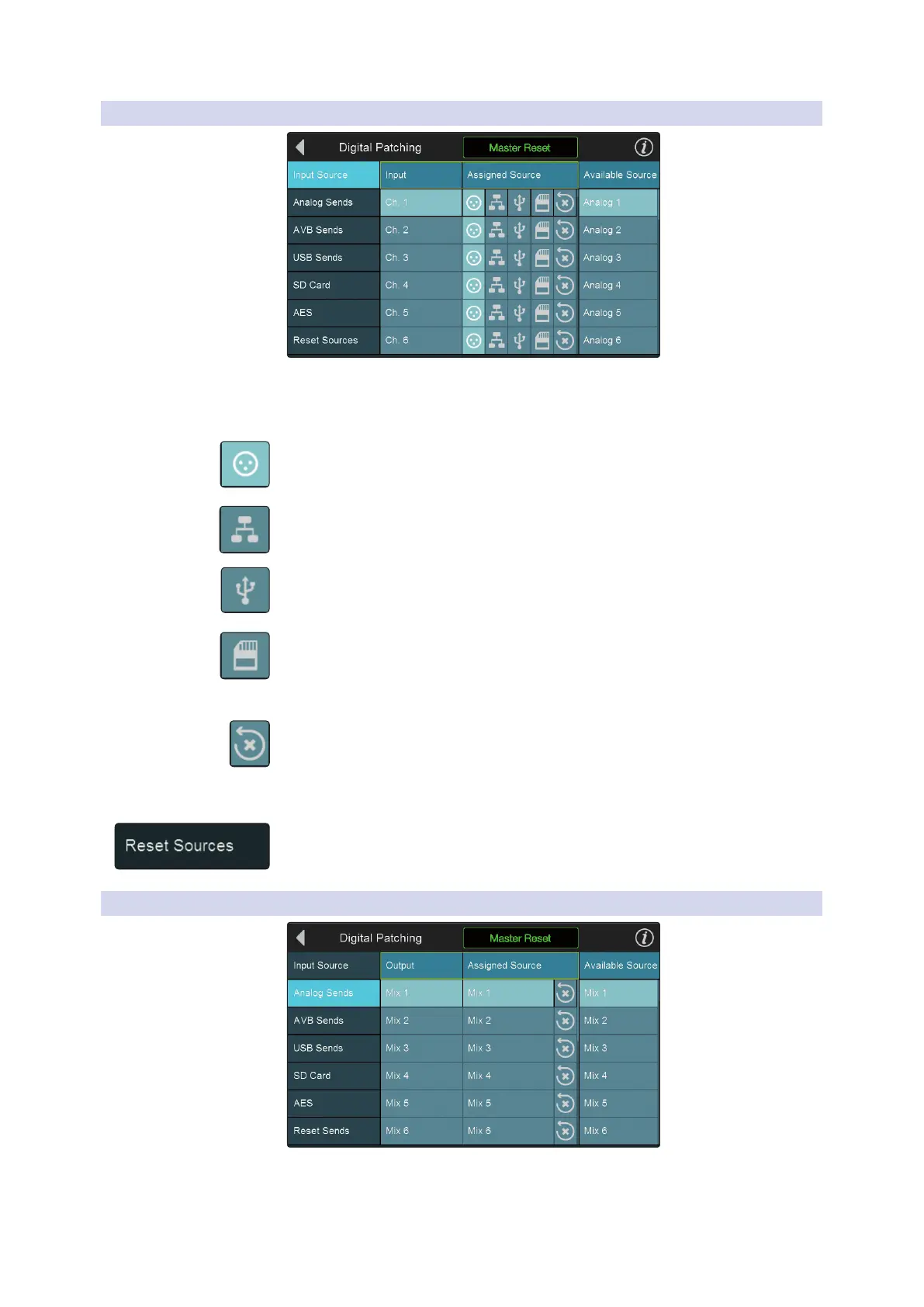
Selecting the Input Source menu will allow you to patch any source to any channel.
From the Assigned Source menu, select the type of source you would like routed to a
channel:
• Analog. Analog Inputs.
• Network. AVB Returns.
• USB. USB Playback Returns.
• SD Card. SD Multitrack Playback Returns.
Whatever source type you’ve selected, a corresponding list of inputs will open in the
Available Source menu. From this menu, you can, for example, route Analog Input 10
to Channel 1.
Pressing the reset button will reset the default routing for the currently selected
input type.
Power User Tip: The routing you select for each source type is saved. In this way, you can
switch between custom Analog, Network, and USB routings just as you can with the
default routings.
Press Reset Sources while Input Source is active to revert to the default settings.
12.3.2 Digital Patching: Analog Sends
Selecting the Analog Sends menu will allow you to patch any mix to any FlexMix
output. Select the output to which you’d like to route your mix first. Then select the
mix from the Available Source list to the right.










 To Next Page