46
6 The Fat Channel
6.2 Fat Channel Navigation
StudioLive™ Series III
Owner’s Manual
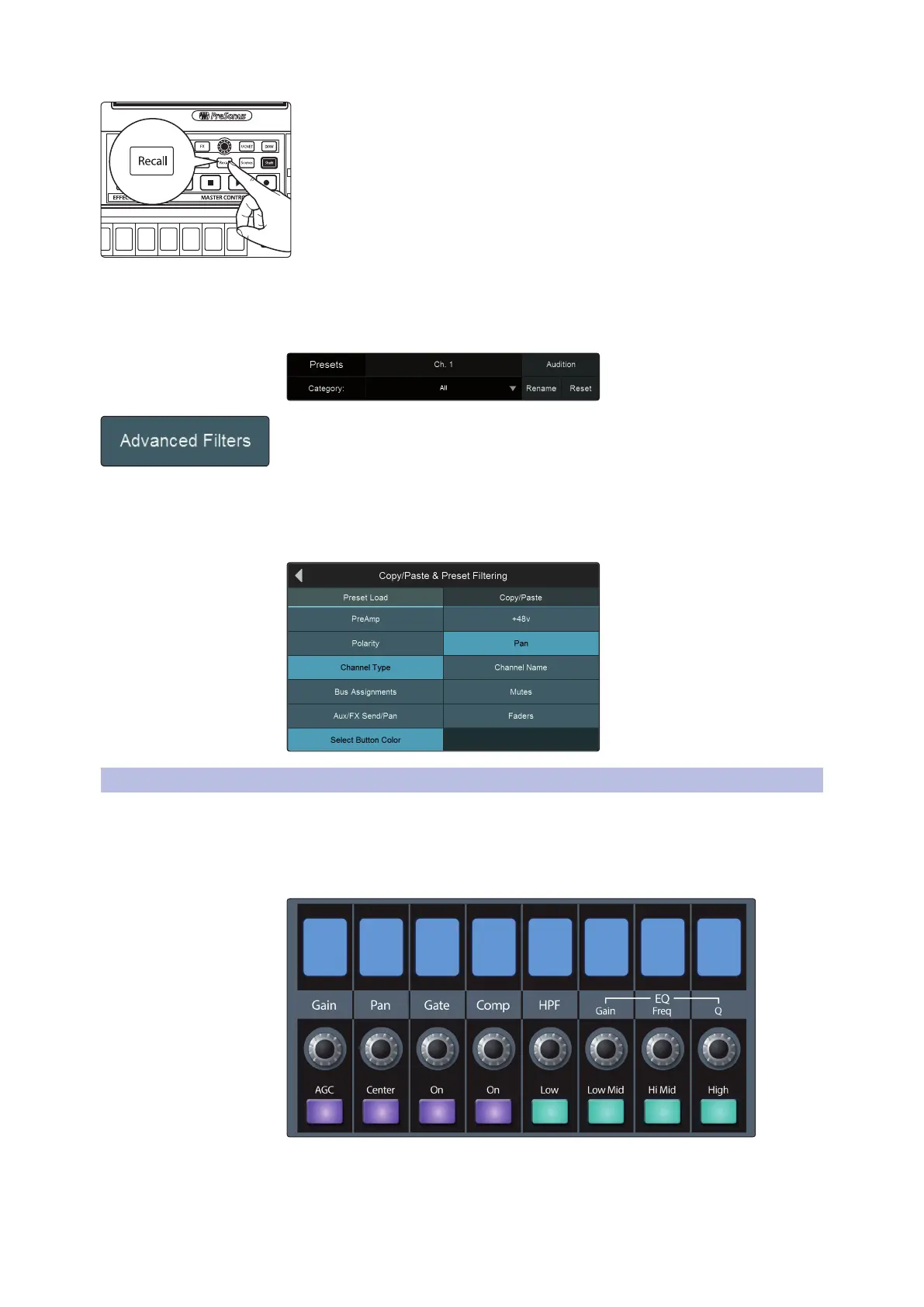
4. Select a preset and load it by pressing the Recall button in the Master
Control area.
You can also momentarily audition the effects of a preset by selecting a preset
and pressing the Audition button on the Touch Display, or rename it by pressing
Rename and entering a new name with the onscreen keyboard. To return all Fat
Channel parameters to Factory Default, press the Reset button.
If you need finer control of which Fat Channel settings are included when copy/
pasting or loading presets, press Advanced Filtering to open the Copy/Paste &
Preset Filtering screen. In this screen, you can set the exact parameter types that are
included in each these two preset actions.
• Touch Copy/Paste and press the desired parameter buttons to filter parameters for
copy/paste actions.
• Touch Preset Load to do the same for preset loading actions.
6.2 Fat Channel Navigation
StudioLive Series III mixers provide two Fat Channel options: Dynamic and Fixed. The
StudioLive 32SX and 32SC use the Fixed Fat Channel at all times. All other models can
utilize both.
Dynamic Fat Channel
The eight Scribble Strip displays, encoders, and buttons at the top of the Fat Channel
change dynamically to provide access to a variety of features and mixing tools. What
is controlled here is determined by both the type of channel or bus that is selected
and by the Fat Channel mode buttons.
Select
GEQ
Select
GEQ
Talk
Solo
Select
Solo
Select
Solo
Select
Solo
Select
Solo
Select
Solo
Select
Solo
Select










 To Next Page