45
6 The Fat Channel
6.1 Overview
StudioLive™ Series III
Owner’s Manual
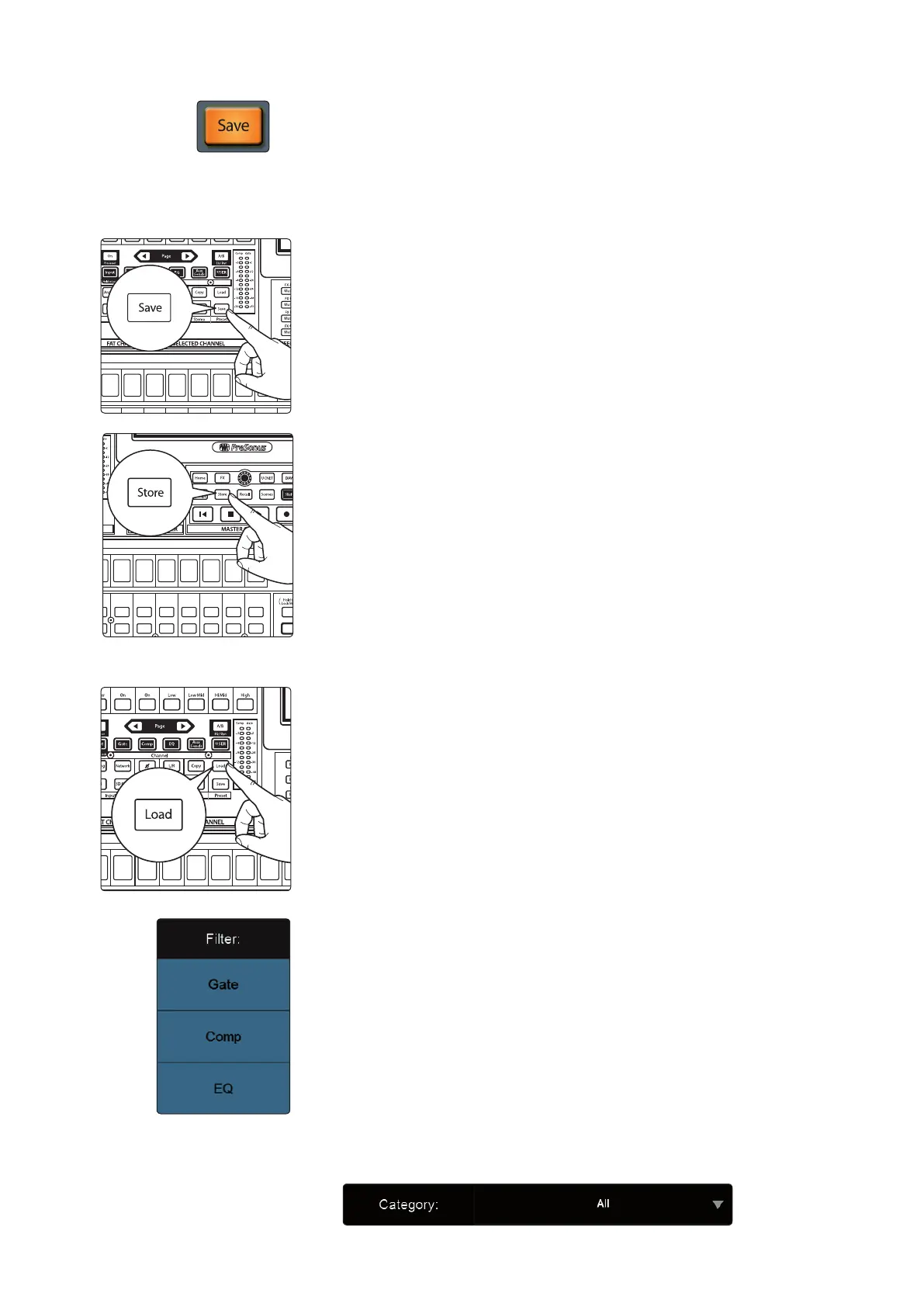
The Save and Load buttons let you save and load Fat Channel presets, letting you
store and reapply useful Fat Channel processing and utility settings to future mixes.
While all Fat Channel settings are included when you save a preset, you can choose
to filter out some types of settings, to load only part of a preset (such as only EQ and
compressor parameters).
To save a preset:
1. Press Save. The Fat Channel Presets view is shown on the Touch Display.
2. Press the Store button in the Master Control area to bring up the onscreen
keyboard. Enter your preset name with the keyboard, and choose a
category (such as Kick Drum or Guitar) from the Category selector, if desired.
3. Press the Enter button on the keyboard to save your preset, or press the
back-arrow to cancel and exit this screen.
To load a preset:
1. Press Load. The Fat Channel Presets view is shown on the Touch Display.
2. To partially load a preset (for example, EQ parameters only), press the
relevant buttons in the Filter column to disable loading for one or more
processors.
3. To filter the presets by channel category (such as Kick Drum or Guitar), make
a selection from the Category selector.
Solo
Select
Solo
Select
Solo
Select
Solo
Select
Solo
Select
Solo
Select
Solo
Select
Solo
Select
Solo
Select
Select
GEQ
Talk
Solo
Select
Solo
Select
Solo
Select
Solo
Select
Solo
Select
Solo
Select
Solo
Select
Solo
Select










 To Next Page