91
9 Master Control
9.6 Scenes and Projects
StudioLive™ Series III
Owner’s Manual
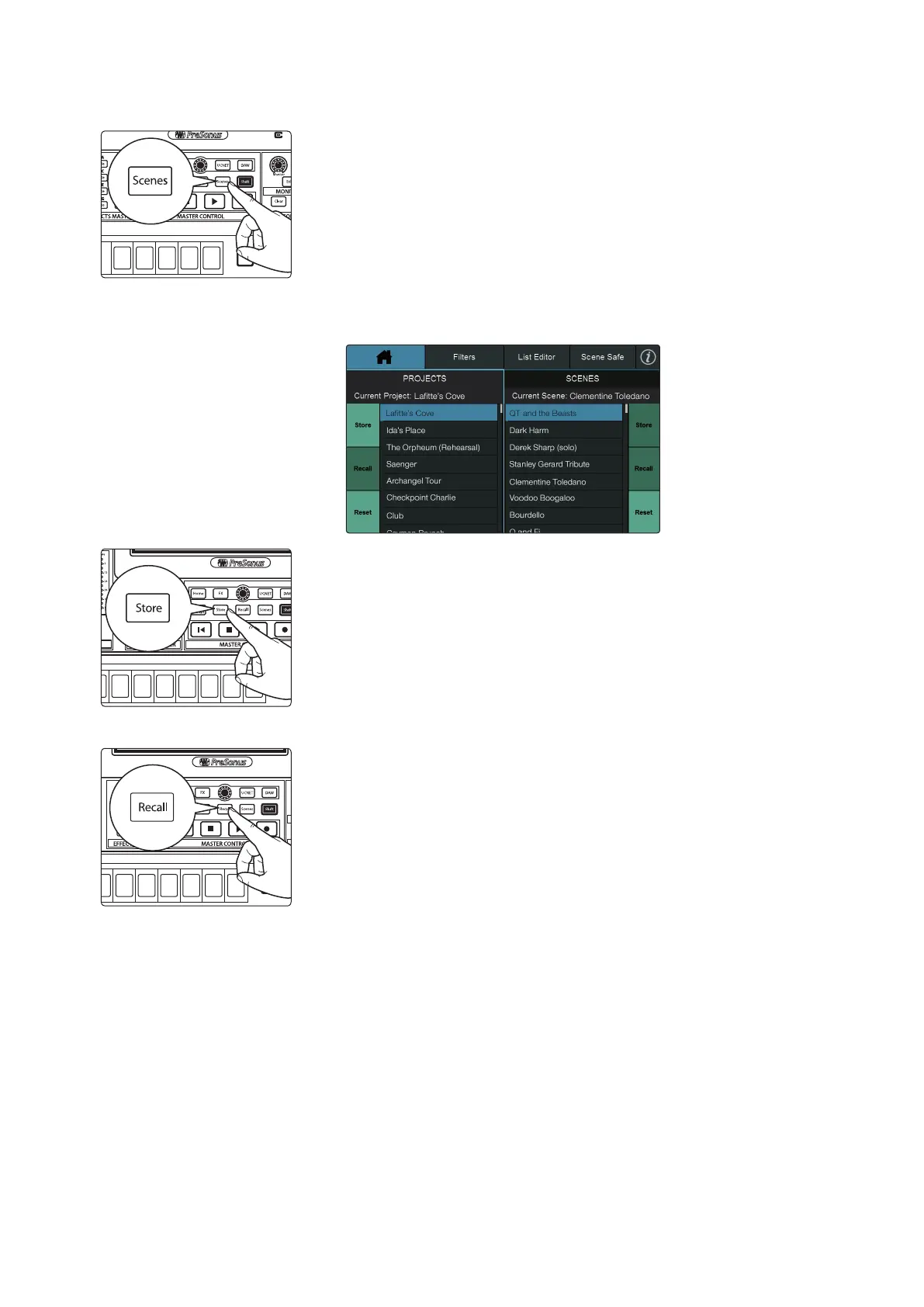
Saving a Scene
1. To save a scene, press the Scenes button.
2. This will open the Scenes library menu on the Touch Display. The Store and
Recall buttons will begin to flash.
3. Scroll to an empty Scene location and press the Store button in the Master
Control area or on the right side of the screen to enter a custom name.
4. Press the Store button again or press the Enter button on the screen to save
the scene to your mixer’s memory.
Loading a Scene
To recall a scene, touch one of the stored scenes in the library list to select it,
then press the Recall button to recall the scene.
Select
GEQ
Mute
AUX
Inputs
DCA
Groups
Mix/FX
Master
Talk
Prev
Solo
Mute
Select
Solo
Mute
Select
Solo
Mute
Select
Solo
Mute
Select
Solo
Mute
Select
Select
GEQ
Talk
Solo
Select
Solo
Select
Solo
Select
Solo
Select
Solo
Select
Solo
Select
Solo
Select
Solo
Select
Select
GEQ
Select
GEQ
Talk
Solo
Select
Solo
Select
Solo
Select
Solo
Select
Solo
Select
Solo
Select
Solo
Select










 To Next Page