- 135 -
For Windows PS printer driver
1
Open the file to be printed.
2
Select [Print] from the [File] menu.
3
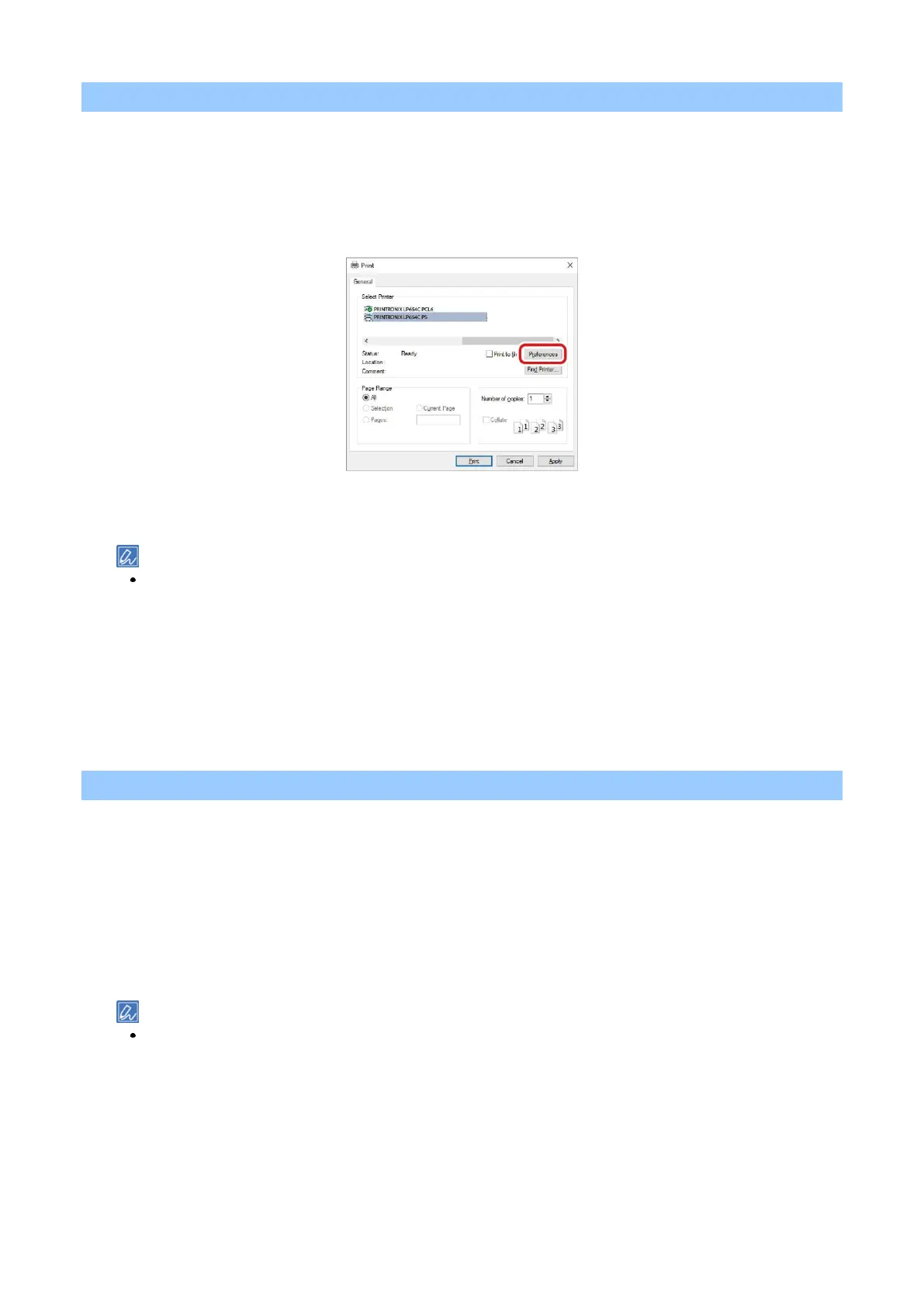
Select [PRINTRONIX LP654C PS] from [Select Printer].
4
Click [Preferences] (or [Properties]).
5
Select the [Paper/Quality] tab.
6
Select the tray to be printed from in [Paper Source].
If you cannot select Tray 2/3/4, see “Setting the printer driver ".
7
Click [Advanced].
8
Click [Paper Size], and select the loaded paper size from the drop-down list.
9
Set other necessary items.
10
Click [OK].
11
Printing starts.
For macOS
1
Open the file to be printed.
2
Select [Page Setup] from the [File] menu.
3
Select the loaded paper size from [Media Size], and click [OK].
4
Select [Print] from the [File] menu.
5
Select [Paper Feed] from the panel menu.
6
Select [All Pages From], and select the tray to be printed from.
If you cannot select Tray 2/3/4, see "Setting the printer driver ".
7
Set other necessary items.
8
Printing starts.














 To Next Page