- 54 -
1
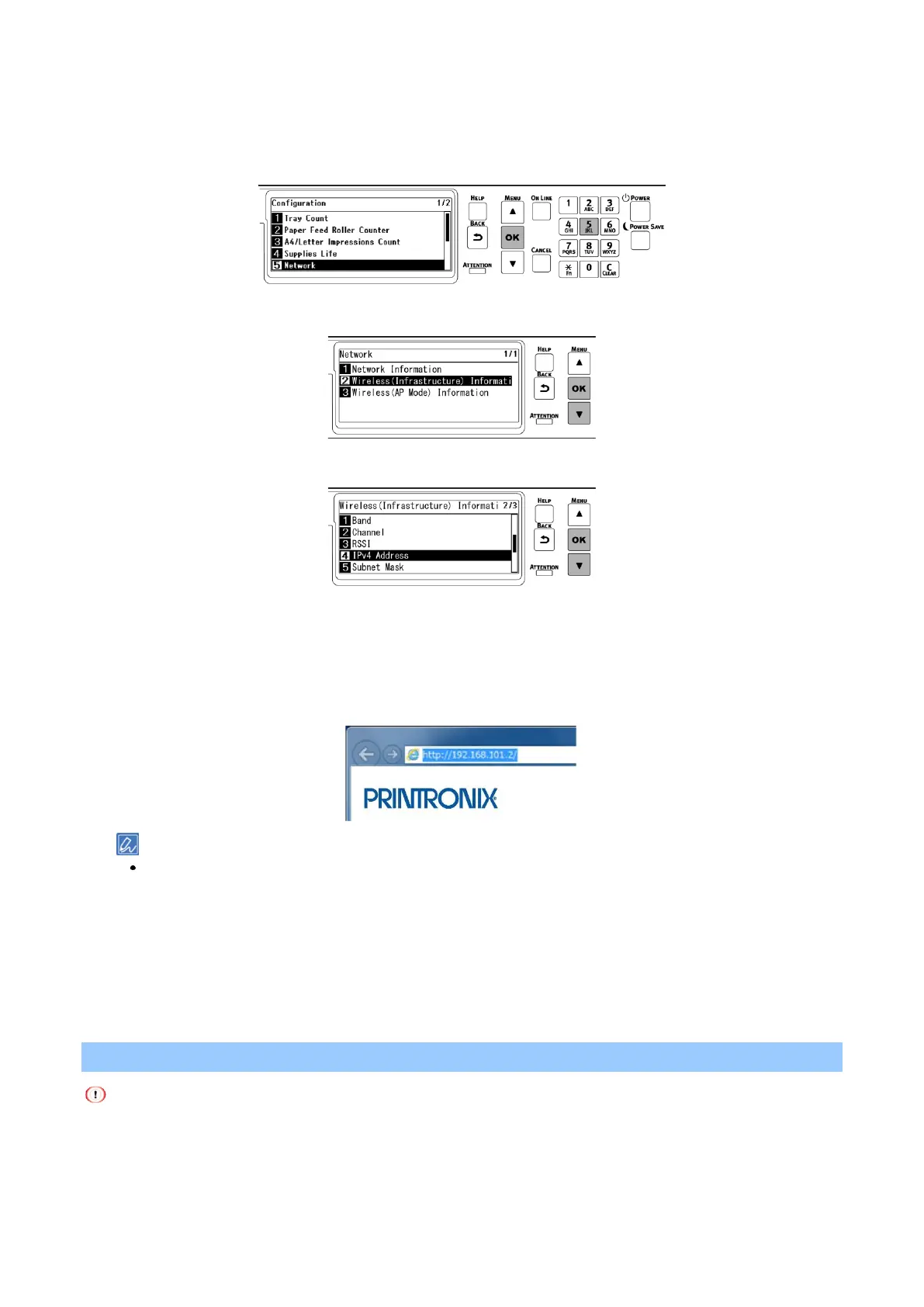
Press the scroll button ▼ on the operator panel several times to select [Configuration], and
press «OK».
2
Press «5» on the [Configuration] screen.
3
Press ▼ to select [Wireless(Infrastructure) Information], and press «OK».
4
Press ▼ several times to select [IPv4 Address], and press «OK».
5
Take a note of the displayed IP address.
6
Start the web browser in a PC.
7
Input "http:// (The IP address recorded in Step 5)", and press the «Enter» key.
Connection is successful when the web page of this machine is displayed.
If the web page of this machine is not displayed, the network connection between the PC or other terminals and
this machine has failed.
Check that [IP Address Set], [IPv4 Address], [Subnet Mask], [Gateway Address] and [Enabling Default
Gateway] have been set correctly for this machine.
Then, go to "Installing software on a PC ".
When using a mobile device, go to "Printing from a mobile device ".
Connecting directly with this machine (AP mode)
It may be difficult to connect if there is a metal, aluminum sash or reinforced concrete wall between this machine and
the wireless terminal.
Up to 4 terminals can be connected to this machine wirelessly (AP mode). You cannot connect 5 or more terminals.














 To Next Page