- 358 -
Unable to connect to wireless LAN (Infrastructure)
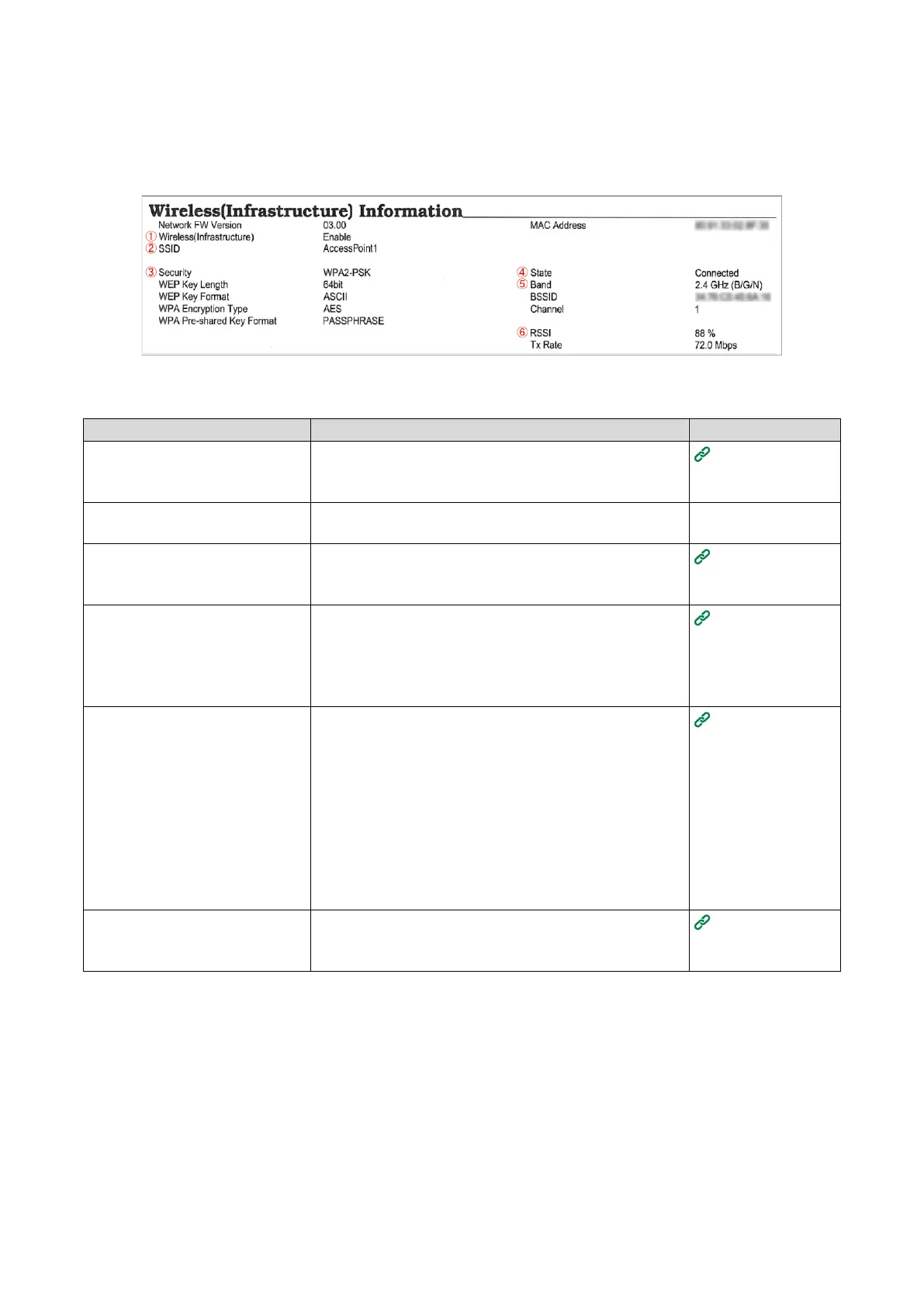
First, print out the Network Information, and then check the following explanation while having a look at items
numbered ① to ⑥ in the following figure in Wireless (Infrastructure) Information.
Network Information can be printed from [Print Information] - [Network].
Unable to connect to the access point (State of ④ is not set to "Connected")
[Wireless] is not selected in the
[Extended Network] settings.
Select [Admin Setup] - [Network Setup] - [General Setup] -
[Extended Network] - [Wireless].
Connecting via
an access point
(Infrastructure)
The wireless LAN access point
does not function properly.
Check that the power of the wireless LAN access point is
turned on and it functions properly.
[Wireless (Infrastructure)] is set to
[Disable].* Above ①
Set [Wireless(Infrastructure)] to [Enable].
*Wireless LAN (Infrastructure) and Wireless LAN (AP
mode) cannot be enabled at the same time.
Connecting via
an access point
(Infrastructure)
[SSID] is incorrect. Or it is blank.*
Above ②
Check the SSID of the wireless LAN access point you want
to connect is correct, and connect with the correct SSID.
If it is blank, the settings for the wireless LAN connection of
this machine are insufficient. Set [Wireless(Infrastructure)
Setting].
Connecting via
an access point
(Infrastructure)
The encryption key is incorrect.
Check the encryption key of the wireless LAN access point
you want to connect is correct, and set the correct
encryption key.
When a same number is lined up in the encryption key, be
sure to press «OK» after inputting each number.
Example: To input 1233,
press «1» → «2» → «3» → «OK» → «3».
It is incorrect to press «1» → «2» → «3» → «3». In that
case, «1»«2»«d» is input, which is not the correct
encryption key.
Connecting via
an access point
(Infrastructure)
The setting of [Security] does not
match the security of the wireless
LAN access point.* Above ③
Check the security (encryption method) of the wireless LAN
access point that you want to connect, and set it to keep
consistent.
Connecting via
an access point
(Infrastructure)















 To Next Page