Device Manual CANlink wireless
Operation
PROEMION GmbH | Phone: +49 661 9490-600 | Fax: +49 661 9490-666 | info@proemion.com | proemion.com | Version 1.0 112
© 2016RM MICHAELIDES● VX.X ● Device Manual CANlink 5000 series © 2016RM MICHAELIDES● VX.X ● Device Manual CANlink 5000 series © 2016 PROEMION GMBH > 1.0 EN > Device Manual CANlink wireless 3000 series
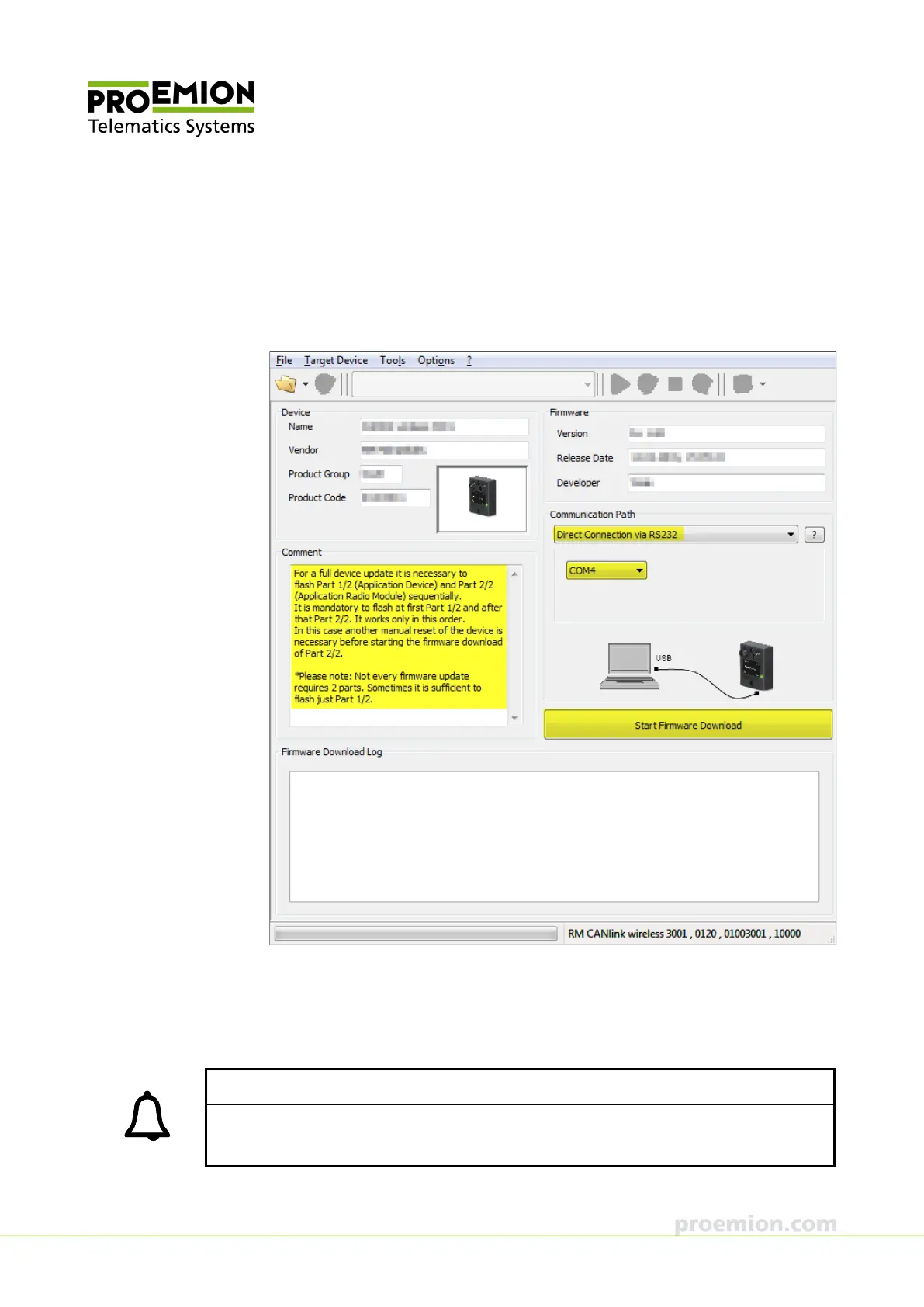
6. In the list in the COMMUNICATION PATH field, select the Interface
DIRECT CONNECTION VIA RS232.
7. Identify the device's virtual COM port in the PC's Device Manager.
8. In the list in the C
OMMUNICATION PATH field, select the device's COM port.
9. Click the S
TART FIRMWARE DOWNLOAD button.
During the firmware update, the LED on the device flashes green.
In the field F
IRMWARE DOWNLOAD LOG, the message
Firmware downloaded successfully appears when the firmware update is
complete.
INFORMATION
The firmware update may reset configurations saved to the device.
After the firmware update, load your configuration to the device.



 To Next Page