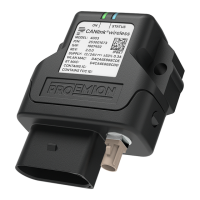
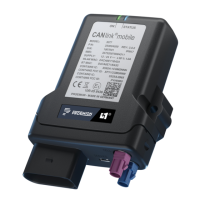
Device Manual CANlink wireless
Getting started
PROEMION GmbH | Phone: +49 661 9490-600 | Fax: +49 661 9490-666 | info@proemion.com | proemion.com | Version 1.0 54
© 2016RM MICHAELIDES● VX.X ● Device Manual CANlink 5000 series © 2016RM MICHAELIDES● VX.X ● Device Manual CANlink 5000 series © 2016 PROEMION GMBH > 1.0 EN > Device Manual CANlink wireless 3000 series
4.4 Operation as a CAN-CAN-Bluetooth Bridge
Use as a CAN-CAN-Bluetooth Bridge enables wireless transmission of CAN data between two
CAN bus systems. In this case, two CANlink wireless devices replace the CAN cable.
After switching on, a connection is automatically established between a configured master and
a slave device. Data is exchanged bidirectionally as soon as the connection between the two
devices has been established.
4.4.1 Configuring a CAN-CAN-Bluetooth Bridge
The device's factory-set configuration corresponds with the slave configuration. To be able to
use two devices as a CAN-CAN-Bluetooth Bridge, one must be configured as the slave and the
other as the master.
TIP
The Bluetooth MAC address of the slave device is required for master configuration. Start
with slave configuration.
INFORMATION
Save the configuration of your device before making alterations.
See chapter Saving the device configuration.
CONFIGURATION AS A CAN-CAN-BLUETOOTH BRIDGE SLAVE
1. Connect the device to the PC. See chapter Connecting the device with a PC via
RS232.
2. Read out the device information from the CANlink wireless and save the current
configuration. See chapter Saving the device configuration.



 To Next Page