Device Manual CANlink wireless
Operation
PROEMION GmbH | Phone: +49 661 9490-600 | Fax: +49 661 9490-666 | info@proemion.com | proemion.com | Version 1.0 111
© 2016RM MICHAELIDES● VX.X ● Device Manual CANlink 5000 series © 2016RM MICHAELIDES● VX.X ● Device Manual CANlink 5000 series © 2016 PROEMION GMBH > 1.0 EN > Device Manual CANlink wireless 3000 series
5.3 Firmware update
You can load a firmware update to the device via the RS232 Interface.
You can download the current firmware from our website:
proemion.com
Customer login
User: support
Password:
5.3.1 Performing a firmware update via the RS232 Interface
To perform a firmware update via the RS232 Interface, you need RMtools Firmware
Programmer and a connection to a PC.
1. Connect the device to the PC. See chapter Connecting the device with a PC via
RS232.
2. Install RMtools Firmware Programmer.
3. Start RMtools Firmware Programmer.
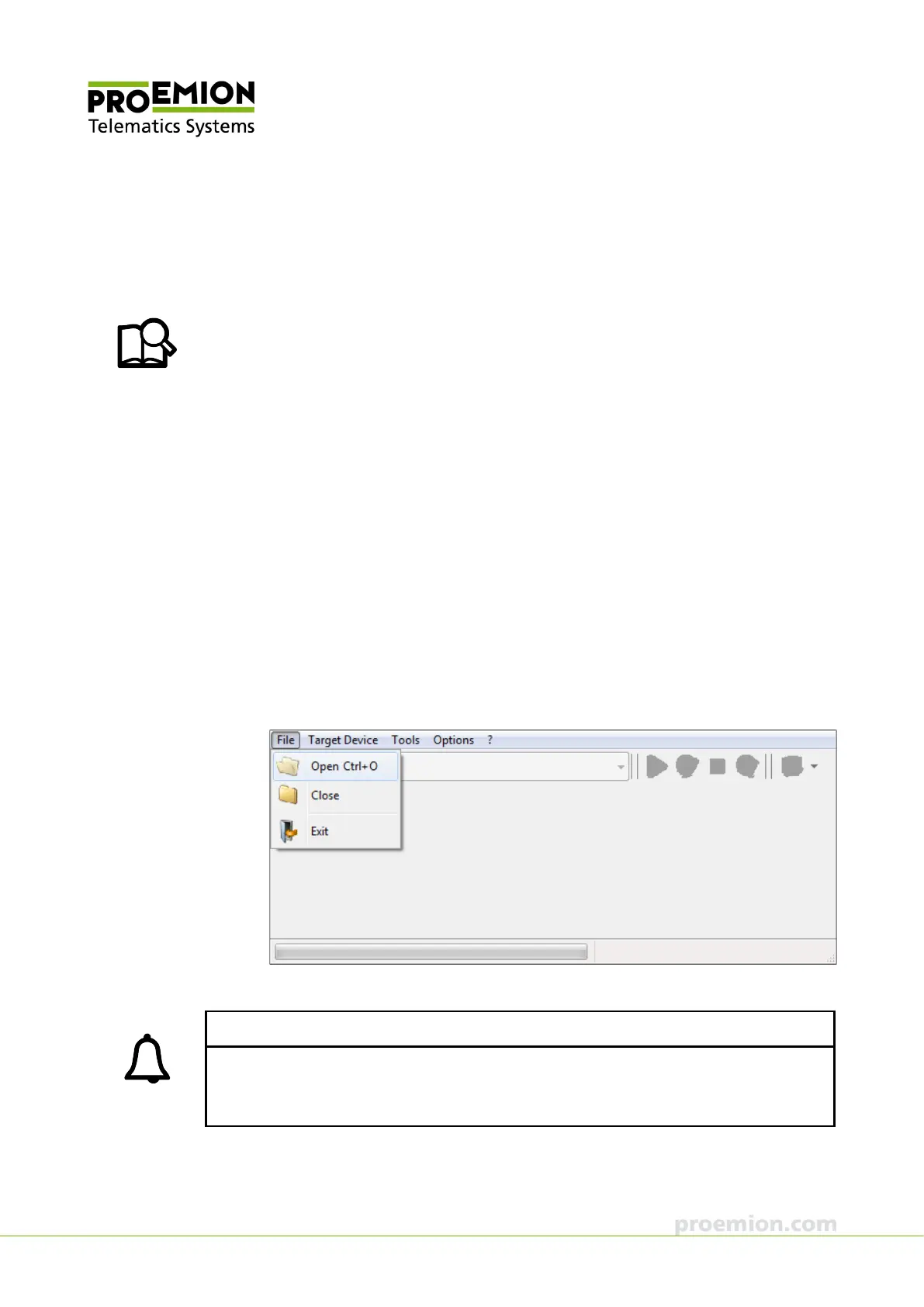
4. In the menu, click on
FILE → OPEN CTRL+O
5. Select the file (.FwBin) with the current firmware.
INFORMATION
A firmware update may consist of two files. First execute Part 1, then Part 2.
The file name of Part 1 is CANlink_wireless_300x_PartD_1_2 and that of Part 2 is
CANlink_wireless_300x_PartM_2_2.



 To Next Page