Device Manual CANlink wireless
Getting started
PROEMION GmbH | Phone: +49 661 9490-600 | Fax: +49 661 9490-666 | info@proemion.com | proemion.com | Version 1.0 62
© 2016RM MICHAELIDES● VX.X ● Device Manual CANlink 5000 series © 2016RM MICHAELIDES● VX.X ● Device Manual CANlink 5000 series © 2016 PROEMION GMBH > 1.0 EN > Device Manual CANlink wireless 3000 series
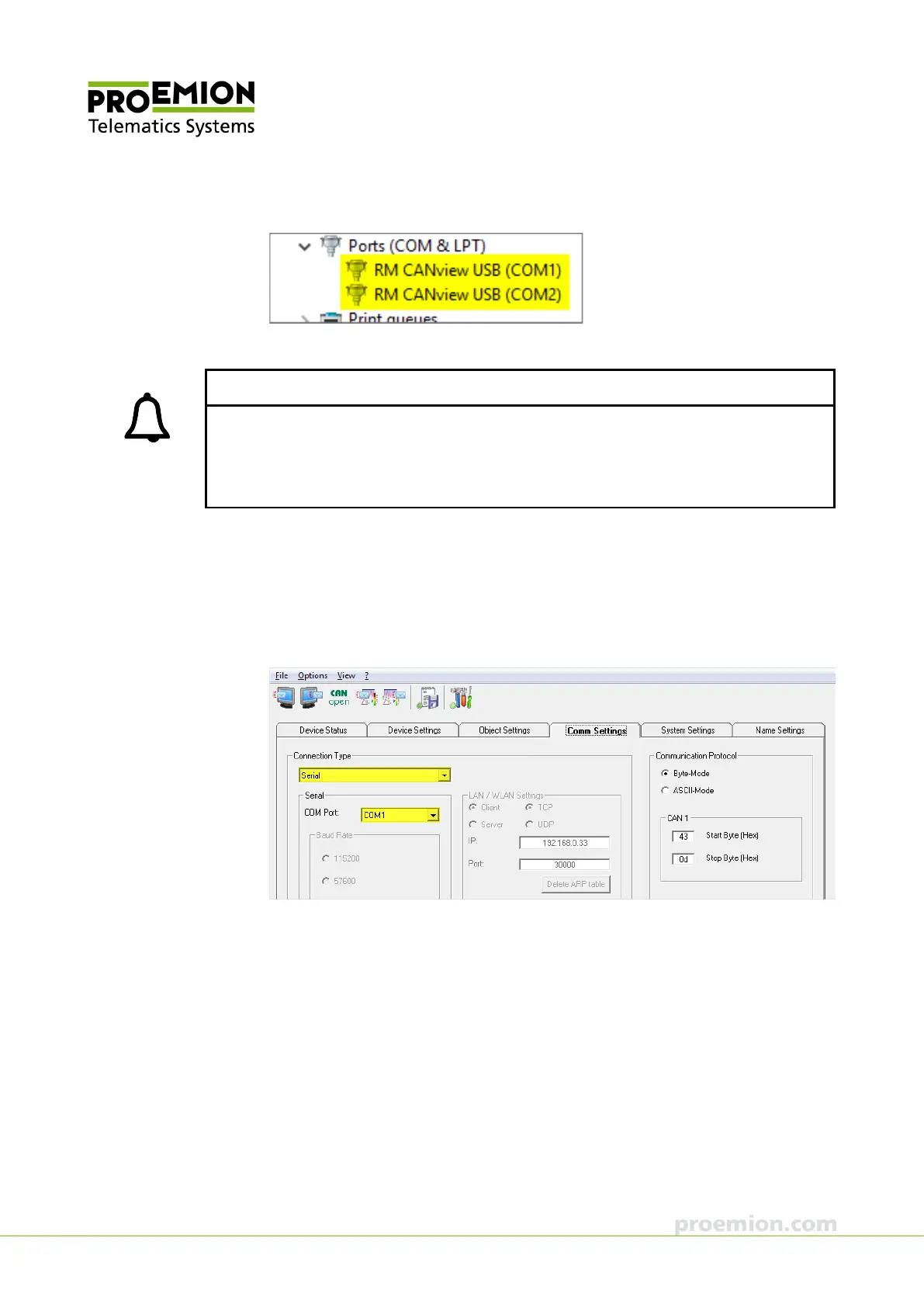
6. Identify the virtual COM ports of the two CANview USBs in the PC Device Manager.
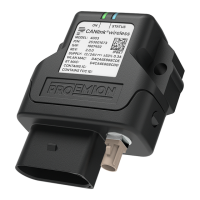
7. Start the RM CAN-Device Monitor on the PC.
INFORMATION
In the standard version of RM CAN-Device Monitor, not all the functions (e.g. EDS
functionality, indicators, and generators) are implemented.
The purchased version of RM CAN-Device Monitor PRO CANopen includes the full scope of
functions.
8. Click T
OOLS in the toolbar.
9. Select the C
OMM SETTINGS tab.
10. In the list under C
ONNECTION TYPE, select the interface SERIAL.
11. In the COM P
ORT list, select the COM port of the first CANview USB.
12. Choose VIEW → GENERATOR from the menu.



 To Next Page