• Write the message “PLAYER.Emergency Stop;” in the text input field of
the Input you have connected to the Alarm system and click “Save”
button.
• Use the Barco Communicator software to connect to the Barco pro-
jector with the Alchemy server we want to send the control messages.
• Log in as Service Technician.
• Go to the “Media server -> Automation -> Cues” menu of the Barco
Communicator.
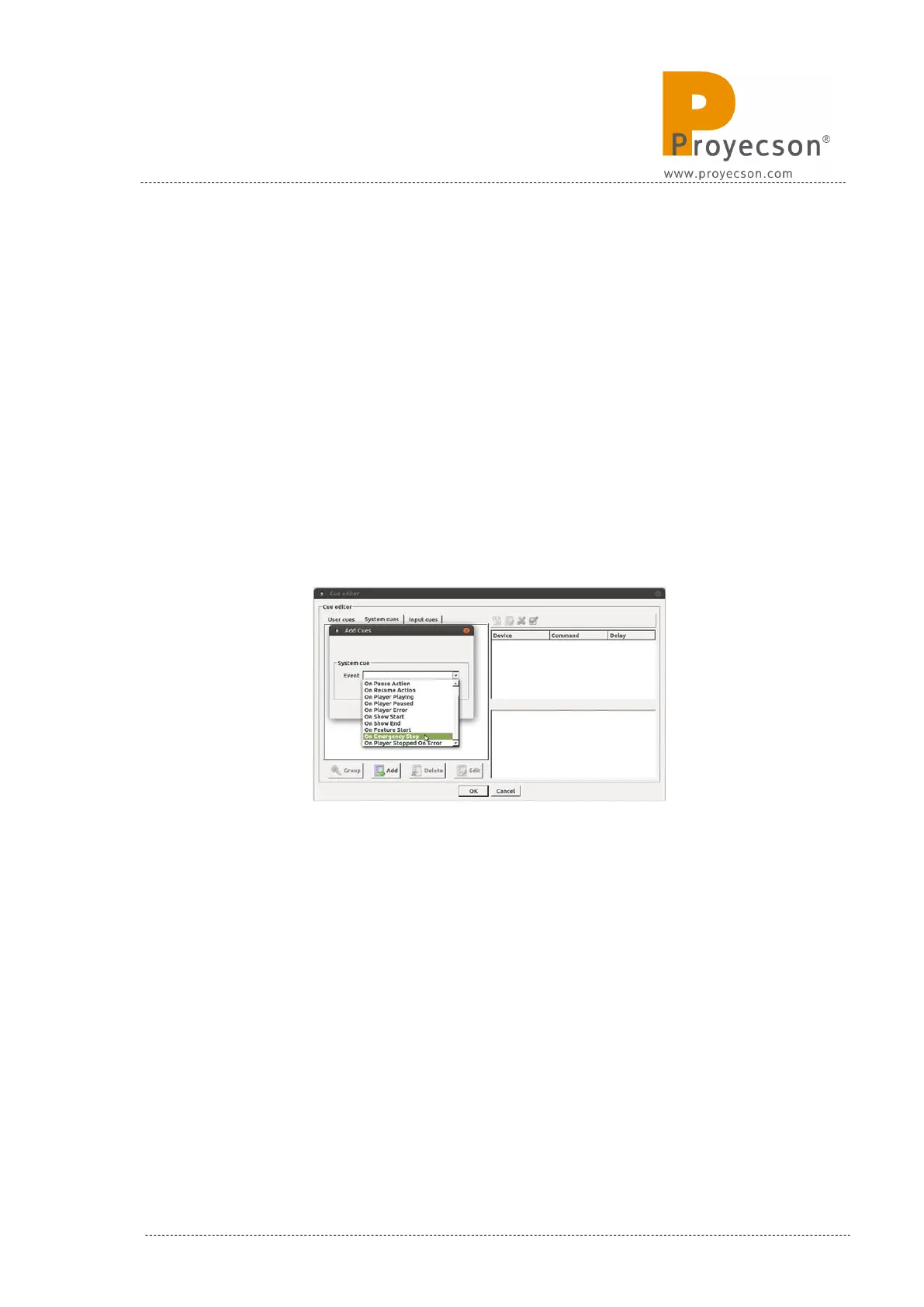
• Once in the “Cue editor”, go to “System Cues” tab and, if it’s not yet
created, click on the “Add” button to create the Emergency Stop cue.
• In the “Add Cues” pop-up window, choose the “On Emergency Stop”
from the “Event” selection bar as you can see in the Figure 8.4.4B
picture and click “OK”.
Figure 8.4.4B
• Then, every time the Alchemy receives the message < PLAYER.Emer-
gency Stop; > on its 43748 port, this On Emergency Stop cue will be
fired and every action you set on it will be also executed.
INSTALLATION MANUAL: PAA20+ V 2.0 (10/2021) 89


 To Next Page