Page 58
There are two means of editing parameters, directly or using the menu system.
Each is now described.
Using the Menu System
The menu system has been designed to make the changing of parameters very
simple. There are two levels of menu: Main Menu and Sub Menu.
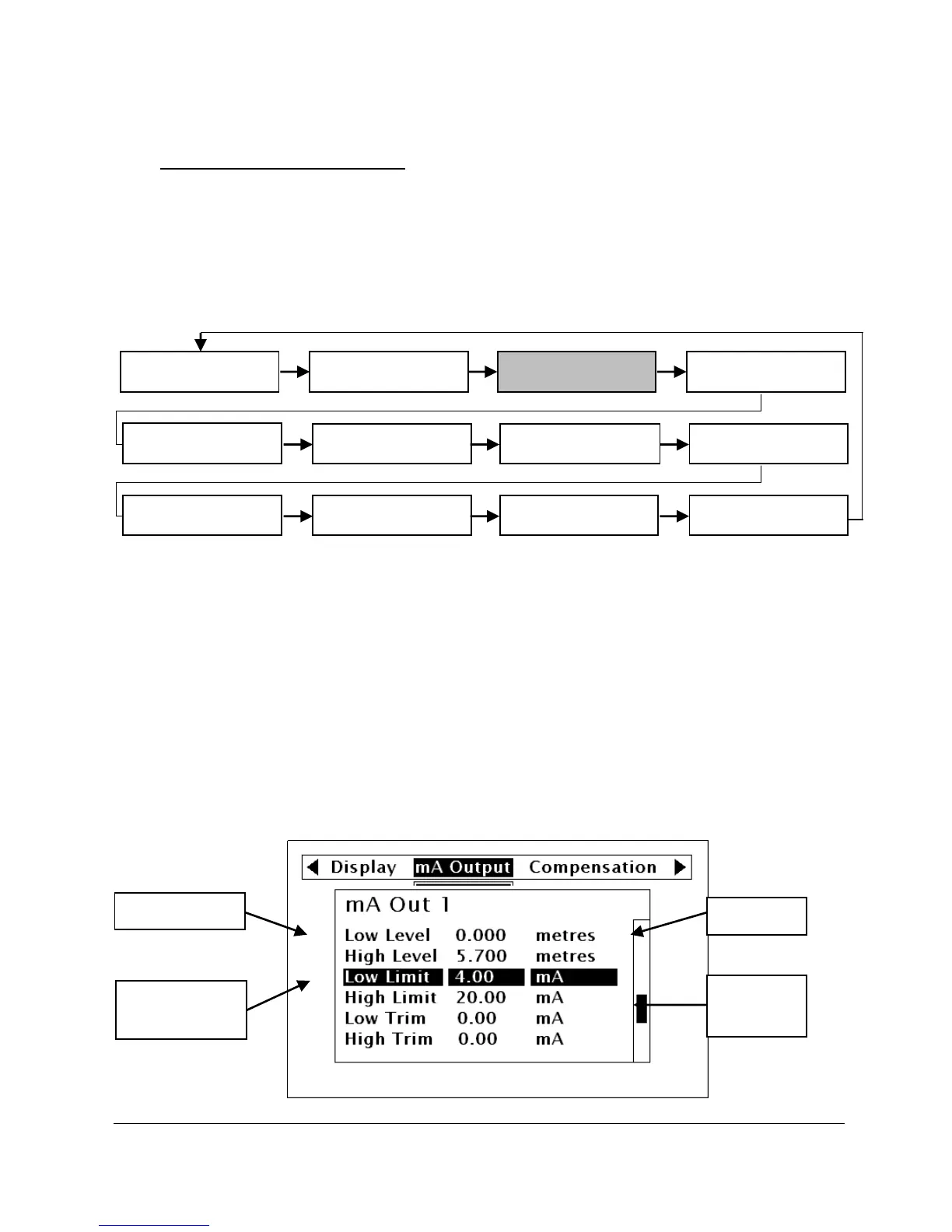
At the top of the display there is a line of text that displays the main menu items.
Pressing the left/right arrow keys scrolls the display between the top-level menu
items, (as the example shown below, starting at Application).
*This is only available in units with firmware version 1.1.0 or greater.
As you press the cursor keys to scroll left and right between these, you can press
ENTER, or the down arrow, at any time, to expand the sub-menu.
Each menu options, along with their sub-menus, is described later in this manual.
When you move down into the sub-menu, you can scroll up and down using the
arrow keys and then press ENTER to go to the required parameter lists. If there are
more menu options or parameters than can be viewed on the display in one go,
then a scroll bar will appear on the right hand side of the menu/parameter box. The
position of the solid bar within the scroll bar provides a visual aid as to your
position in the current menu.


 To Next Page