25
Intera 3.2
Getting to Know Baxter
Main Screen
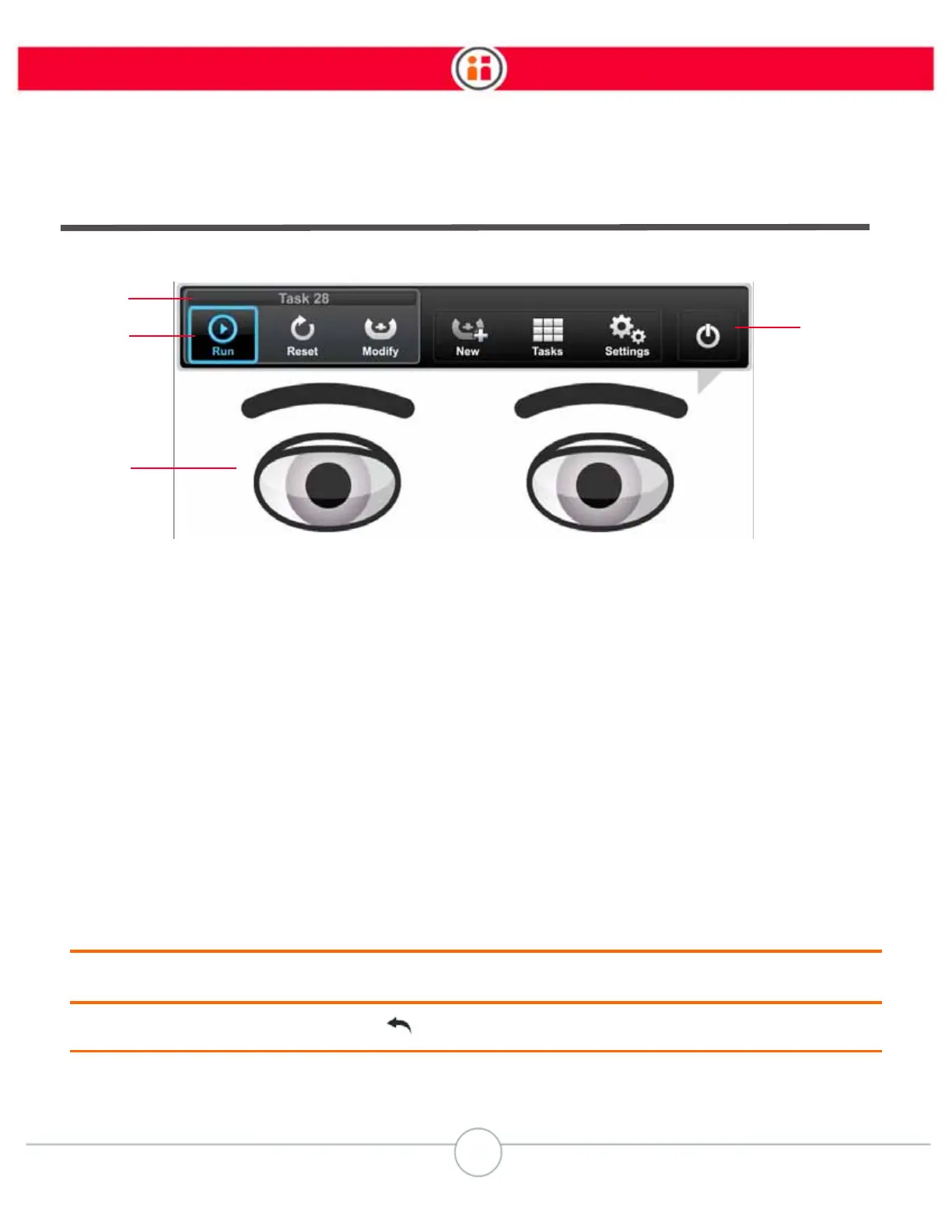
The main screen has two elements: the
button bar
, and
eye expressions
.
1. Current task name
2. Current task options
• Run – run the task.
• Reset – reset the count, and restart the task from the first action.
• Modify – open the task map for the task.
3. Main options
• New – create a task.
• Tasks – opens the
task gallery
, a visual list of existing saved tasks. (See “Task
Gallery” on page 33.)
• Settings – open Baxter administration and advanced options.
• Power – open Baxter power options: Sleep, Restart, Shutdown, Lock/Unlock.
4. Baxter eyes – Baxter uses eye expressions to communicate its current state.
To navigate a button bar: Rotate the knob to scroll (referred to as “scrolling”) through options. When the
option is highlighted, press the knob (OK) to select it.
To exit a button bar option: Press Back .


 To Next Page