53
Intera 3.2
Training and Managing Tasks
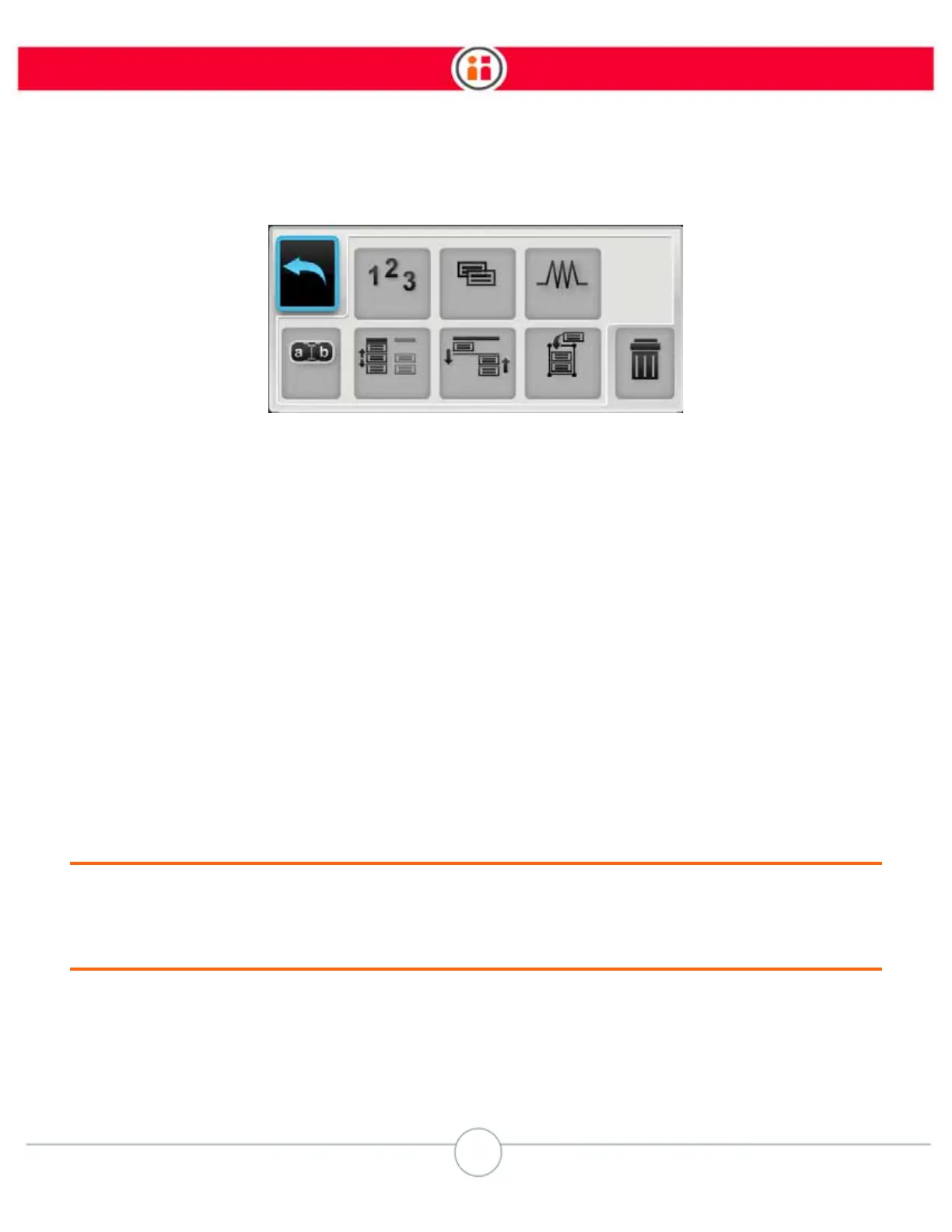
Sub-task Button Bar
Top row, left to right:
• Back – Close the button bar and return focus to the task order screen.
• Count – Add count to a sub-task.
• Copy – Copy a sub-task and all its details to the same location on the Task Map.
The copied sub-task will appear on the Task Map just below the original.
• Signals – Add a signal to a sub-task, or remove one. (See “Signals” on page 89.)
Second row, left to right:
• Rename - Create or change the name of the selected sub-task.
• Reorder – Reorder sub-tasks for the selected arm. You can also merge
incomplete sub-tasks.
• Coordinate Order (Across Arms) – Shift when a sub-task begins on one arm in
relation to a sub-task on the other arm. If the sub-task is already coordinated,
this button becomes “uncoordinate.”
• Combine – Combine two sub-tasks on one arm into one sub-task. The
highlighted sub-task moves into the sub-task below it.
• Delete – Delete the current sub-task on an arm.
To reorder or merge sub-tasks:
1. In the sub-task order button bar, click the reorder icon.
2. Scroll up or down. A yellow line appears to indicate the new location.
3. Press OK to move or merge the sub-task.


 To Next Page