81
Intera 3.2
Create a Path for Baxter
1. Select the path you want to modify on the Task Map and press OK on the Navi-
gator.
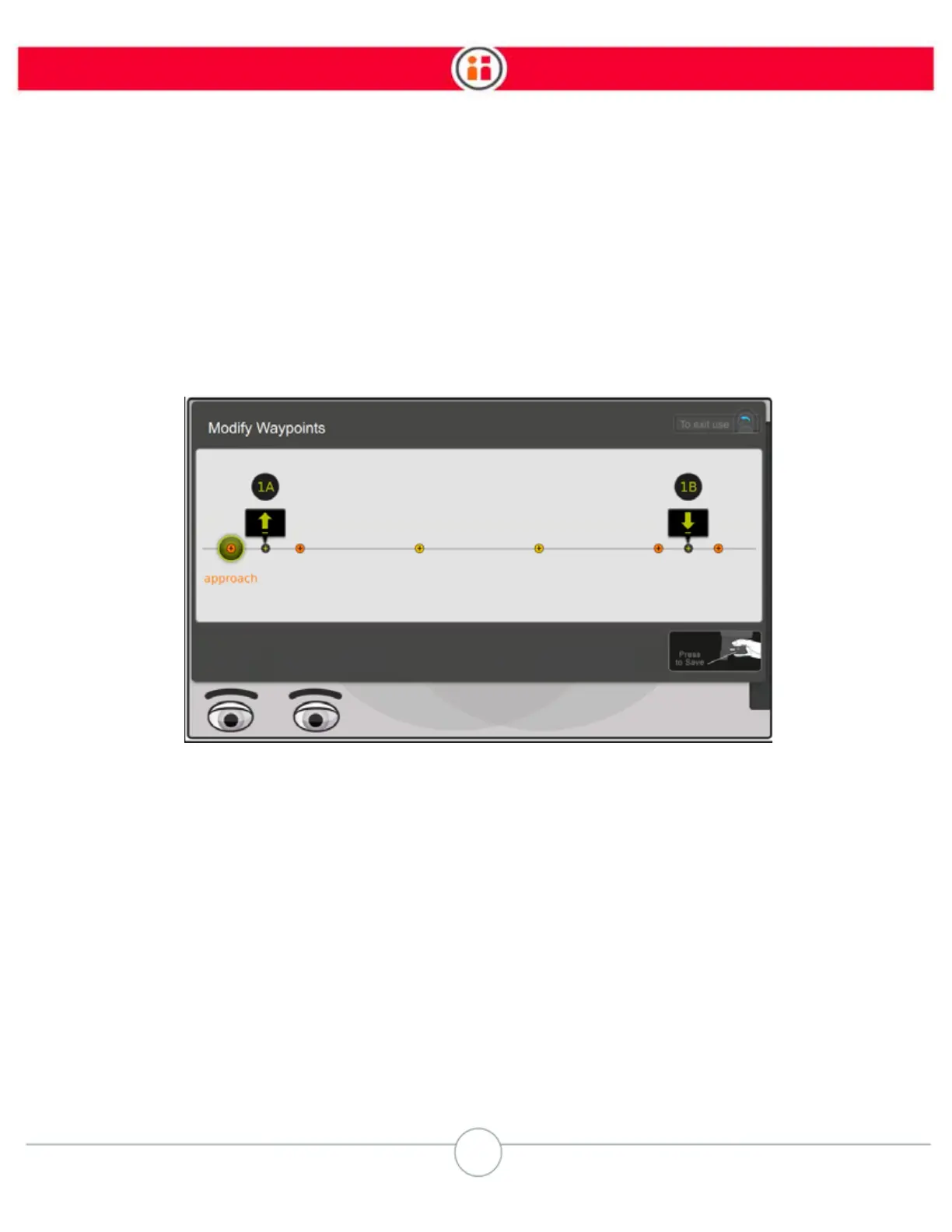
2. Baxter displays the Modify Transit Panel for that path.
3. Press the Modify button.
4. Scroll the Navigator knob to the waypoint you want to modify. Each waypoint is
highlighted with a halo as you scroll to it. Baxter’s arm will move through each
waypoint until it reaches the selected waypoint.
5. Grab Baxter’s cuff, change its arm location and/or pose and press the action
button. A check mark is briefly displayed and the pose for that waypoint is
updated.
WAYPOINT/PATH NOTES:
• You can scroll through to any waypoint on the path. For example, you can scroll
through the path one waypoint at a time—Baxter’s arm will move to each point in
turn—or you can scroll directly to the waypoint you want to modify and Baxter’s
arm will skip directly to that point. Be careful when skipping waypoints using the
Modify Transit Panel, though, because it causes Baxter’s arm to deviate from the
path: the arm moves directly between points and it may bump into a fixture or
obstacle.


 To Next Page