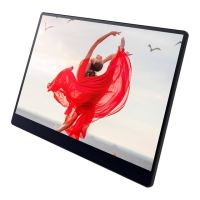
Firmware updates are performed from the computer side by connecting to the computer
with the supplied USB Type-C cable.
• The latest firmware includes security patches. Always update the firmware of
this machine to the latest version.
• When displayed from the Connecting screen, you cannot operate the firmware
screen.
• Do not turn OFF the power of this machine while updating.
• Do not disconnect the USB Type-C cable connecting this machine to a computer
during an update.
• Do not connect a device such as a computer or smartphone to USB port 2.
• Do not operate the Switching Input/Back button on this machine during
updating.
1. Download the RICOH Monitor 150BW Firmware Updater to the computer used for
the firmware update.
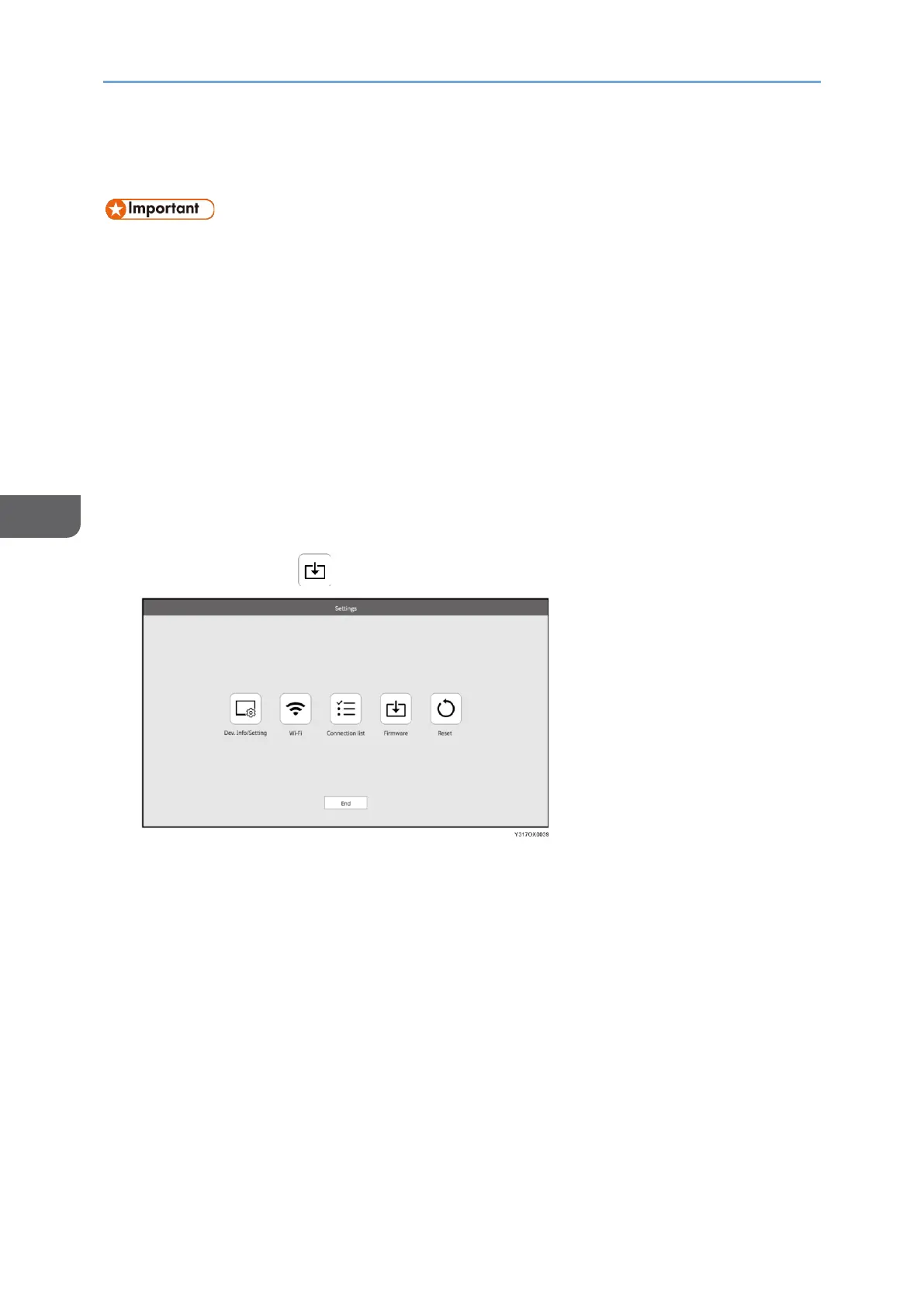
2. Touch [Firmware] ( ).
3. Touch [OK].
If you only want to check the current firmware version, touch [Back].
4. Connect the USB Type-C cable connected to the USB port 1 of this machine to the
computer.
5. Start the RICOH Monitor 150BW Firmware Updater downloaded in step 1.
6. Select the language to be displayed, and then click [Next].
When the computer and this machine are connected, the current firmware version
and the firmware version to be updated are displayed.
7. Confirm the firmware version, and then click [Next].
To cancel the update, click [Cancel].
8. Click [OK].
The firmware update starts.


 To Next Page
 Loading...