Shorten the distance between the two fingers.
Changing the display position of the sub-screen
1. Touch and hold the sub-screen and move it in the desired direction.
The display position of the sub-screen is fixed to the four corners of the screen.
The display position of the sub-screen is changed to the corner of the screen closest
to the position where the sub-screen was moved.
Splitting the Screen
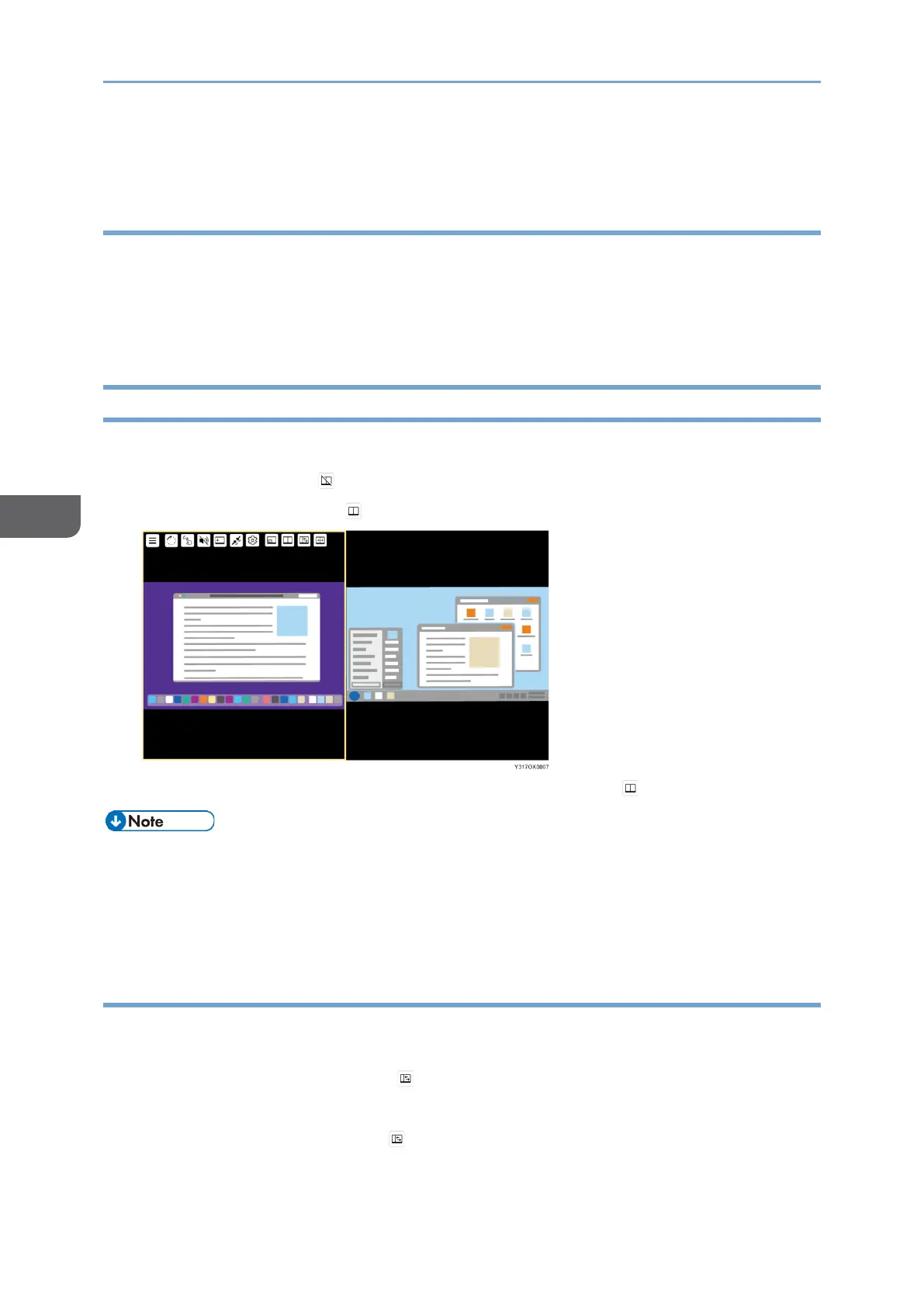
You can split the screen to display two screens when two devices are connected.
1. Touch [Split Screen] ( ).
The icon display turns to and splits the screen.
2. To finish the splitting screen display, touch [Split Screen] ( ) again.
• When both the sub-screen and the split screen are turned OFF, only the active
screen is displayed.
• If the split screen is turned ON while the sub-screen is ON, the sub-screen is
automatically switched to OFF.
Switching the split position
You can switch the split position of the screen in three levels when the split screen is
turned ON.
1. Touch [Change Split-Position] ( ).
The split position of the screen switches.
Touch [Change Split-Position] ( ) to change the split position, as necessary.





 To Next Page