• When touch operations are not allowed in RICOH Monitor
Multicast for Windows
• When touch operations are allowed in RICOH Monitor Multicast
for Windows, but touch operations cannot be performed on this
machine because touch operations are performed on another
RICOH Monitor that is connected via RICOH Monitor Multicast
for Windows
To enable touch operations, activate the touch operation permission
in RICOH Monitor Multicast for Windows.
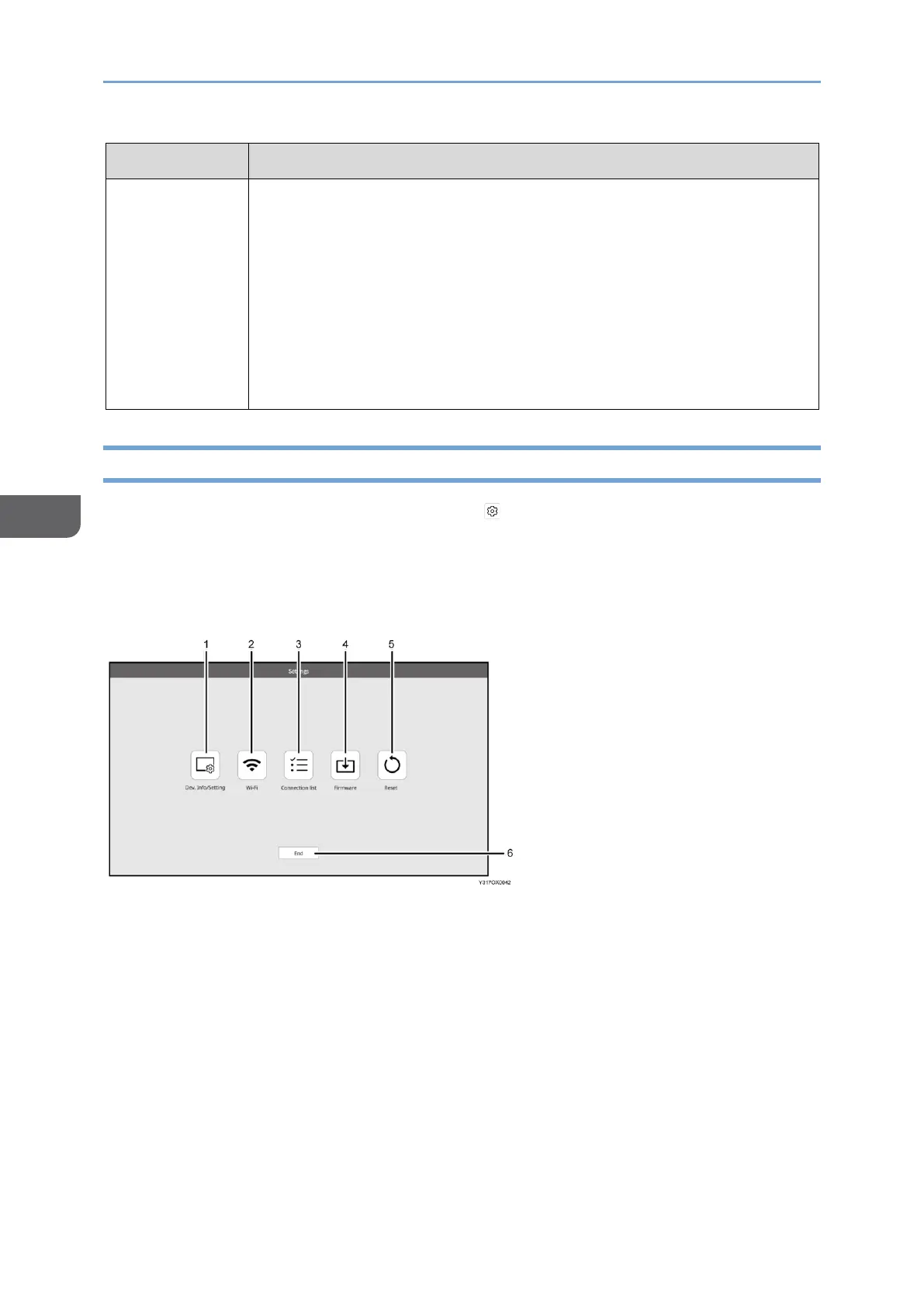
Settings Screen
This screen is displayed by touching [Settings] ( ) on the Waiting to Connect screen or
on the Connecting screen.
In the Settings screen, you can change or confirm the wireless connection settings.
When the Settings screen is displayed from the Connecting screen, only the settings can
be confirmed.
1. Dev.Info/Setting
You can check the information pertaining to this machine, and you can change the
detailed settings of the wireless connection.
For details, see page 97 "Dev.Info/Setting".
2. Wi-Fi
You can change network settings.
For details, see page 100 "Wi-Fi".
3. Connection list
You can manage the connected devices.
For details, see page 101 "Connection List".





 To Next Page