Using OS Functions to Connect Directly to
a Device (Windows/Android)
You can connect directly to a device using Wi-Fi Direct without going through an access
point.
• The device to be connected must support Miracast.
• If the Dev.Info/Setting of this machine has not been configured, configure it before
starting the connection. For details, see page 97 "Dev.Info/Setting".
Connecting with Windows
When this machine is turned ON, it enters the standby state for connection, and the
connecting operation is performed from the device side. Once the connection is accepted
by this machine, a wireless connection will be established. Even if Switching Input is set
to USB ports, wireless connection can be established when the connecting operation is
performed from the device side.
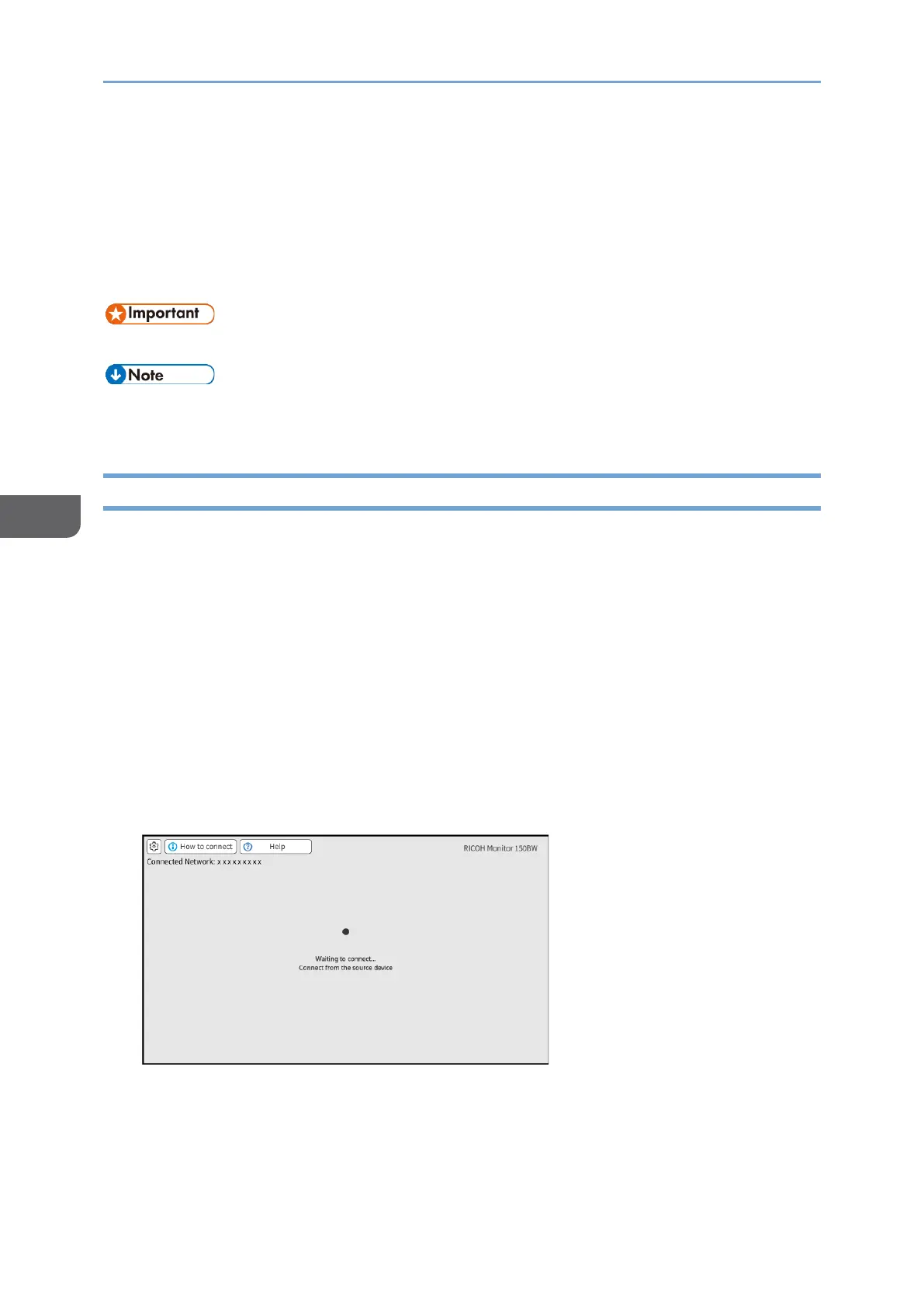
1. Turn ON this machine and confirm that the Waiting to Connect screen is
displayed.
For details about how to turn ON the machine, see page 29 "Turning On and Off the
Power".
If the Waiting to Connect screen does not appear after turning ON the machine, set
the Switching Input to [Wireless Connection]. For details, see page 31 "Switching
Inputs".
2. Display the Connect/Cast screen in Windows.
• When using Windows 10
1. Click the Action Center icon on the right end of the taskbar.
The Action Center appears.





 To Next Page