Connecting with Android
When this machine is turned ON, it enters the standby state for connection, and the
connecting operation is performed from the device side. Once the connection is accepted
by this machine, a wireless connection will be established. Even if Switching Input is set
to USB ports, wireless connection can be established when the connecting operation is
performed from the device side.
This section uses Android 12 as an example of the procedure.
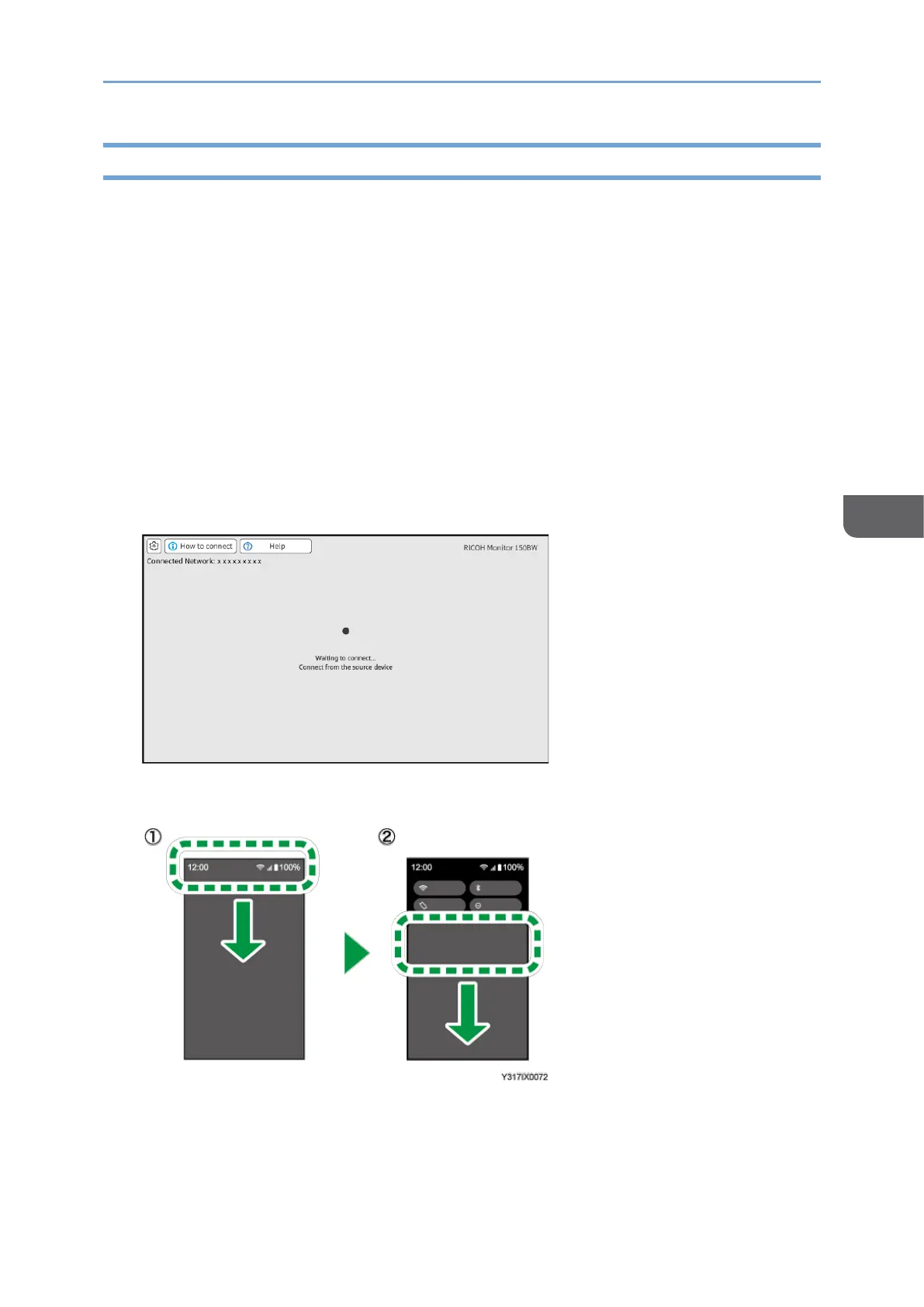
1. Turn ON this machine and confirm that the Waiting to Connect screen is
displayed.
For details about how to turn ON the machine, see page 29 "Turning On and Off the
Power".
If the Waiting to Connect screen does not appear after turning ON the machine, set
the Switching Input to [Wireless Connection]. For details, see page 31 "Switching
Inputs".
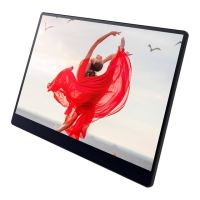
2. Swipe down from the top of the Android screen (1), and then swipe down the
notification area (2) to open the Quick Settings panel.
Depending on the version of Android, the Quick Settings panel can be displayed by
swiping down from the top of the screen.
3. Tap [Cast] or [Cast Screen].
Button names could differ depending on the version and model of Android used.





 To Next Page