• To automatically connect to a network saved on this machine when it is detected,
select the "Auto-connect to saved networks" check box.
Connecting with RICOH Monitor Multicast for Windows
Installing RICOH Monitor Multicast for Windows
• Applying the latest security patches to the OS of the device can reduce security
risks. Make sure that the OS of the device on which the application is to be
installed has the latest security patches and update them, as necessary.
Download RICOH Monitor Multicast for Windows from the RICOH website and install it
on Windows to be used.
The license code shown in the supplied "RICOH Monitor Multicast for Windows" license
code must be entered to install the application.
Confirm that the firmware of this machine is up to date. If the firmware version is not up
to date, update the firmware to the latest version. For details about the firmware, see
Firmware.
Connecting
The connecting operation is performed from the device side. Once the connection is
accepted by this machine, a wireless connection will be established. Even if Switching
Input is set to USB ports, wireless connection can be established when the connecting
operation is performed from the device side. When specifying the auto connection, the
connectable RICOH Monitors start to wirelessly connect to the device.
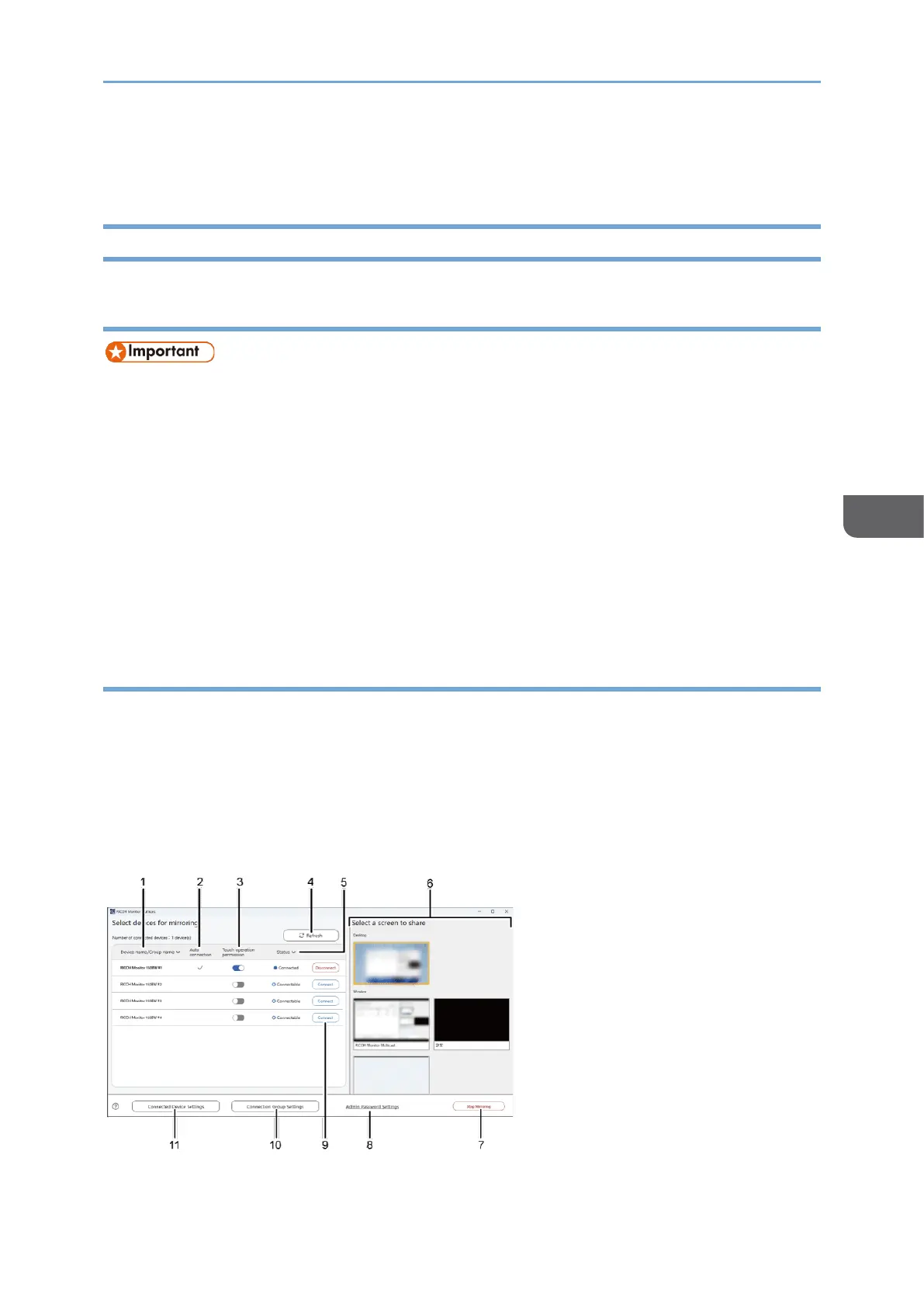
Description of the RICOH Monitor Multicast for Windows screen





 To Next Page