Using the Application to Automatically Connect to RICOH Monitors
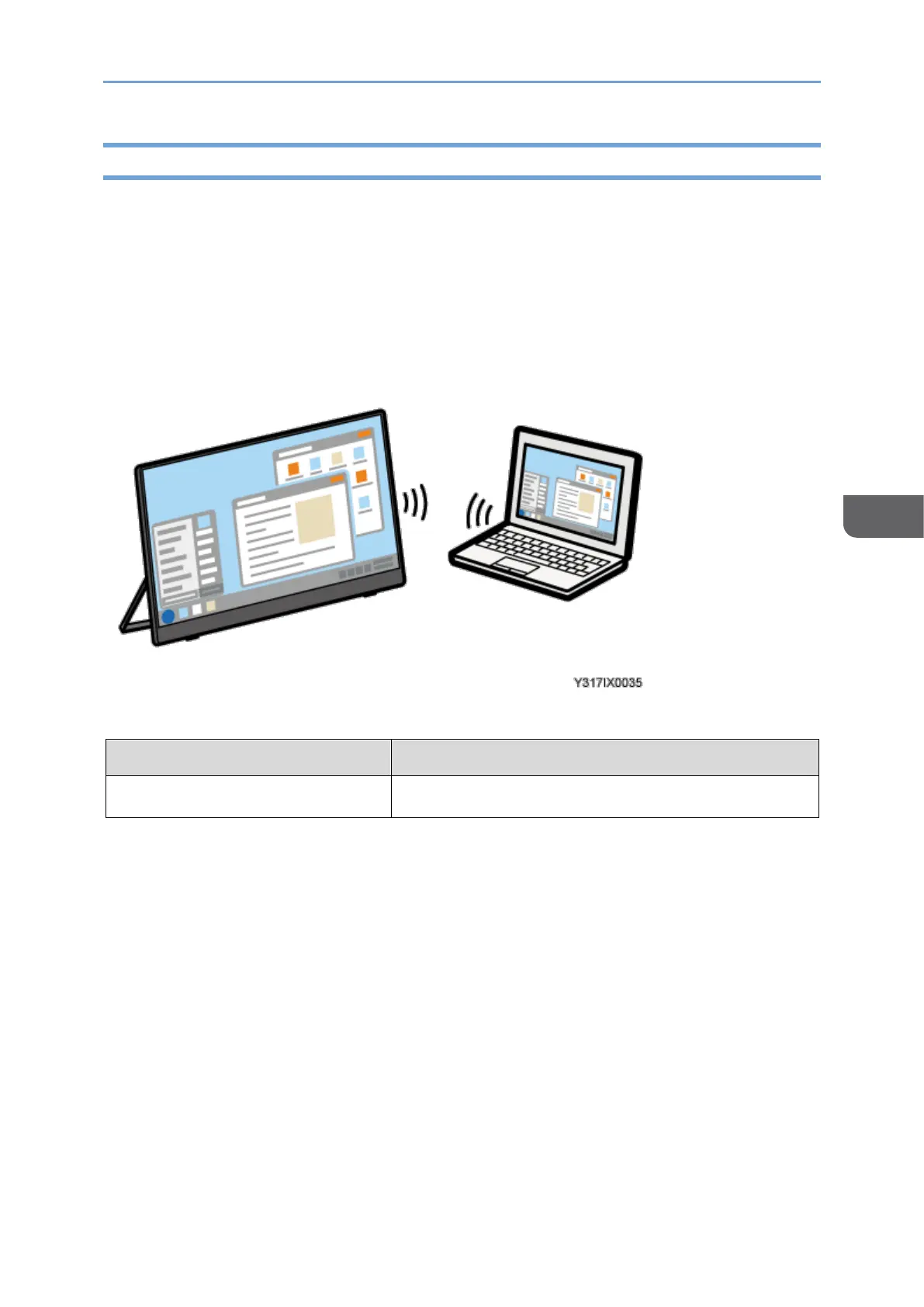
Use RICOH Monitor Auto Cast for Windows to connect RICOH Monitor in the surrounding
and device. For details about supported operating systems, see Supported OS, a
separately provided manual.
A RICOH Monitor can be connected automatically, enabling Windows screen sharing and
touch operation from a specific connected RICOH Monitor.
It is not necessary to set up Wi-Fi on this machine.
Settings of this machine required for connection
*1 When the initial settings have already been made, there is no need to change the
settings anew.
The machine can connect to a maximum of two devices wirelessly and can display
screens from them at a time. You can use a combination of the following methods to do
this:
• Using the relevant OS function
• Using RICOH Monitor Mirroring for macOS/iOS
• Using RICOH Monitor Multicast for Windows
• Using RICOH Monitor Auto Cast for Windows





 To Next Page