Copier Functions
61
2
Manual Paper Select
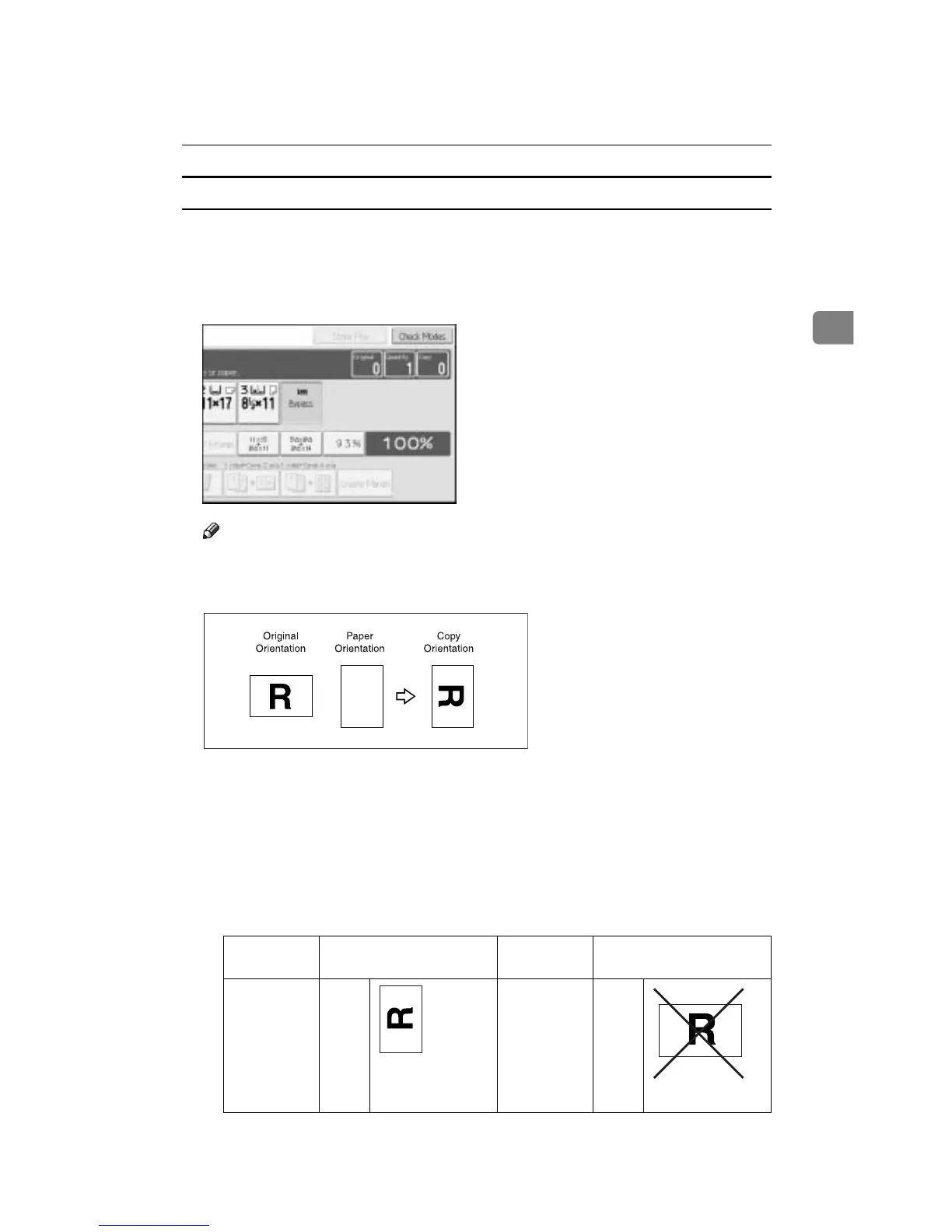
Choose the tray containing the paper you wish to copy onto: a paper tray, bypass
tray or large capacity tray (LCT).
A Select the paper tray, bypass tray or the LCT.
The indicator corresponding to the selected paper tray is highlighted.
Note
❒ If the orientation in which your original is placed (K or L) is different
from that of the paper you are copying onto, this function rotates the orig-
inal image by 90q to fit it on the copy paper.
❒ This function works when [Auto Paper Select] or [Auto Reduce / Enlarge] is se-
lected. See “Auto Paper Select” and “Auto Reduce/Enlarge”.
❒ The default setting for Auto Tray Switching is [With Image Rotation]. You
cannot use the Rotated Copy function if this setting is changed to [Without
Image Rotation] or [Off]. See “Auto Tray Switching”, General Settings Guide.
❒ You cannot use the Rotated Copy function when enlarging onto A3, B4 JIS
or 11" u 17", 8
1
/
2
" u 14" size paper. In this case, place your original in the L
orientation.
Original size and orienta-
tion
Copy paper size and ori-
entation
You cannot
rotate:
8
1
/
2
"
u 11",
or
5
1
/
2
"
u
8
1
/
2
"
K
When enlarg-
ing to o
8
1
/
2
"
u 14",
or 11"
u 17"
GCROTA0E
GCROTA1E
GCROTA2E



 To Next Page