About the RC Gate Monitor
30
3
Starting and Closing the RC Gate Monitor
To Start the RC Gate Monitor
A Start the web browser of the computer, which is on the same network with
the equipment.
B Enter "https://(IP address of the LAN2 port)/index.html" in the address box
of the web browser.
An SSL certification warning screen appears.
Note
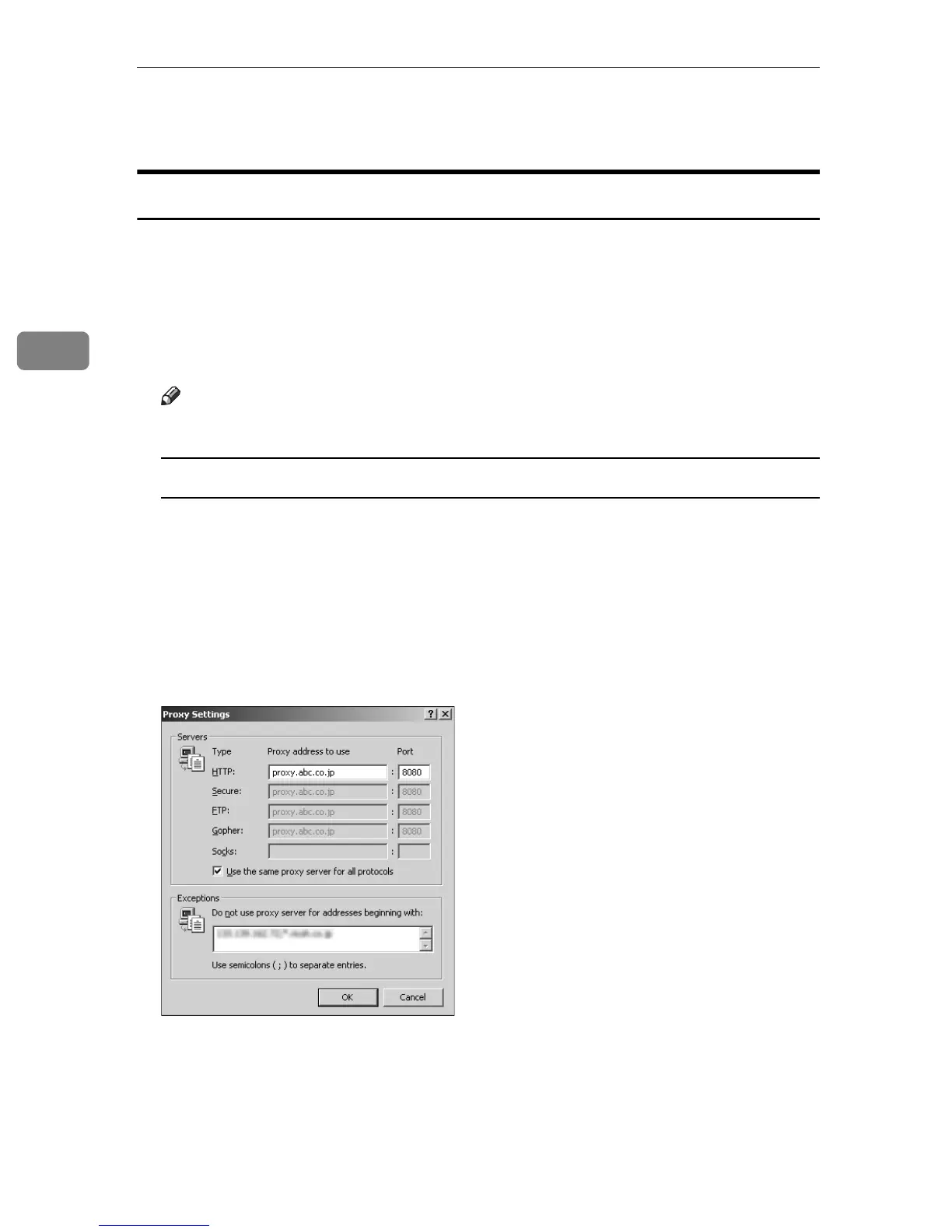
❒ If you cannot access the RC Gate Monitor, check the proxy settings.
Proxy Settings (for Internet Explorer 6.0)
A On your Web browser's [Tools] menu, select [Internet Options].
The [Internet Options] screen appears.
B Click the [Connections] tab.
C Click the [LAN Settings] button.
D Click the [Advanced] button.
E Under [Exceptions], after [Do not use proxy server for addresses beginning with],
enter the IP address of the equipment's LAN2 port.
F Click the [OK] button three times.
G The setting is activated.



 To Next Page