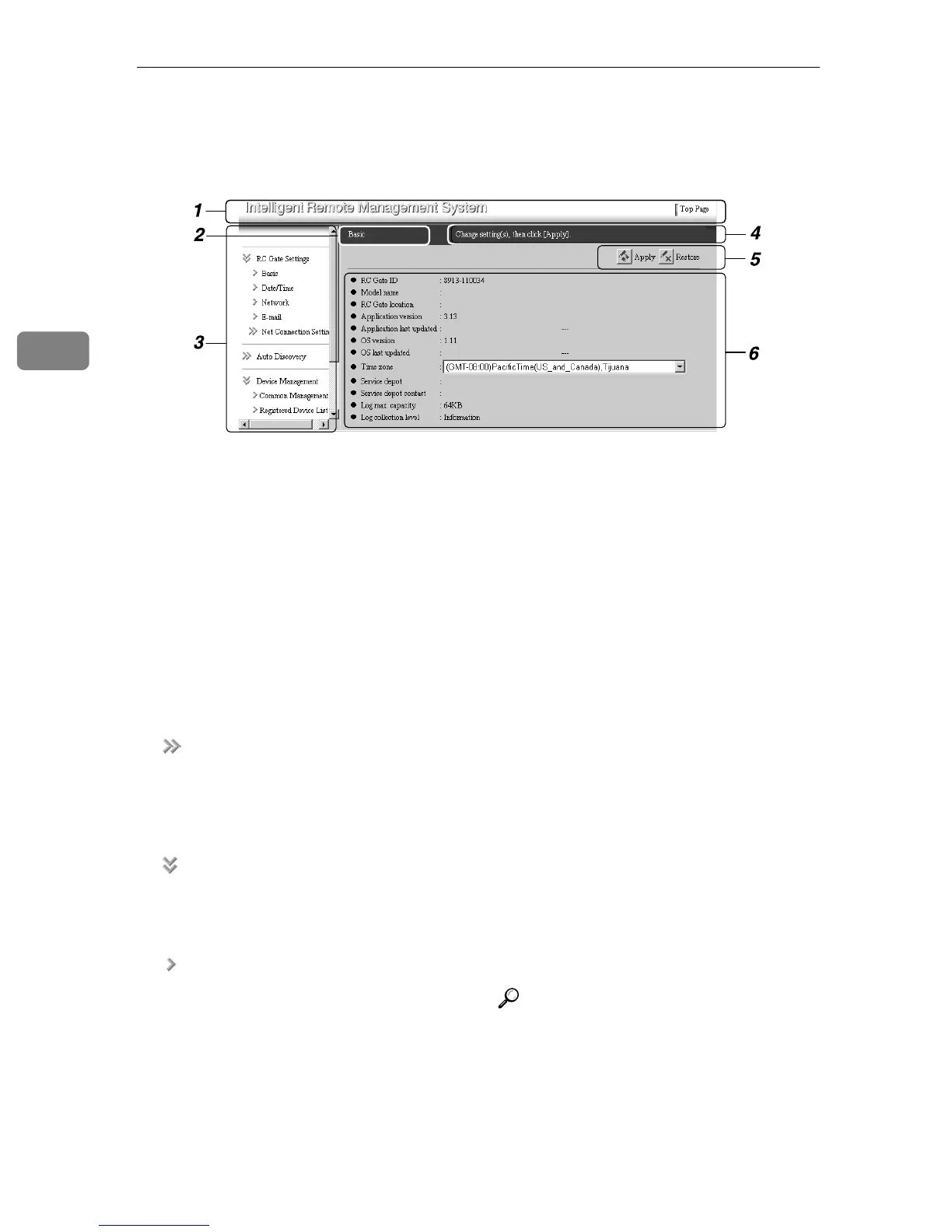
About the RC Gate Monitor
38
3
About the RC Gate and Device Settings
1. Header Area
A link button to Top Page is shown in this
area. You can exit from [RC Gate and De-
vice Settings] and jump to the Top Page
anywhere on the setting screen.
2. Screen Title
The title of the screen is shown here.
3. Menu Area
The menu is shown with hyperlinks. A
Work Area will appear when you click
the bottom layer of the menu.
❖
There is a sub menu under this graph-
ic. The sub menu is folded and hid-
den. Click to open and show the
submenu.
❖
There is a sub menu under this graph-
ic. The sub menu is open and shown.
Click to fold and hide the submenu.
❖
The menu with this graphic is in the
bottom layer. Click to show the Work
Area of the menu.
4. Guidance
Outline of the current operation on the
screen is shown here.
5. Command Buttons
Button to apply and cancel the changes
are shown here.
❖ Apply
Applies the changes.
❖ Restore
Cancel the current settings and re-
turns to the previous applied settings.
❖ Refresh
Shows the latest applied settings. (If
you click this button while entering
the values, the screen returns to the
previous applied settings.)
6. Work Area
Items will be shown according to the se-
lected menu in the Menu Area. You can
change the menu with the white, 3-D ef-
fected item.
Reference
See p.39 “About the Chart Screen”
for the contents of the chart screen.
AAA404S



 To Next Page