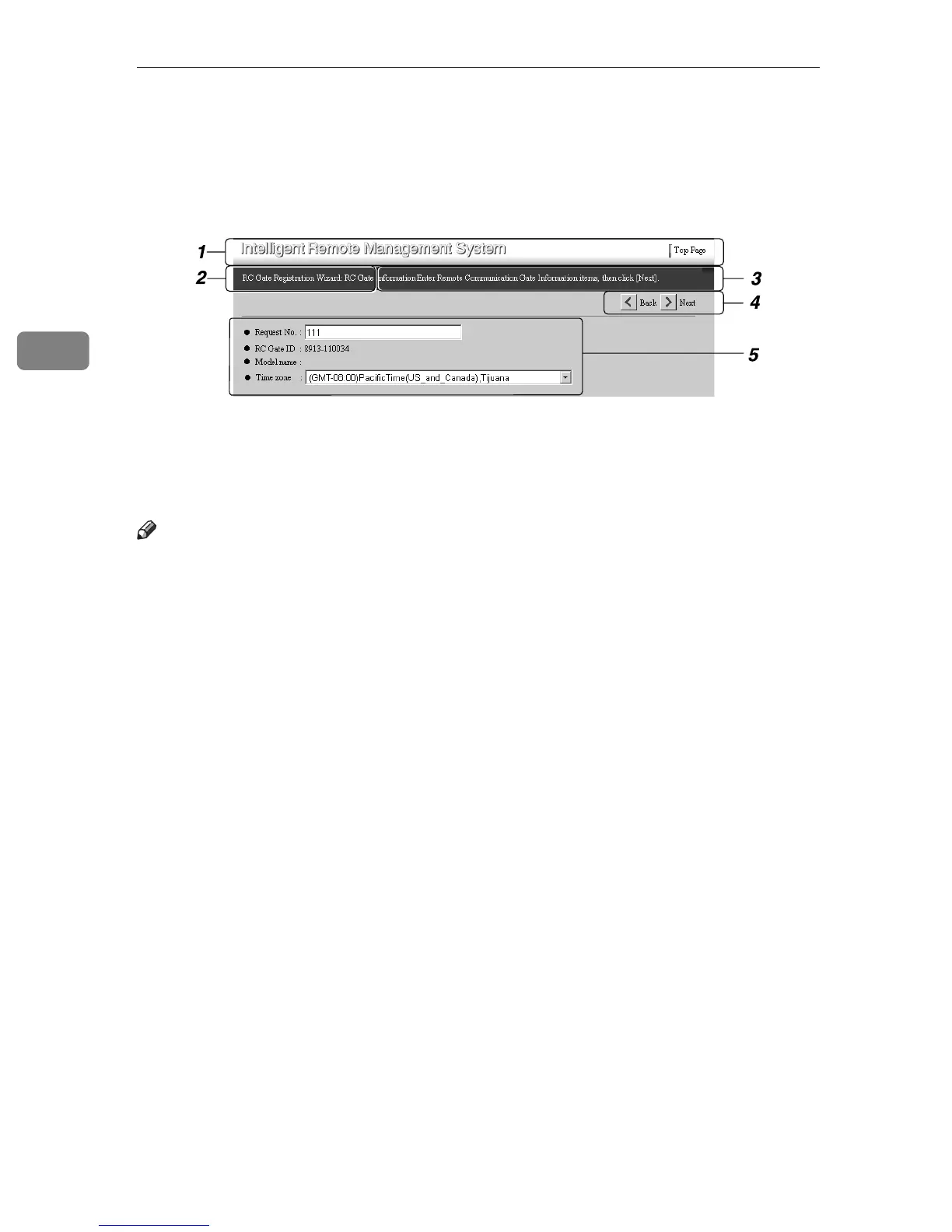
About the RC Gate Monitor
36
3
RC Gate Monitor Wizard Screen and
Operation
1. Header Area
A link button with the Top Page is here
on every page. You can return to the Top
Page by clicking this button.
Note
❒ To quit the wizard, click [Top Page].
2. Screen Title
Name of the current screen is shown.
3. Guidance
A guide for current operations is shown.
4. Command Buttons
Click to show the next/previous screen,
and to update values.
❖ Next
Proceeds to the next screen.
❖ Back
Returns to the previous screen, in gen-
eral. When you click [Back] while op-
erating the RC Gate Registration
Wizard with the “Internet encryption
communication (HTTPS)” method,
the screen goes back to the [RC Gate
Registration Wizard: RC Gate Information]
screen, and you can start the wizard
from the beginning.
❖ Change
Moves to the screen to change the set-
tings.
❖ Apply
Applies the changed settings. The
configuration screen appears after
you click [Apply]. Click [OK] to apply
the changed settings.
❖ Selected Device List
The Selected Device List screen will
appear in another window.
❖ Additional Search
Returns the [Device Registration Wizard:
Search Range Settings] screen to allow
device searching by more detailed
search conditions.
❖ Stop searching
Stops the device search and returns
the previous screen.
❖ Machine ID Error List
Displays the [Machine ID Error List]
screen in a different window.
❖ Refresh
Updates the [Machine ID Error List]
screen.
❖ Close
Closes the screen appearing in anoth-
er window.
❖ Finish
Discontinues the wizard and returns
to the Top Page.
AAA403S



 To Next Page