Operating the Device Registration Wizard
67
6
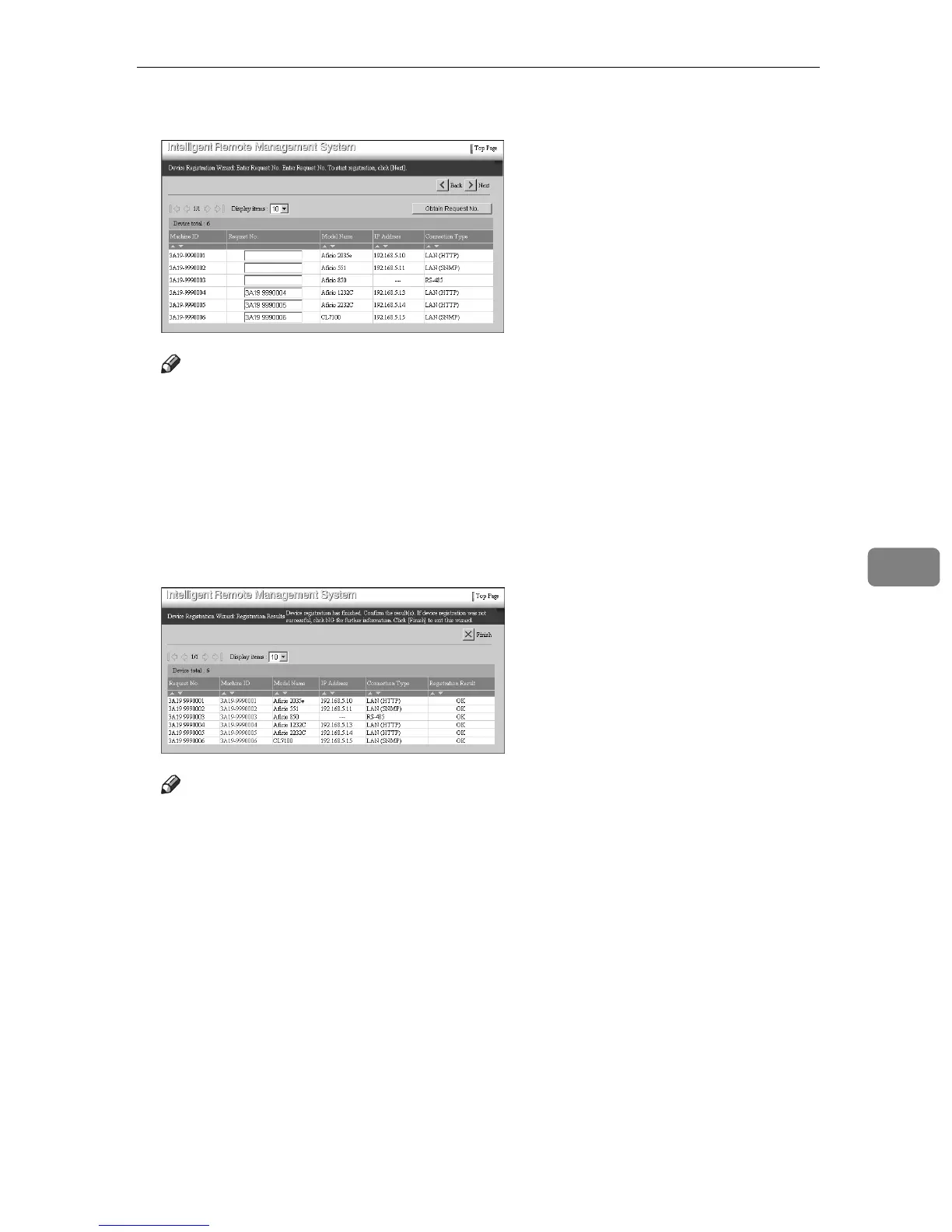
F Click [Obtain Request No.].
Note
❒ [Request No.] are set for all devices controlled, including the pages not be-
ing displayed on the screen. There is no re-setting of the number for the de-
vices for which the numbers are already set.
G Click [Next].
A [Device Registration Wizard: Registration Results] screen will appear after the
devices are registered to the Communication Server.
H Confirm the registered items.
Note
❒ Click [|] under [Registration Result] to sort in order of “Failed” and “OK.”
❒ If "Failed" is displayed in the [Registration Result], device registration failed.
Click [Machine ID] of a device whose result is "Failed". The [Device Registra-
tion Wizard: Details] screen appears in a separate window, and a solution is
displayed in the [Registration result]. Alternatively, you can find instruc-
tions by referring to the error code.
❒ The device with the “OK” hyperlink in the [Confirmation Result] is one
which has succeeded in registering. Click Machine ID to open the [Device
Registration Wizard: Details] screen on another window. After checking, click
the [Close] button, and then return to the [RC Gate Registration Wizard: Regis-
tration Result] screen.



 To Next Page