EasyManua.ls Logo

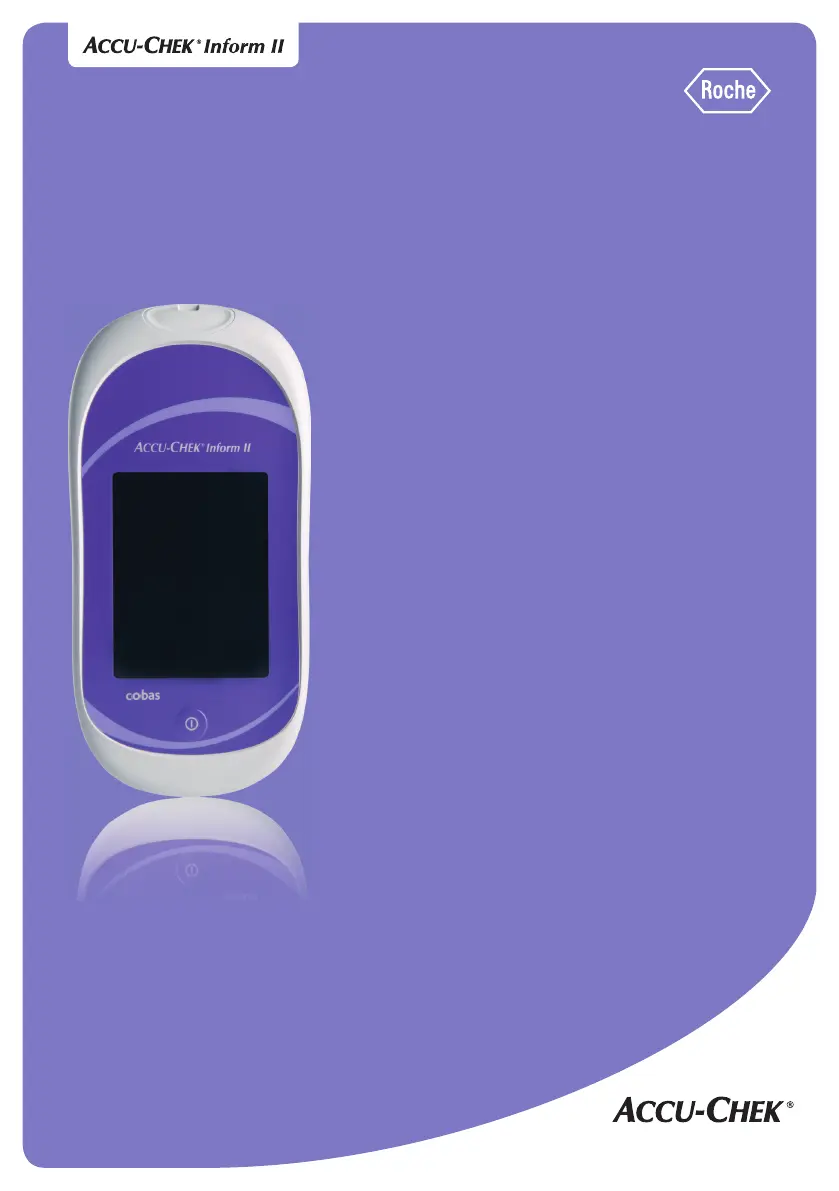
Roche ACCU-CHEK Inform II - User Manual

Roche ACCU-CHEK Inform II
212 pages
Print Icon
To Next Page IconTo Next Page
Loading...
Accu-Chek
®
Inform II
BLOOD GLUCOSE MONITORING SYSTEM
Operator’s Manual

Table of Contents

Other manuals for Roche ACCU-CHEK Inform II

Questions and Answers

  • D
    Daniel KingAug 16, 2025
    What to do if Roche Blood Glucose Meter displays Bad Dose?
    • M
      Marissa SalinasAug 16, 2025
      If your Roche Blood Glucose Meter displays 'Bad Dose', it means there was an insufficient amount of blood on the test strip. Refer to the package insert for the test strips. Review the proper testing procedure and repeat the test using a new test strip, ensuring proper sample application. If the error persists, contact your local point of care coordinators.
  • C
    coxmatthewAug 19, 2025
    What to do if Roche Blood Glucose Meter displays Bad Strip?
    • L
      Lisa WalshAug 19, 2025
      If your Roche Blood Glucose Meter displays 'Bad Strip', it could mean the test strip is defective or the blood glucose result is extremely low. Refer to the package insert for the test strips. Check the method of measurement. Run a glucose control test with a new test strip. Repeat the test or proceed according to the requirements of your facility. If the error persists, contact your local point of care coordinators.
  • R
    ronaldwilliamsAug 22, 2025
    What to do if Roche Blood Glucose Meter displays Test result LO/HI?
    • J
      Joanna ScottAug 22, 2025
      If your Roche Blood Glucose Meter displays 'LO/HI', the glucose result may be below (LO) or above (HI) the measurement range of the system. Refer to the package insert for the test strips. Check the method of measurement. You may need to run a glucose control test with a new test strip. Repeat the test or proceed according to the requirements of your facility.
  • C
    castrotashaAug 26, 2025
    What to do if the LED flashes red on Roche Switch?
    • B
      Barbara HendricksAug 26, 2025
      If the LED on your Roche Switch flashes red, it indicates a communication or configuration error. To resolve this, verify the configuration and the connection to the Data Management System (DMS). If issues persist, contact your institution's DMS or IT administrator.
  • A
    Ashley LeeAug 28, 2025
    Why is the LED not on on Roche Switch?
    • M
      Mr. Randy Bird Jr.Aug 28, 2025
      If the LED on your Roche Switch is not on, it could be due to several reasons: it might not be connected to the power supply, the power supply could be defective, the ACCU-CHEK Inform II Base Unit HUB might be defective, or the power outlet may not be active. Try disconnecting and reconnecting the power supply. Also, try using a different power outlet.
  • B
    Bryan HowardAug 31, 2025
    How to fix Roche Blood Glucose Meter display that does not turn on?
    • N
      Nancy MitchellAug 31, 2025
      If the display of your Roche Blood Glucose Meter does not turn on, wait 10 seconds and try turning on the unit again. Place the meter in the base unit and confirm that it is charging. Also, check that the battery pack is correctly installed and connected.
  • D
    Danielle MasonSep 3, 2025
    What to do when Roche Blood Glucose Meter shows Battery Critically Low?
    • S
      Shane ObrienSep 3, 2025
      If your Roche Blood Glucose Meter indicates 'Battery Critically Low', charge the battery by placing the meter in the base unit. Check that the battery pack is correctly installed and connected. If problems persist, replace the defective battery pack.
  • S
    Scott RiveraSep 6, 2025
    How to fix Roche Blood Glucose Meter when base unit light flashes?
    • K
      Katherine SuttonSep 6, 2025
      If the base unit light flashes on your Roche Blood Glucose Meter, it could mean the charging contacts may be shorted. Disconnect and connect the power supply again. If the error persists, contact your local point of care coordinators.
  • J
    jeffcaldwellSep 9, 2025
    Why is the base unit light not illuminated on my Roche Blood Glucose Meter?
    • E
      Erin SmithSep 9, 2025
      If the base unit light is not illuminated on your Roche Blood Glucose Meter, it may not be connected to the power supply unit, or the power supply unit, base unit, or power outlet may be defective or not active. Disconnect and connect the power supply again. If the error persists, contact your local point of care coordinators.
  • J
    James SnyderSep 12, 2025
    How do I charge the battery on my Roche Blood Glucose Meter?
    • V
      vcoffeySep 12, 2025
      To charge the battery on your Roche Blood Glucose Meter, place the meter in the base unit.

Summary

1 Introduction

1.1 Before you start

Information on intended use, important use information, and how to get help.

1.2 Important safety instructions and additional information

Safety instructions, disposal, product safety, and general care information.

1.3 System components

Details on the meter, code key reader, base unit, and accessory box.

2 Powering Up and Entering an Operator ID

2.1 Powering up the meter

Steps to power on the meter and check initial display information.

2.2 Entering the operator ID

Options for entering operator IDs, including manual or barcode scanning.

3 Patient Glucose Testing

3.1 Information regarding blood glucose testing

Requirements before performing a patient glucose test, including strip availability and operator ID.

3.2 Performing a patient glucose test

Overview of the patient glucose test procedure and steps.

4 Glucose Control Testing

4.1 Information regarding glucose control tests

Importance of control tests, regulatory requirements, and QC Lockout.

4.2 Performing glucose control tests

Steps to perform a glucose control test and criteria for success.

5 Review Results

5.1 Displaying test results from the memory

Information stored in data records for test results.

6 Storing Test Strip, Control Solution, and Linearity Solution Information in the Meter

6.1 Storing information about test strips

How code key information is stored and parameters can be modified.

6.2 Storing control solution information

Procedure to add glucose control lot numbers to the Control Lot list.

7 Linearity Testing

7.1 Information regarding linearity tests

Purpose of linearity tests, how they check system accuracy and are performed.

7.2 Performing a linearity test

Steps involved in performing a linearity test, including lot confirmation.

8 Proficiency Testing

8.1 Information regarding proficiency tests

Purpose of proficiency tests and regulatory requirements.

8.2 Performing a proficiency test

Steps involved in performing a proficiency test.

9 Initial Startup

9.1 Connecting the base unit

Instructions for connecting the base unit to power and network.

9.2 Installing or replacing the battery pack

Information on battery pack installation, charging, and date/time retention.

9.4 Initial setup on the meter

Overview of customizable settings available on the meter.

9.6 Date and time format

Options for selecting date/time format and editing permissions.

9.13 Creating a setup password

Process for creating and managing a setup password for security.

10 Maintenance and Care

10.1 Conditions for storage and shipping

General operating conditions and safety information for system handling.

10.2 Cleaning;disinfecting the Accu-Chek Inform II system

Procedures and agents for cleaning and disinfecting the system components.

10.4 Diagnostics view

Accessing system information, error logs, and testing components.

10.5 Unlocking a Download Lockout

Procedure to unlock the meter if data download is overdue.

11 Troubleshooting

Errors and unusual behavior without error messages

Common display symptoms and their possible solutions.

Meter reset

Procedure for resetting the meter when other remedies fail.

12 General Product Information

12.1 Technical data

Technical specifications for the meter, base unit, and power supply.

12.2 Further Information

Ordering information, manuals, and contact details for the system.

A Appendix

A.1 Table of configuration options

Overview of available settings and their accessibility on device/DMS.

B Appendix

B.1 Option: Wireless network (WLAN)

Principles of wireless communication and system deployment.

RF specific functionalities and effective performance claims

WLAN/Wi-Fi option, data transfer capabilities, and security protocols.

C Supplement for Other Test Entry

C.2 Overview of Other Test Entry (OTE)

Lists the types of tests and insulin information that can be entered.

C.3 Recording Other Patient Tests

Steps for recording patient test results using the OTE feature.

C.5 Reviewing Other Test Results

How to view stored OTE results (All, Patient, or QC).

D Supplement for Observed Test Sequence

Observed Test Sequence (OTS)

Function for observers to assess and record operator performance.

Using the OTS function

Steps for observers and operators to use the OTS function.

Roche ACCU-CHEK Inform II Specifications

General IconGeneral
BrandRoche
ModelACCU-CHEK Inform II
CategoryBlood Glucose Meter
LanguageEnglish

Related product manuals