4.2
Section 4
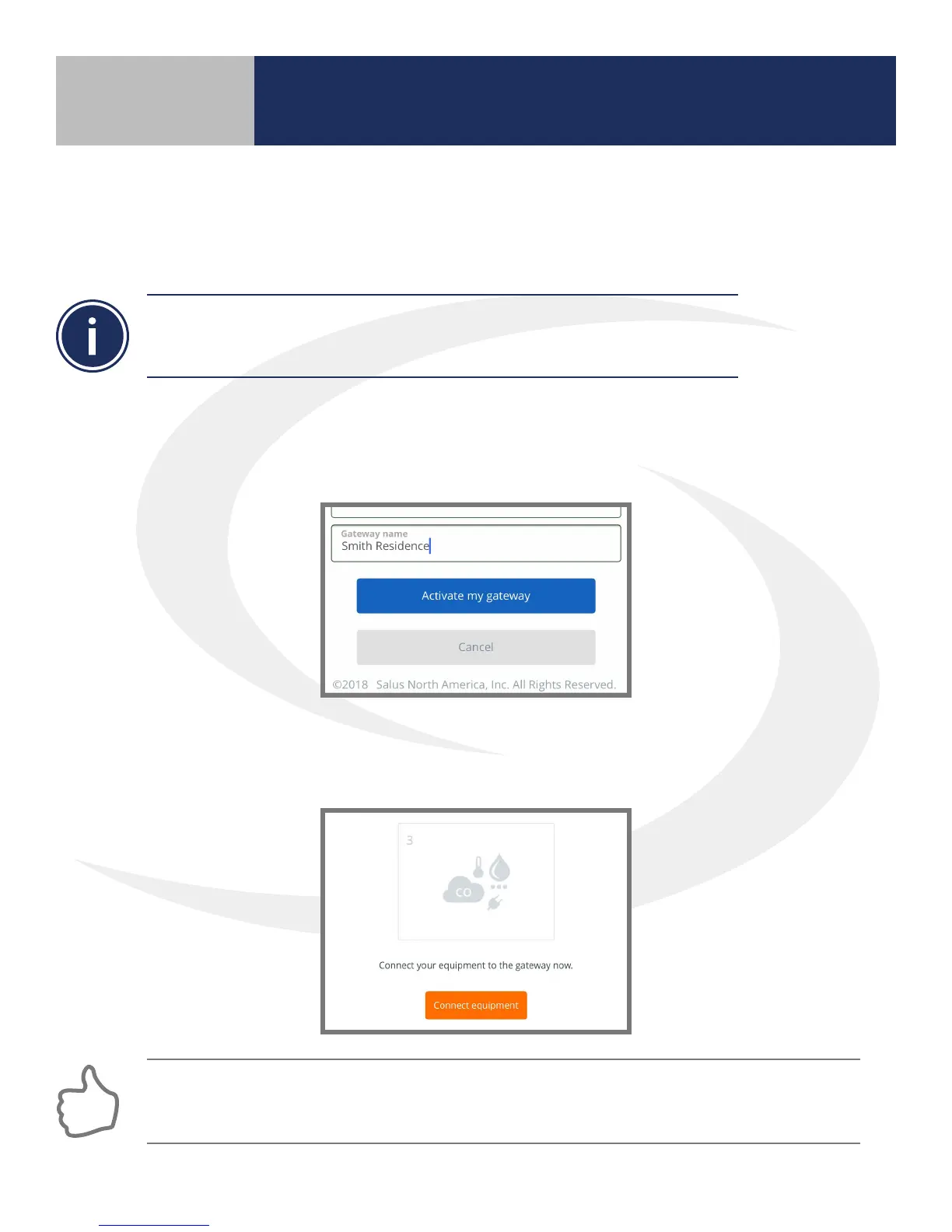
4. The device serial number is automatically entered and boxes appear to enter: Country
(Canada/USA), Time Zone (Nearest City), Time Format (12h/24h), LED Mode (Always On/
Time Out), Address and Gateway Name.
5. Once the “Activate my gateway” button is pressed, the device rmware is automatically
updated. When a message is displayed saying “Your Gateway is Up To Date” press, “Next”.
Your SG888ZB Gateway will now be activated.
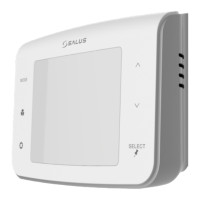
6. Select the orange button on the lower part of the screen labeled, “Connect Equipment”.
The program will then advance to a button labeled, “Scan for equipment”. You are now
ready to pair your components with the system.
Note that you have 2 minutes to enter all the parameters before it deletes the serial
number and times out. In this event, press the back button until “Add new gateway”
screen is displayed and repeat steps 3 & 4.
Any time it is necessary to add components to the system, you can return to the “Scan for equipment”
button by selecting the drop down menu from the upper right side of the screen. Then select:
Equipment All Equipment Add Equipment Scan for Equipment
Device Pairing & Setup
with Internet Connection


 To Next Page