4.1
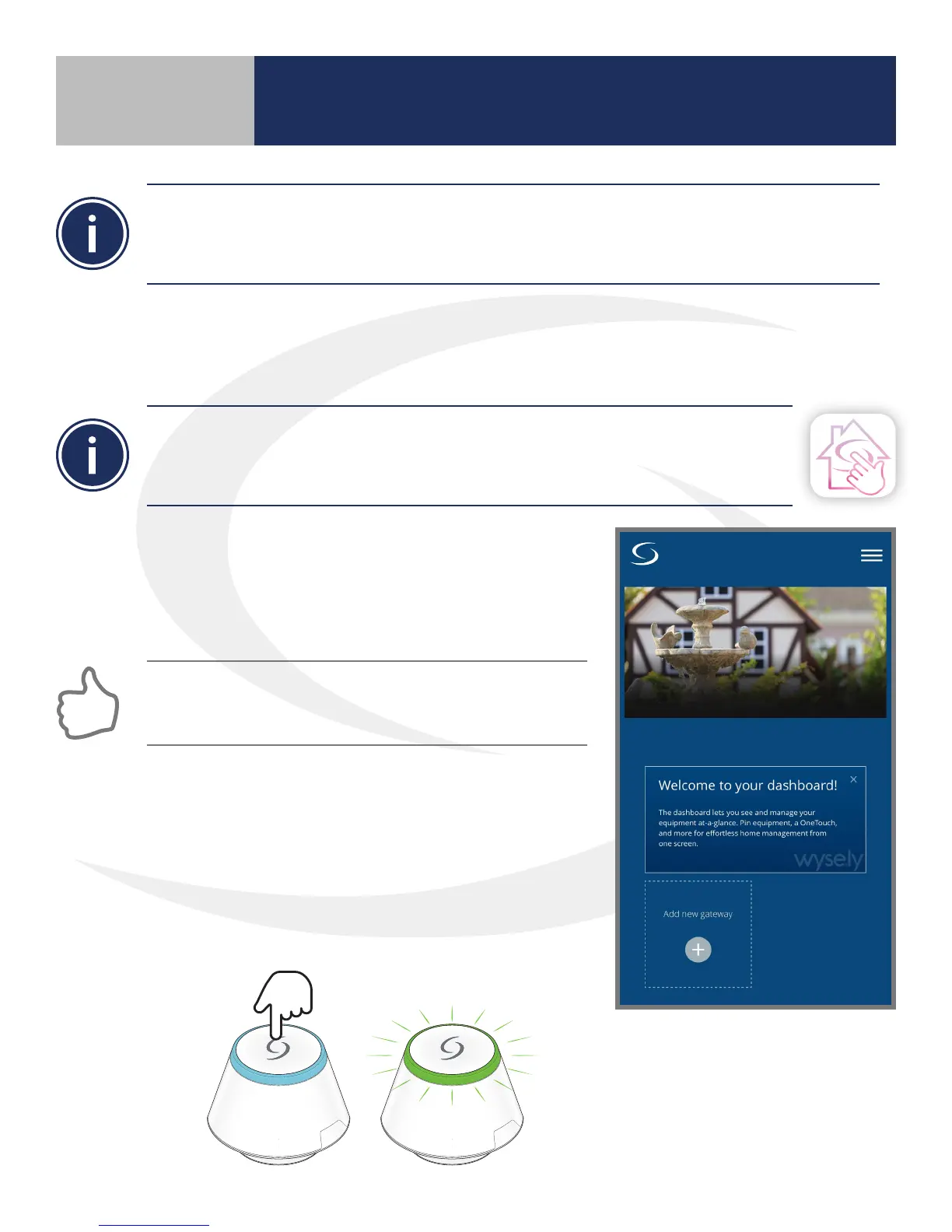
1. Open the SALUS Smart Home application on your
mobile device. If you haven’t already done so, log on
with your username and password. As noted in Section
3, Device Installation, the LED ring on the SG888ZB
Gateway should be blue.
2. Select “Add new gateway” from the SALUS Smart
Home dashboard. A welcome screen appears showing
Activate your gateway prompting you to make sure your
gateway is connected to the router with an ethernet
cable and the LED light is solid blue.
3. Press the multi button on top of the SG888ZB Gateway
once, so it ashes green.
SALUS wireless systems can be congured with an internet connection using the SG888ZB Gateway, or
without an internet connection using the AC10RF Coordinator. It is important to follow the instructions
that correspond to the desired conguration in the following pages. The congurations will be clearly
marked, “With Internet Connection” or “Without Internet Connection”.
Section 4
Device Pairing & Setup
with Internet Connection
System Configuration with Internet Connection
using SG888ZB Gateway
Before beginning the system conguration, be sure that the SALUS Smart Home application
is downloaded to your mobile device. Links to the appropriate iOS or Android application
are included in Section 2, System Overview or on the SALUS website. You should have a
username & password for this application. Be sure to keep this information secure.
The default SALUS Smart Home application screen includes a
brief explanation of the dashboard. Once you understand this
message, chose the “x” in the upper right corner to remove it.


 To Next Page