Page 247
STAT
IM
2000/2000S Service Guide
96-106775 Rev 5.0
12. Printer and Data Logger
STATIM 5000/5000S/5000 G4 Service Guide
Installing Thermal Paper into the Printer
NOTE: Use only paper approved for use with the Statprinter. The use of any other paper may
damage the printer and will void the warranty. Thermal paper is available from SciCan (SciCan
order no. 01-101657S).
Do not operate the printer without paper. If you run out of thermal paper, or if you do not wish to
use the printer, turn it OFF.
Never pull the paper backwards through the printer. This will damage the printer mechanism.
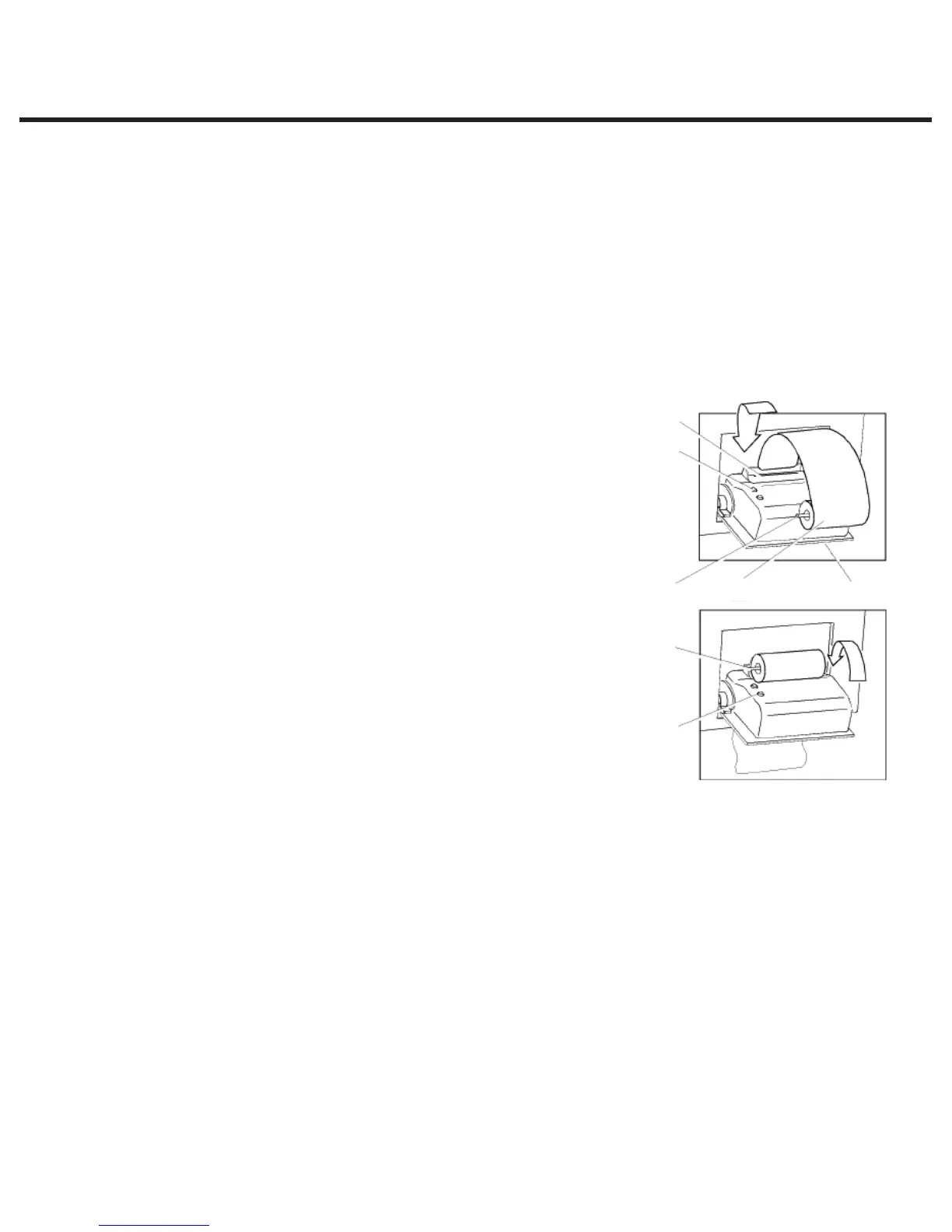
To install the paper into the printer, proceed as follows (see Figure 3.1):
1. Power the STATim unit ON.
2. Open the printer door (1) by pushing on the top half of the door.
3. Power the printer ON.
4. Unroll a small amount of paper roll (4) and trim the corners using
the paper cutting template included with each box.
5. Move the paper roll arm(4) into the loading position. Place the
paper roll (3) on the arm so the paper strip feeds from the top of
the roll and then carefully insert it into the paper feed slot(5) until
it stops. If the paper does not feed from the top, the heat sensitive
side of the paper will not be in contact with the print head and the
printer will not print.
6. With one hand, continue to gently feed the paper strip into the
paper feed slot while at the same time pressing the paper advance
button with the other hand until the paper feeds by itself. Keep the
paper straight when feeding it into the printer or it may jam. Do not
force the paper into the slot! If the paper will not feed into the slot,
pre-cut the end of the roll again and reload the paper.
7. Continue to press the paper advance button (6) until the paper feeds through the paper exit slot
on the front of the printer. Then, move the paper roll (3) and arm into the operating position and
close the printer door (1). The printer is now ready to operate.
When you see a red line on one side of the paper, it is time to replace the roll.
If a paper jam occurs, and the paper cannot be removed by pressing the paper advance button (6)
do not pull the paper backwards through the printer.
Never put a utensil or tool into the paper exit slot.
For full instructions on how to remove paper jams, see “Removing Paper Jams” below.
Figure 3.1
134
4
6
2
5



 To Next Page