Mirra Manual for Windows Release 2.2 107
Completing the Share
Step 1: Review the information you’ve provided in the Share a Folder window.
Step 2: Click OK to complete the folder share.
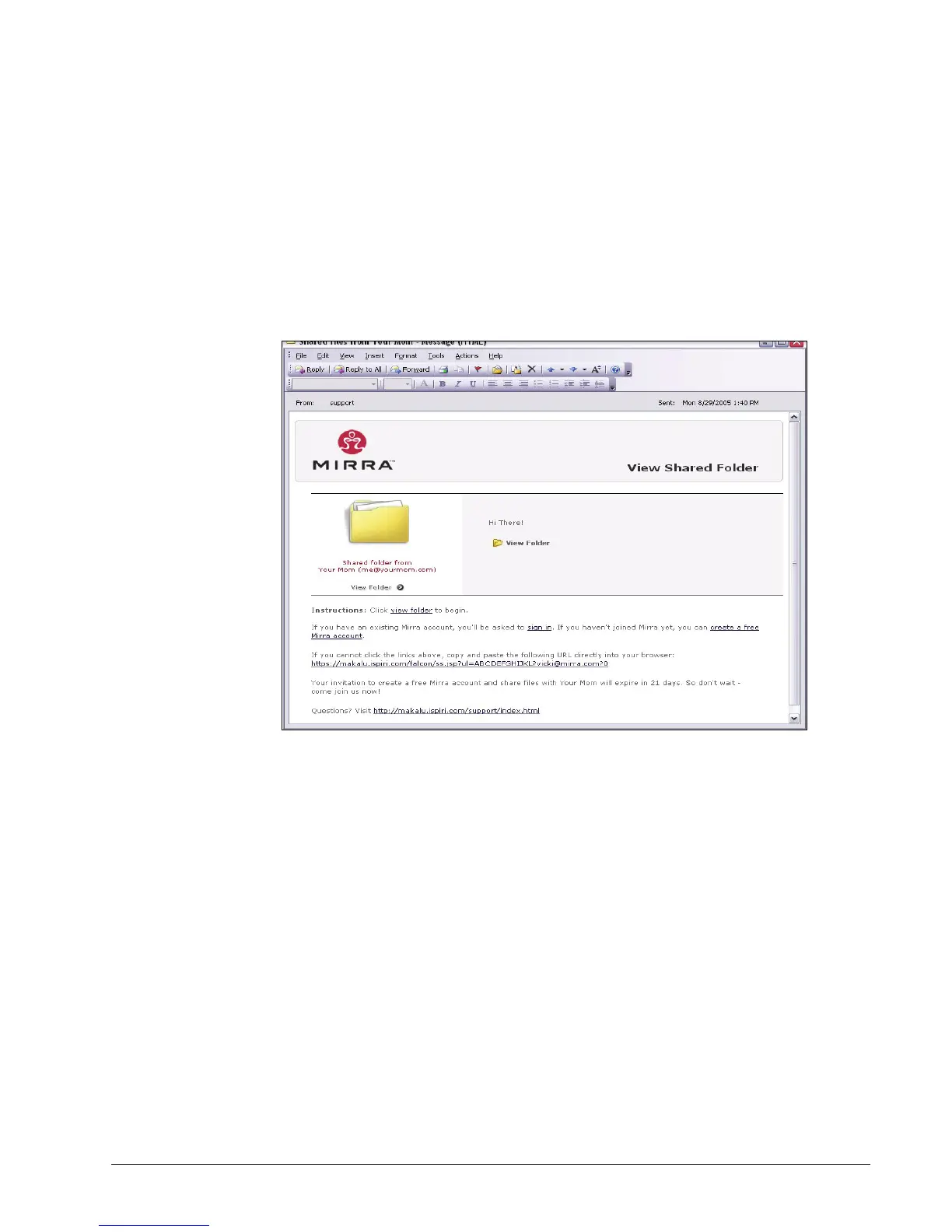
The people with whom you’re sharing a folder via the web receive an email
containing your message and a link to the Mirra
web site, where they can
create a free Mirra Web Account and open your shared folder:
Figure 6~20 Share a Folder Email
On your desktop, an alert on the Status screen and a popup message in the
System Tray both confirm that your folder has been shared.
Synchronizing Folders
Once someone connected to your Personal Server has shared a folder with you, the
Synchronize feature allows you to keep a synchronized copy of the folder on your
own computer. Synchronizing a folder establishes a link between the copy on your
computer and the copy stored on the Personal Server. If this folder has been
shared with other computers connected to your Personal Server and they have
also established a link to it, all copies are kept synchronized through the Personal



 To Next Page