Mirra Manual for Windows Release 2.2 79
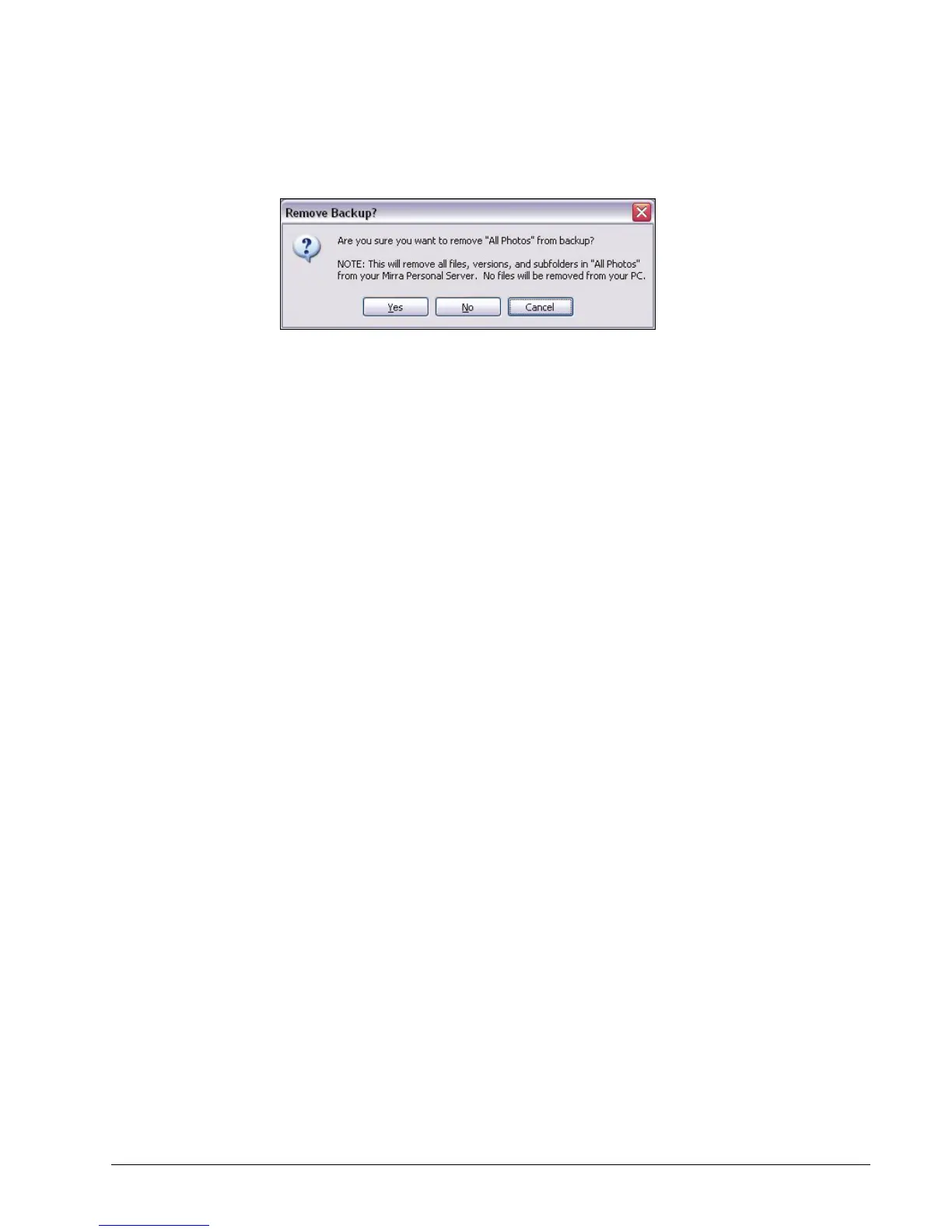
The Remove Backup confirmation window opens:
Figure 5~19 Remove Backup Confirmation
Step 3: Click Yes to confirm the removal.
Once removed from backup, the files in this folder are deleted from the
Personal Server (but not, of course, from your computer). They can no
longer be restored nor are changes made to them reflected on the Mirra.
Restore Tasks
Restoring a Folder
From Another Computer Connected to your Mirra
To copy to your computer a folder backed up from another computer connected to
your Mirra,
On the Backup & Restore screen, select the folder to be copied.
Step 4: On the Restore Tasks menu, click Restore to this computer.
The Browse for Location window opens.
Step 5: Select the location at which you want to copy the folder.
Step 6: Click OK.
From your Mirra After a Crash
To restore each backed up folder from your Mirra to a recovered or new computer,
Step 1: Reinstall and set up the Mirra PC software either on your recovered
computer or on a new computer.
Step 2: On your desktop, open the Backup & Restore screen.
A list of your pre-crash backed up folders is displayed.
Step 3: Select a folder and click Restore to this computer in the Restore Tasks
menu.



 To Next Page