Mirra Manual for Windows Release 2.2 114
Step 4: If you’ve added a recipient by email address, you can edit the Message to
recipients.
People added to your Recipients list (and only those people) receive a Share
notification email. If you have removed people from your Share list, they can
no longer access the folder.
Step 5: Make the desired changes to the list of permissions below Allow recipients
to.
Step 6: Click OK.
Saving a Folder
To save a folder,
Step 1: On the Sharing screen, select the folder to be saved.
Step 2: On the Sharing Tasks menu, click Save as.
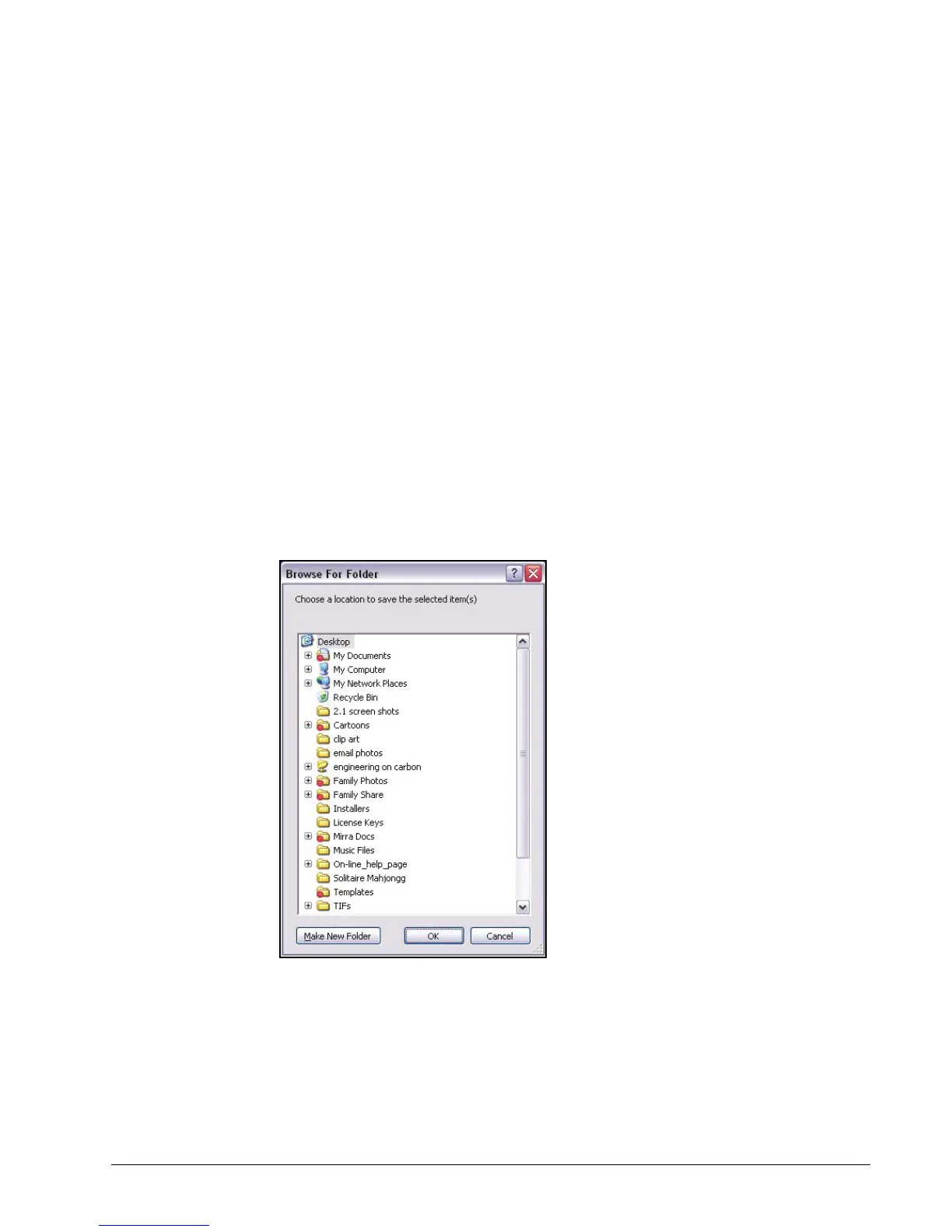
The Browse for Location window opens:
Figure 6~27 Browse for Location Window
Step 3: Select the location at which you want this folder saved.
Step 4: Click OK.
The folder is saved at the selected location.



 To Next Page