Mirra Manual for Windows Release 2.2 111
Opening a Shared Folder
To access a file stored in a shared folder,
Step 1: On the Sharing screen, select a shared folder.
Step 2: On the Sharing Tasks menu, click Open (you can also double-click the
folder).
The files stored in the folder are listed.
Step 3: Manage those files as you would any backed up file.
Stopping a Share
To stop sharing a folder,
Step 1: On the Sharing screen, select the desired folder.
Step 2: On the Shared Folders Tasks menu, click Stop sharing folder.
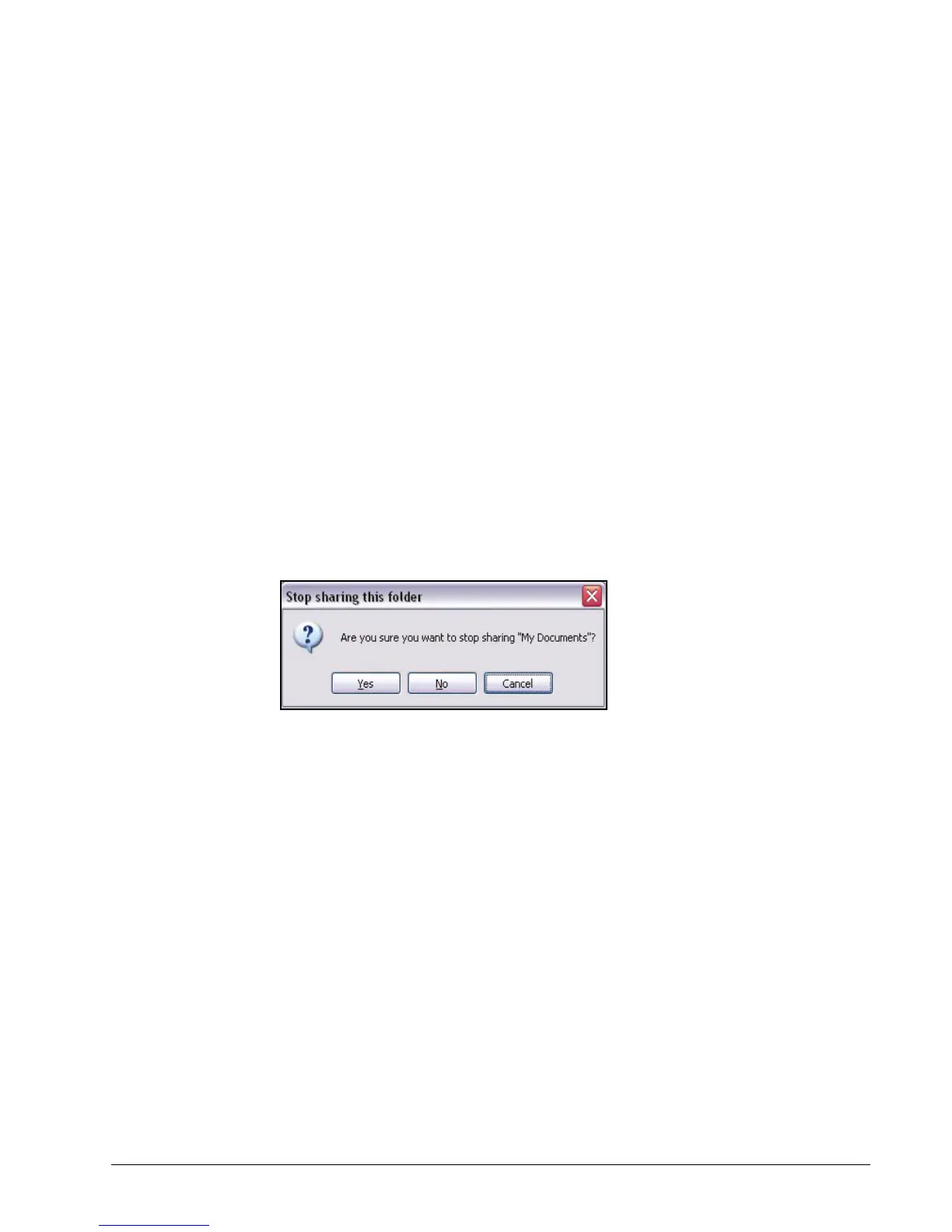
The Stop Sharing confirmation window opens:
Figure 6~23 Stop Sharing Confirmation
Step 3: Click Yes.
Step 4: The folder is removed from the list on the Sharing screen and can no longer
be accessed by anyone with whom you previously shared it.
Synchronizing Folders
To synchronize a folder that’s been shared with you,
Step 1: On the Sharing screen, select the folder.
Step 2: On the Sharing Tasks menu, select Synchronize to this computer.



 To Next Page