Mirra Manual for Windows Release 2.2 115
The new copy of a folder is not automatically backed up unless you have
saved it within another folder already selected for backup.
Step 5: Select the saved version for backup.
Saving a File
To save a file,
Step 1: On the Sharing screen, select the folder containing the file to be saved.
Step 2: In the Sharing Tasks menu, click Open (you can also double-click the folder).
You see a list of the files contained in the folder.
Step 3: Select the file to be saved.
Step 4: On the Restore Tasks menu, click Save as.
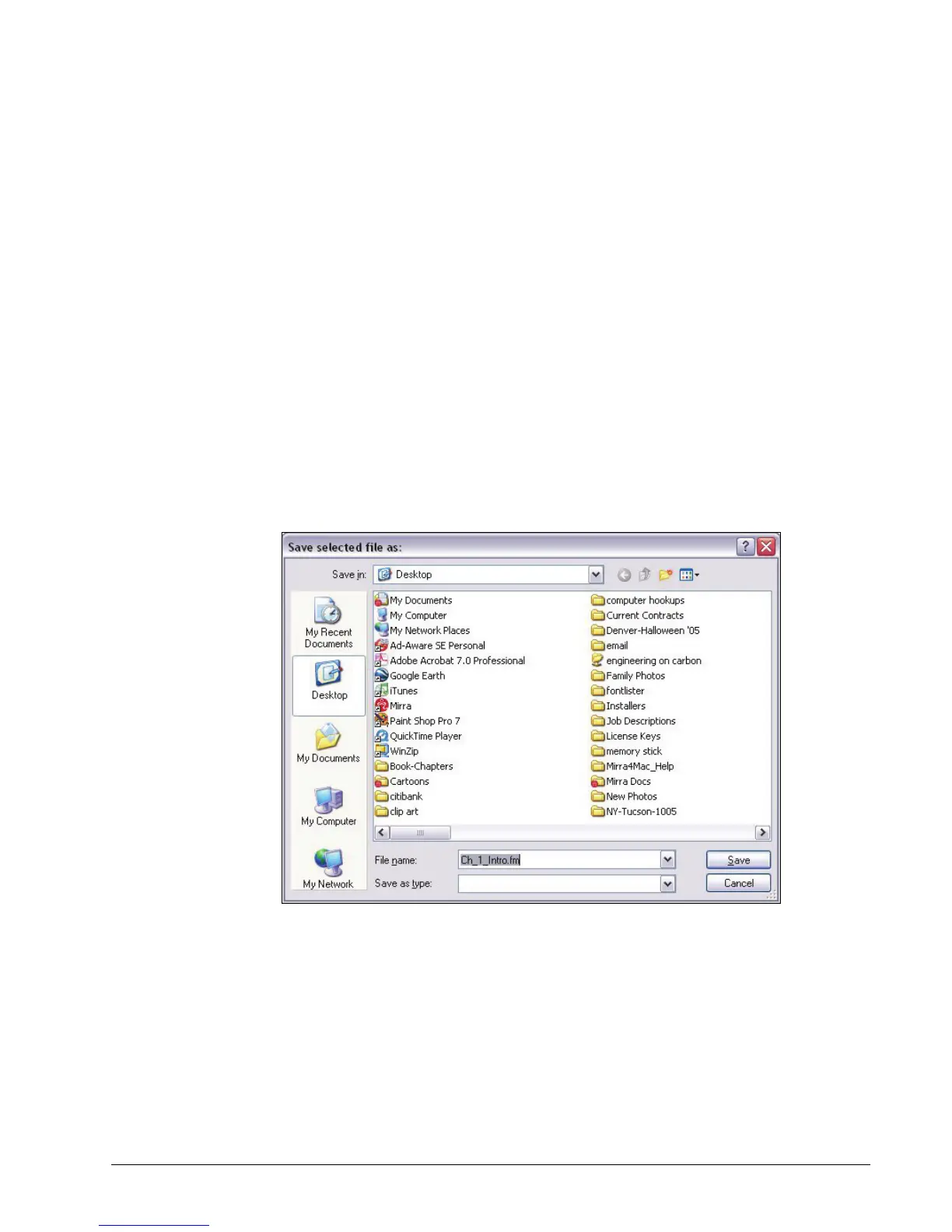
The Save File As window opens:
Figure 6~28 Save File As Window
Step 5: Rename the file if you wish and select the location at which you want it
saved.
Step 6: Click Save.
The file is saved at the selected location.
The new copy of a file is not automatically backed up unless you have saved
it within a folder already selected for backup.



 To Next Page