Mirra Manual for Windows Release 2.2 109
To synchronize a folder that’s been shared with you,
Step 1: On the Sharing screen, select the folder.
Step 2: On the Sharing Tasks menu, select Synchronize to this computer.
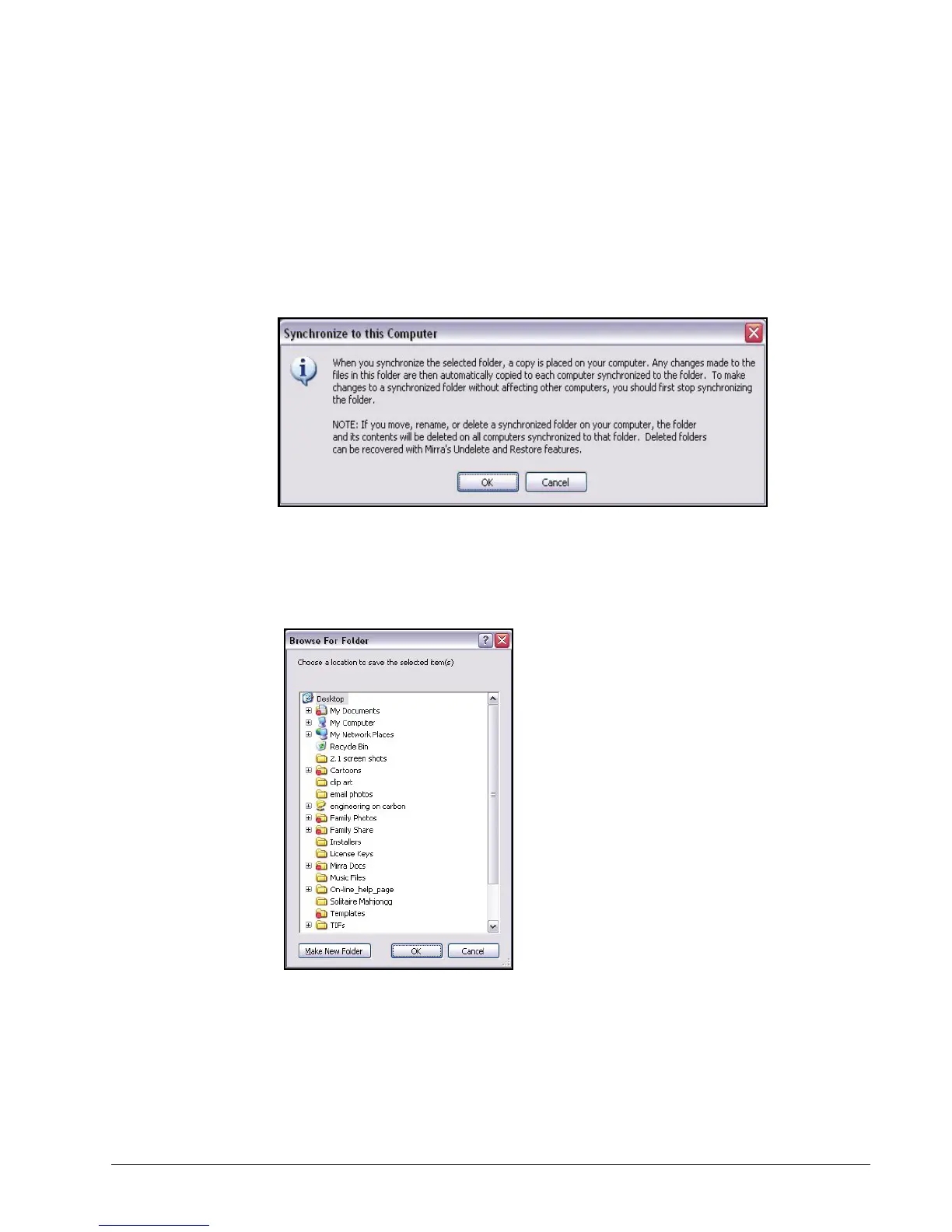
A Synchronize to this Computer window explains what happens when you
synchronize a folder to your computer:
Figure 6~21 Synchronize to this Computer
Step 3: Click OK.
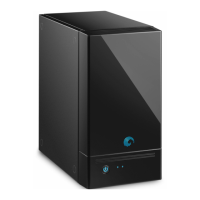
The Browse for Location window opens:
Figure 6~22 Browse for Location
Step 4: Select the location on your computer at which you want to place the
synchronized folder and click OK.
The folder appears at the selected location on your computer.



 To Next Page